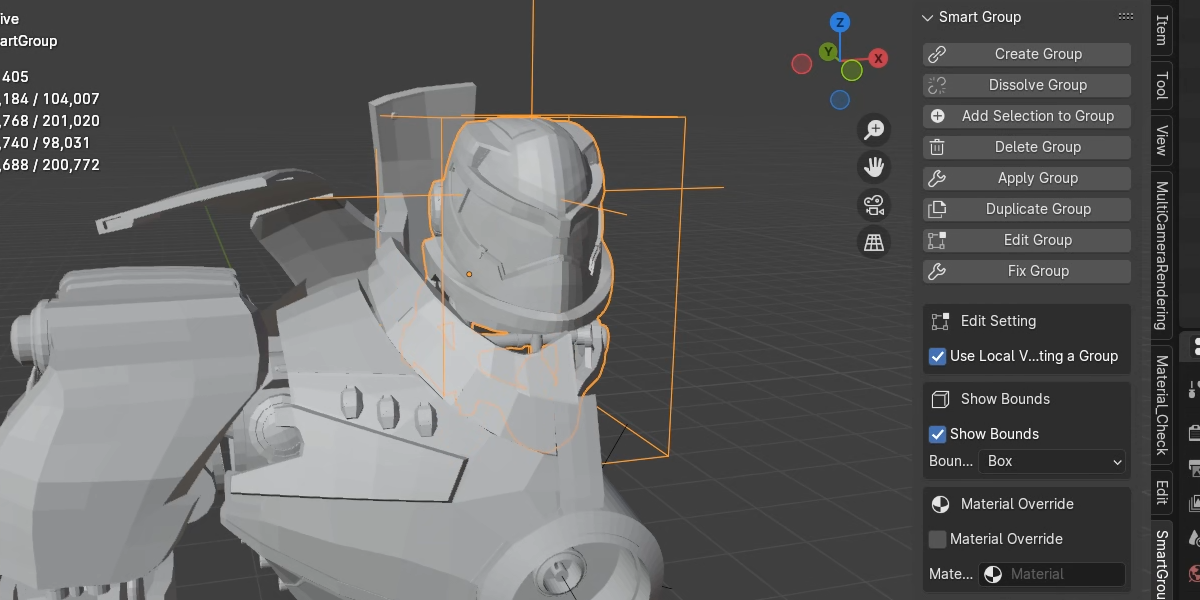
Smart Group is a Blender add-on by Darth Mickey that groups selected objects and supports adding modifiers, including Geometry Nodes, to a group. It is intended for organizing scene objects while keeping a non-destructive workflow. The product documentation describes the modifier controls and group operations.
This addresses a limitation of Blender collection instances: they cannot take modifiers until they are made real, which can make them less convenient to edit. Smart Group also supports overriding a group's material.
How to manage groups
Open the tools from the pie menu, whose default shortcut is Ctrl + G, or from the N panel. Create a group from selected objects, add a selection to an active group, or enter group edit mode to change its members. The documentation lists these other operations:
- Dissolve a group into individual objects, or use the pie-menu or N-panel Delete Group operator to remove a group and its members; the X shortcut deletes only the group.
- Duplicate groups, including linked duplicates that share mesh data.
- Apply each selected group into one object, with modifier application optional.
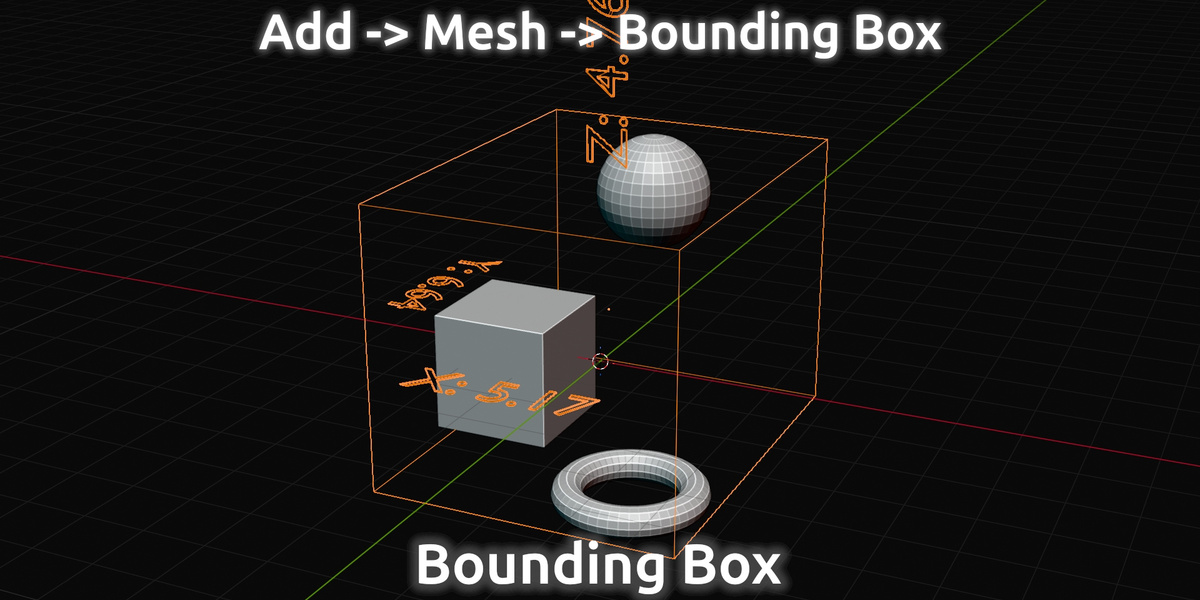
- Show group bounds and adjust viewport display options such as wireframe and transparency.
The product notes list Tab as the edit group shortcut. The listing gives Blender compatibility as versions 4.1 through 5.1 and marks the add-on as Blender Extension Compatible.
Modifier and instance limits
Modifiers cannot use vertex groups on the group because the group has no vertex groups. The product FAQ lists mesh, curve, surface, metaball, and text objects for modifier support; the documentation specifies that regular modifiers do not work on non-mesh objects such as lights and cameras, while Geometry Nodes modifiers do. Regular modifiers also do not work on instance members, although Geometry Nodes modifiers can. If a member with a procedural material does not work correctly, the documentation suggests changing its instance type to instance; check modifier behavior for that member after making the change.
Shading and asset notes
When objects without UV maps cause shading problems, the Fix Group operator is intended to correct them. The documentation says to remove an affected object from the group and add it again if the fix does not resolve the issue. For a group imported as an asset, the FAQ says to use the Append import method rather than Append (Reuse Data) or Link.
See the Smart Group FAQ for answers about shading, asset imports, shortcuts, and modifier support.