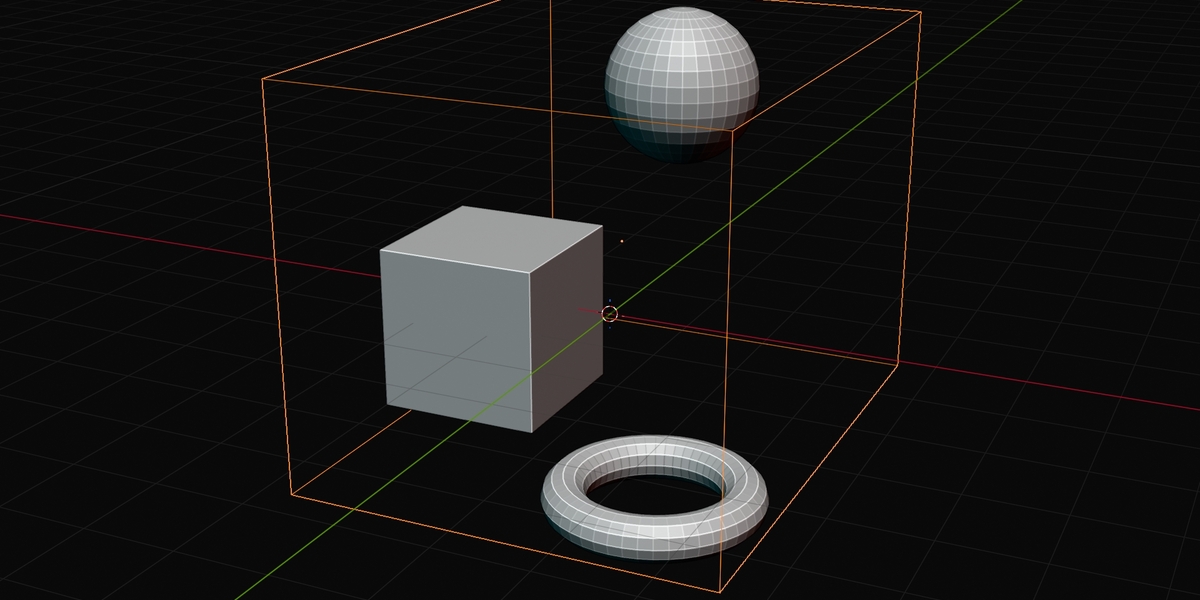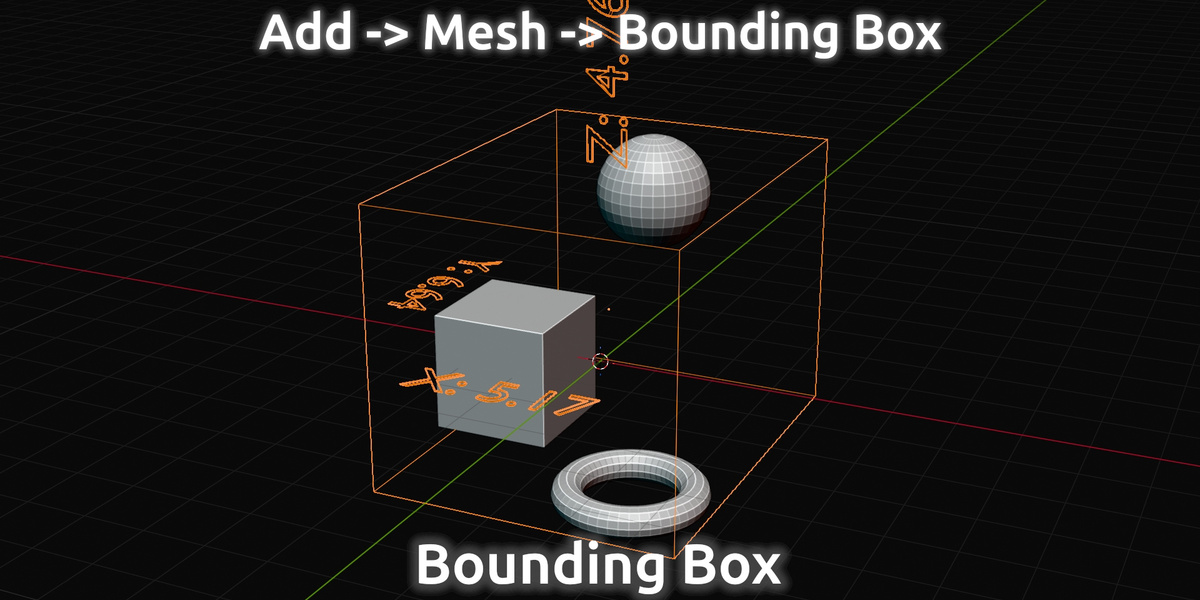
Bounding Box (Addon) by Dennis Hafemann adds a mesh-box operator to Blender’s 3D Viewport. It wraps a box around selected objects, giving you one outline for a multi-object asset and a way to view its combined dimensions. Blender’s Item panel reports dimensions for the primary selected object, so this add-on is useful when you need the size of several objects together.
Measure a group of objects
The add-on creates a box around the selected objects instead of requiring you to add a cube and resize it by hand. This can help when an asset is made from several objects, including objects arranged across multiple collections. The box provides a single boundary for adjusting the group and, with the Show Dimensions modifier, displays the box’s measurements in the scene.
Create a bounding box
- Select at least one object in Blender’s 3D Viewport while in Object Mode.
- Choose
Add > Mesh > Bounding Box. - Use the Redo/Operator panel to adjust the new box and choose any additional options.
The operator’s settings include selection, visibility, display style, parenting, offset, an atmosphere material, resizing, shrinkwrapping and dimension display. After closing the operator panel, some options may remain adjustable through the bounding box’s modifiers.
Adjust visibility and appearance
Bounding Box can control whether the box appears in the viewport or renders. Its display options include showing it in front of objects and choosing wireframe or solid display. Adjust the offset to make the box smaller or larger. The selection option switches between the new box and the objects that were selected before it was created.
An Add Atmosphere Material option applies a simple Volume Scatter volume material to the box. It can add an atmosphere effect around the objects.
Keep the box around moving objects
The Resizing Bounding Box and Shrinkwrap Multiple geometry nodes modifiers keep the box wrapped around selected objects as they move. Shrinkwrapping adds a dynamic wrapped appearance. These options link the selected objects into a newly created hidden collection. The Show Dimensions modifier displays the box’s dimensions directly in the scene. The seller’s version history lists a Blender 5.2 fix in version 2.
Install the add-on and use its node assets
Download the ZIP file. Newer Blender versions allow you to drag and drop the ZIP into Blender; older versions use Settings > Add-ons for manual installation. The three geometry nodes modifiers are also marked as assets. Extract the ZIP into an asset library path to add them through Blender’s Asset Browser.
Compatibility and license
The Superhive listing gives Blender 4.1–5.3 as the supported range and lists the add-on under the GPL license. Check the listing for current compatibility and license details before installing.