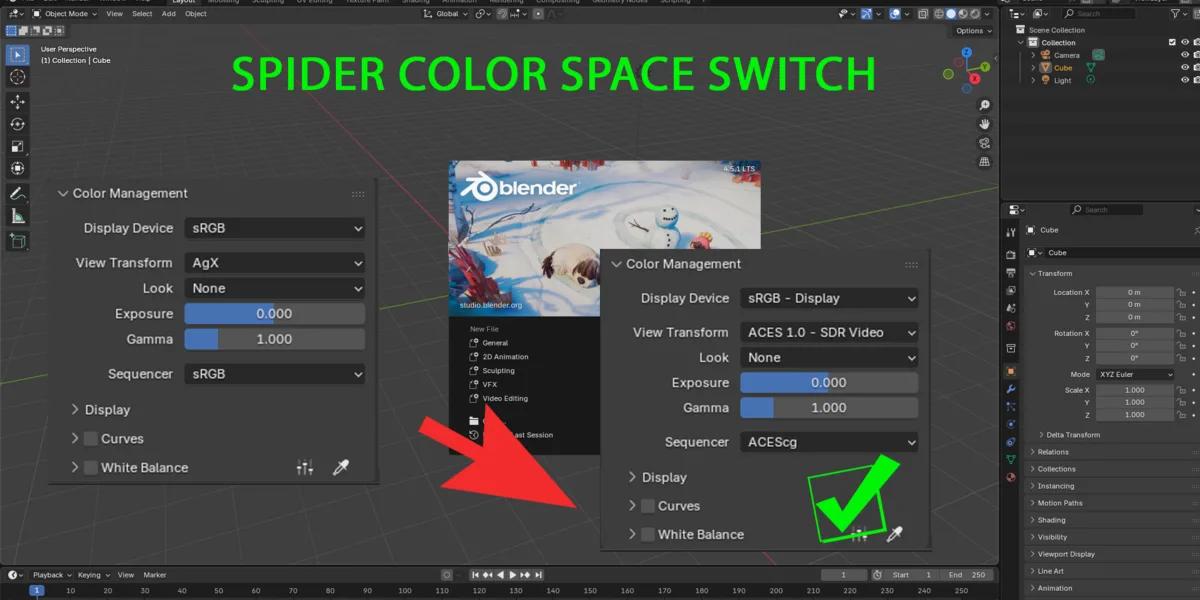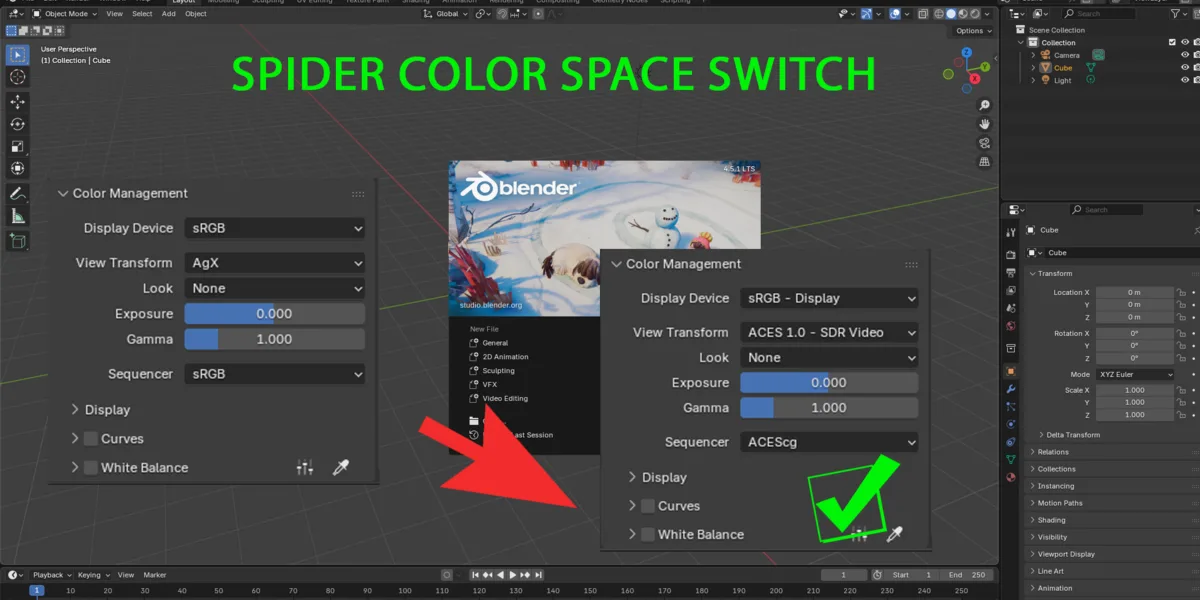
Spider Color Space Switch is a Blender add-on for switching a project between ACES and sRGB while keeping the selected mode with the .blend file. When automatic relaunch is enabled, Blender can reopen a project in the matching OCIO environment if its saved mode differs from the current session.
How the project switch works
Find the add-on in View3D > Sidebar > Spider Color Space Switch. Its ACES and sRGB actions save the current file, record the selected mode as a Scene property, and relaunch Blender. If the file has not been saved yet, the add-on opens a save dialog and uses a timer to wait for the save before relaunching.
When a .blend file opens, the add-on checks its saved mode. The product documentation describes the controls and preferences.
Requirements and setup
- Use Blender 4.5 or newer. Download the ZIP from the product listing. In Blender, open
Edit > Preferences > Add-ons. Click Install, select the downloaded ZIP, and enable Spider Color Space Switch. - In the add-on preferences, set the full path to a valid ACES
config.ociofile. The add-on checks this path before switching to ACES. The listing points to the OpenColorIO-Configs project for configuration files. - Open the 3D Viewport sidebar by pressing N, then choose the ACES or sRGB action. Enable automatic relaunch in the preferences if you want files to reopen in their saved mode.
Who it suits
The add-on is aimed at VFX artists, colorists, generalists, and post-production teams that move between ACES and sRGB projects. Its listing names ACEScg and EXR linear workflows as use cases. It supports Blender 4.5 and newer, lists Cycles and Eevee, and documents Windows, macOS, and Linux compatibility. The listed license is GPL.
Before adding it to a production setup, check that the Blender version meets the requirement and that the ACES configuration file is available at a valid path. The product troubleshooting notes cover an ACES switch that does not take effect, automatic relaunch settings, and relaunch loops or crashes.