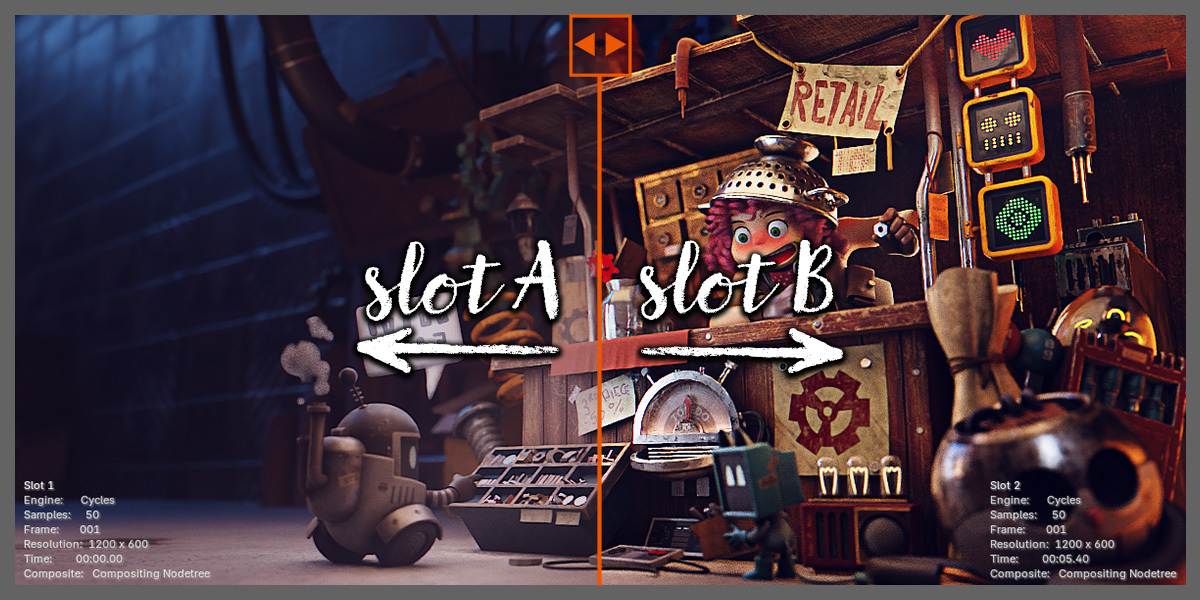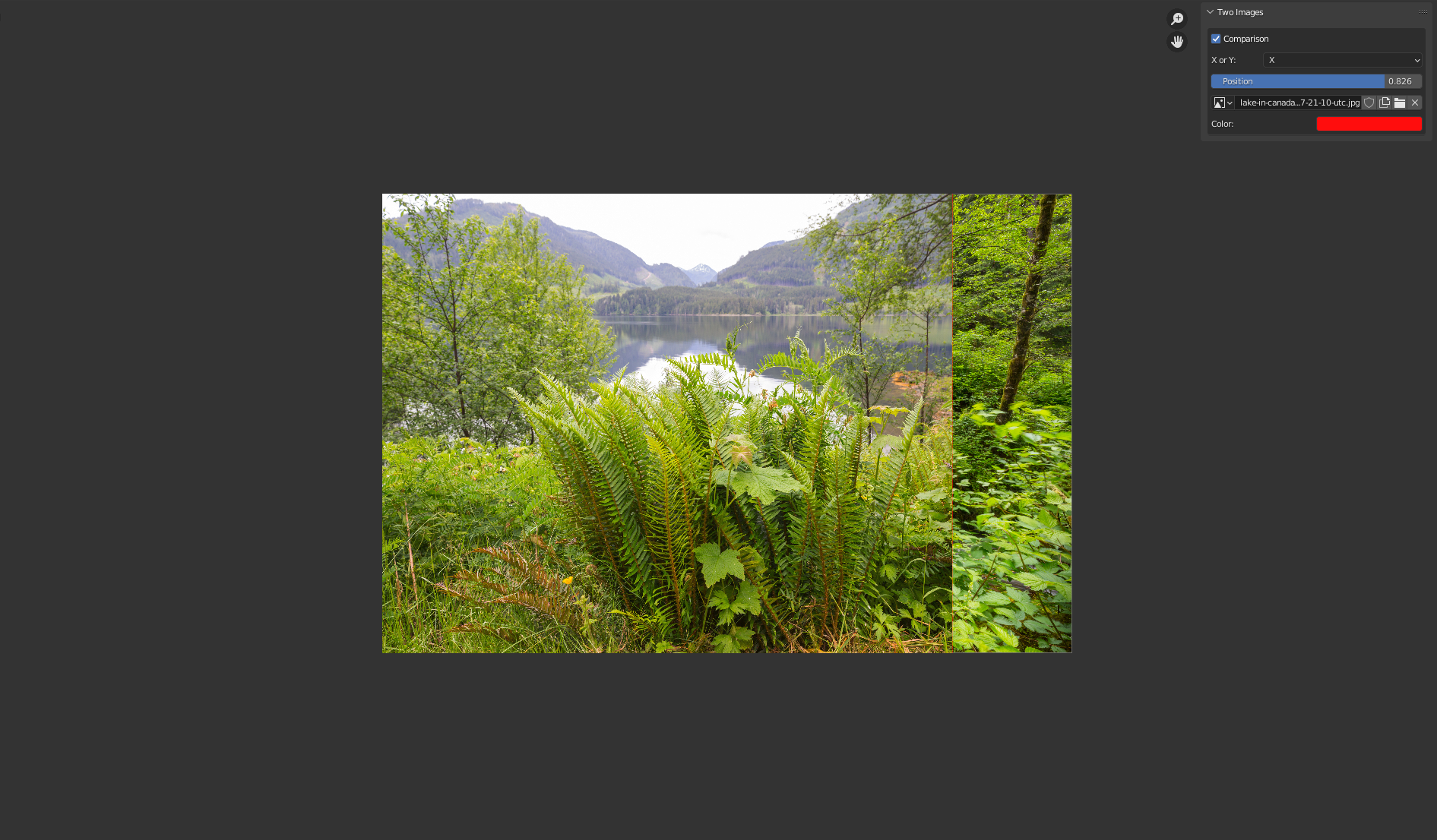
EBTRR's Two Images (TI) is a Blender add-on for comparing images, render slots, or Viewer output with a movable slider on the x or y axis. Open it from the Image Editor menu under Image > Two Images.
Compare images and render slots
Choose a second image to compare with the selected image. When Render Result is selected, you can switch slots to compare render slots with each other or compare a slot with another image. The add-on also lets you compare the Viewer output.
Controls and adjustments
Change the slider axis and position, and set the separation line color. Color controls include Saturation, Value, and Linear interpolation of pixels. A fast selector can replace the selected image with Render Result or Viewer. The add-on displays a warning when a slot is empty.
Color management and ACES
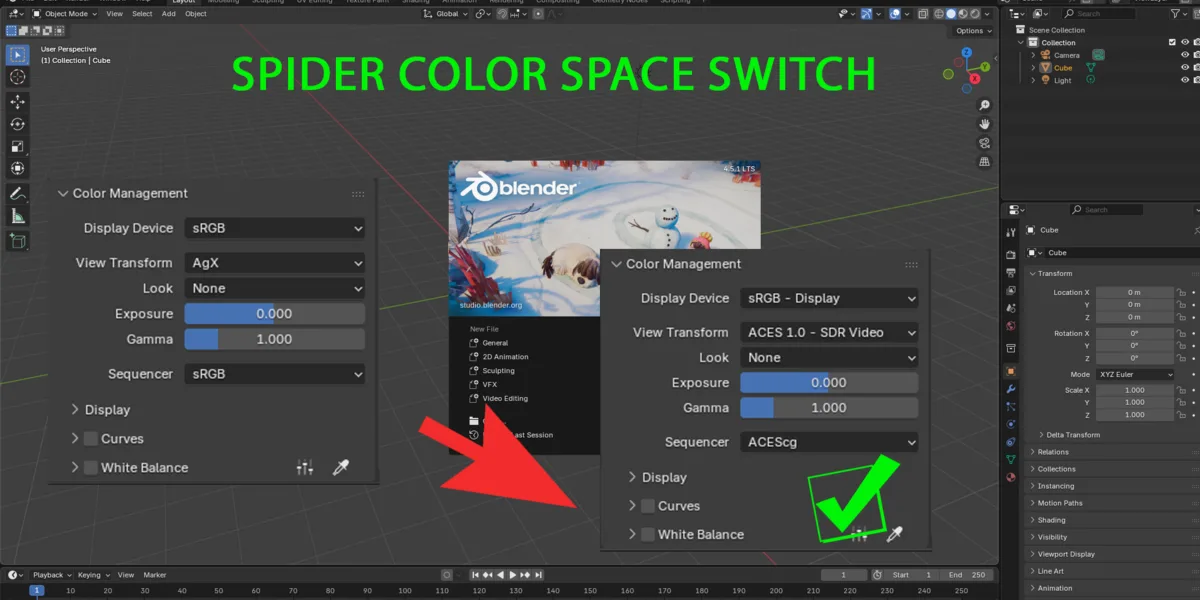
The standard version supports different Color Spaces in Image Settings and most View Transforms, but the Display Device setting in Color Management must be sRGB. After changing a View Transform, reload the comparison by pressing Comparison or rendering again. Other color spaces may need adjustments to Multiply, and sometimes Gamma or Linear.
A separate version is available for ACES setups such as OpenColorIO ACES, with a focus on comparing render slots. The developer says a complete ACES installation is required and lists OpenColorIO ACES support through version 1.0.5.
Versions and compatibility
The developer describes two variants: one appears in its own TI category and the other in the Image category. Their functionality is the same. The product page identifies version 1.0.6 and says it uses smooth pixel interpolation. The developer's notes recommend version 1.0.5 and advise using 1.0.6 if your PC needs it, so check the current package guidance when choosing a download.
The marketplace lists Blender 3.0, 3.1, 3.2, 3.3, and 3.4, and names Windows and Apple Intel as tested platforms. It lists the license as GPL.
Known limitations
If a Viewer node uses a different scale from its original input, it can appear larger or smaller in the Image Editor. After updating the Viewer, turn the comparison off and on with Comparison or reselect the Viewer node in the associated area. If the image appears black, moving the slider position reloads it. The developer also notes that GPU differences can cause a slight color mismatch and viewing distance can produce a small offset.
See the Superhive product page and product documentation for version details and installation steps, respectively.