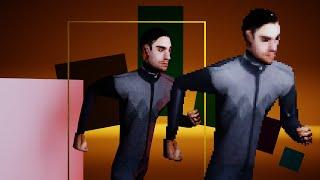
Sprite Makey Make - Turntable & Sprite Generator is an Inlet add-on for Blender. Set how many views to render around a model, then use the images for a turntable, sprite work, or an animation sequence. The product listing describes uses such as presenting a model in a marketplace listing and making sprites for game engines or Blender.
The product documentation describes the Render Turntable action as saving a PNG sequence based on the current settings and camera view. It also explains the scene, frame, and file path controls that shape the output.
Choose views and frames
Image Count sets the number of views around a full 360-degree turn. The views are spaced evenly: the documented default of eight images places each view 45 degrees apart. Render Type selects whether to export the current frame or a frame range for an animation. The selected animation range includes both its start and end frames.
Prepare the scene and camera
The documented panel is under Properties > Scene > Sprite 2D. The scene preset is in the Blender file named SpriteMakey.blend. Its cube is a reference; the documentation says to delete it and place your model in the scene. You can move the camera, adjust its settings, and rotate its X axis. The documentation advises against rotating the other axes unless you want a particular effect.
Check the camera view at every rendered angle and frame before starting. The model should stay inside the camera bounds so its edges do not get clipped in some views.
Set the output path and filenames
File Path sets where the images are saved. A path beginning with // uses the location of the saved Blender file as its base. The documentation gives //man/running as an example for organizing output in folders. The add-on determines the exact PNG filenames.
By default, filenames identify the angle and frame, such as angle_4/frame_23.png. The Minimum Text option shortens that pattern to numeric folder and file names, such as /4/23.png.
Compatibility and product details
The product listing states Blender compatibility from 2.83 through 4.5 and identifies the license as GPL. Check the listing for current compatibility if you use a Blender version outside that range. Its FAQ links to a short activation guide and explains what to do if the downloaded ZIP does not install: extract it and install the .py script.