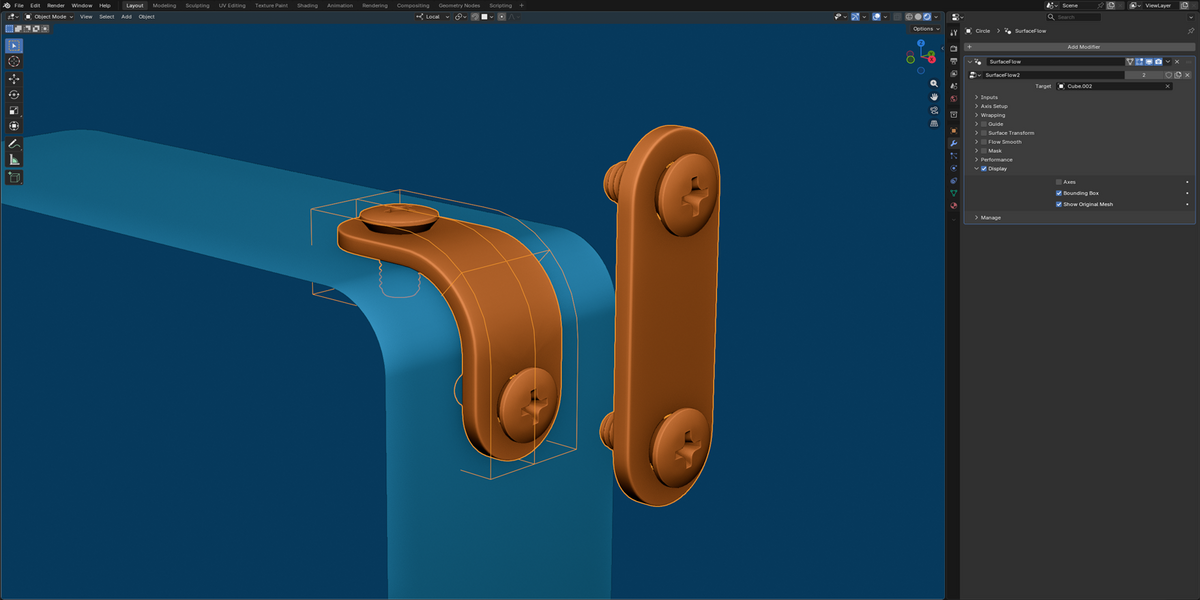
Surfaceflow - Realtime Surface Deformation is a Blender modifier for wrapping a source mesh across a target surface while keeping the result adjustable. Change the wrapping controls and see the result update as you work. It can help place decals and labels, or shape ribbons, straps, belts, armor details, trims and other geometry around curved forms.
Choose a wrapping method for the shape
Surfaceflow follows the target surface as it wraps the source mesh. Its three methods suit different geometry: Unified is recommended for panels and square shapes; Phased simulates flow across the surface and suits long forms such as straps or belts; Guided samples a guide curve and is designed for very long meshes. Guided requires a curve, while Phased can also use one to influence direction. In Guided mode, guide-curve radius values can scale the wrap along the curve; resampling can make guide points more evenly spaced in Phased and Guided modes.
Axis controls set the forward flow direction and the axis facing the surface. You can also use self input, rigid meshes and deformable mesh collections for more involved setups. Surface-aware translation, rotation and scale controls let you adjust the wrapped result in the modifier. Keep translations small because large changes can reduce wrapping accuracy.
Adjust the result and its quality
A mask limits where the wrapping effect applies. Flow Smooth smooths the direction field used to move points across the target; it does not smooth the final mesh. Separate viewport and render quality settings let you balance iteration speed and final accuracy. The developer says there is no fixed quality cap, but higher quality and longer wraps need more computation, so practical performance depends on the scene and hardware.
Surface normals and source placement affect the result. The documentation recommends checking the target's normals, applying Shade Smooth to the target when Shading normal mode is selected, and keeping the source object's origin near the center of its mesh; without Shade Smooth, the result may look the same as Geometric mode. Very long, thin faces on the target can produce noisy nearest-point calculations. Perfectly sharp 90-degree edges can also be difficult; a small bevel may give a cleaner wrap.
Check compatibility and setup details
The developer's Surface Flow documentation covers installation, object setup and modifier controls. It lists Blender 4.5 or newer for Surface Flow 2; the Smart and Surface Axis Source modes require Blender 5.1 or newer. Check the developer product page for current release and license details before installing.