Swift Pie Menu V.2.0.3 (Beta) is a Blender add-on framework for building custom pie menus, popup panels, and vertical menus. Its visual tools let you group Blender operators, editable properties, existing UI panels, and Python scripts in layouts you define.
The framework puts frequently used commands in menus you choose to reduce menu navigation. It is a menu-building system rather than a fixed set of modeling or animation tools.
Build pie menus from reusable actions
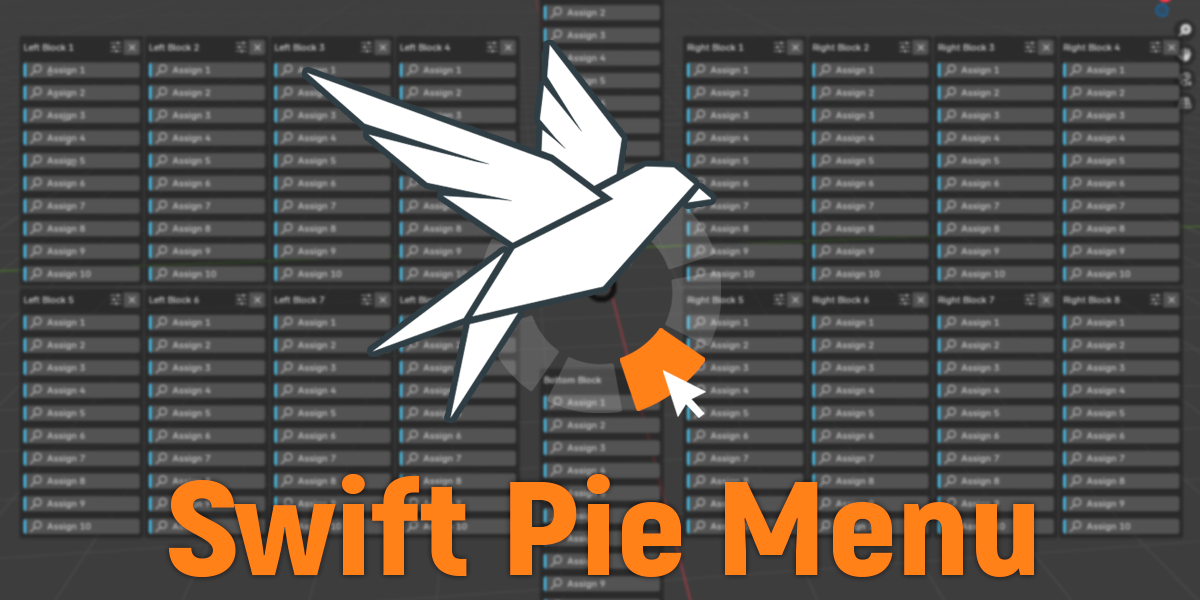
A pie menu can contain up to 18 blocks, arranged as eight on each side plus one at the top and bottom. Each block holds one to ten action buttons and has its own visibility, label, icon, and color settings. An icons-only option makes blocks more compact.
Buttons can invoke operators through bpy.ops, change animatable properties through their data paths, show standard Blender panels in a popup, open another pie menu, or run an external .py file. Context restrictions let you show a button in specific modes, including Object, Edit, Sculpt, and Vertex Paint; inactive buttons appear grayed out. The product listing describes support for more than 60 contexts.
Right-clicking a Blender UI button or property and choosing “SwiftPie: Assign to...” adds it to a menu and the shared Asset Library. Library assets can then be reused across menus and snippets. The built-in scanner can search the Blender installation for operators, menus, and panels when you need to find an item by its identifier.
Build panels and nested menus
The UI Snippet Builder assembles interfaces from operators, properties, labels, separators, spacers, collapsible blocks, and tabs. Its layout editor groups elements into rows and controls their alignment and relative widths. A snippet can open as a popup with customizable width or dock in the 3D Viewport sidebar, also called the N-panel. A live preview is available in the add-on preferences.
For longer command lists, the vertical menu builder supports nested collapsible sections and tabs. Pie menus can call other pie menus, so related actions can be arranged in a hierarchy. The same actions can be assigned to buttons in menus, submenus, or UI snippets.
Hotkeys and configuration
Hotkeys can be assigned to the main pie menu, snippets, submenus, and vertical menus. Each can be tied to a Blender editor context, allowing different menus to use the same key combination in different editors. The add-on detects conflicts with default Blender keymaps, disables a conflicting binding while active, and restores the original binding when deactivated.
The complete setup, including menus, the Asset Library, and UI snippets, can be exported to or imported from a JSON file for backup or sharing. The add-on also includes a reset option that clears menu layouts and button assignments while keeping the Asset Library.
Setup and compatibility
The documentation says to install the downloaded ZIP through Blender’s Edit > Preferences > Add-ons > Install controls, then enable Swift Pie Menu in the add-on list. The default hotkey for opening the pie menu is Q in the 3D Viewport. The add-on’s Preferences include a Documentation tab with guides to its features. The seller’s FAQ identifies Blender 5.1 as compatible. The release is labeled beta, so check the seller listing for current availability and compatibility details, and consult the installation documentation before setup.
Who may find it useful
Swift Pie Menu may suit Blender artists who want to arrange their own shortcuts and panels, studios standardizing a menu layout, or technical directors connecting existing Python scripts to an artist-facing interface. Because external scripts run with access to Blender’s Python API and context, use scripts you trust.