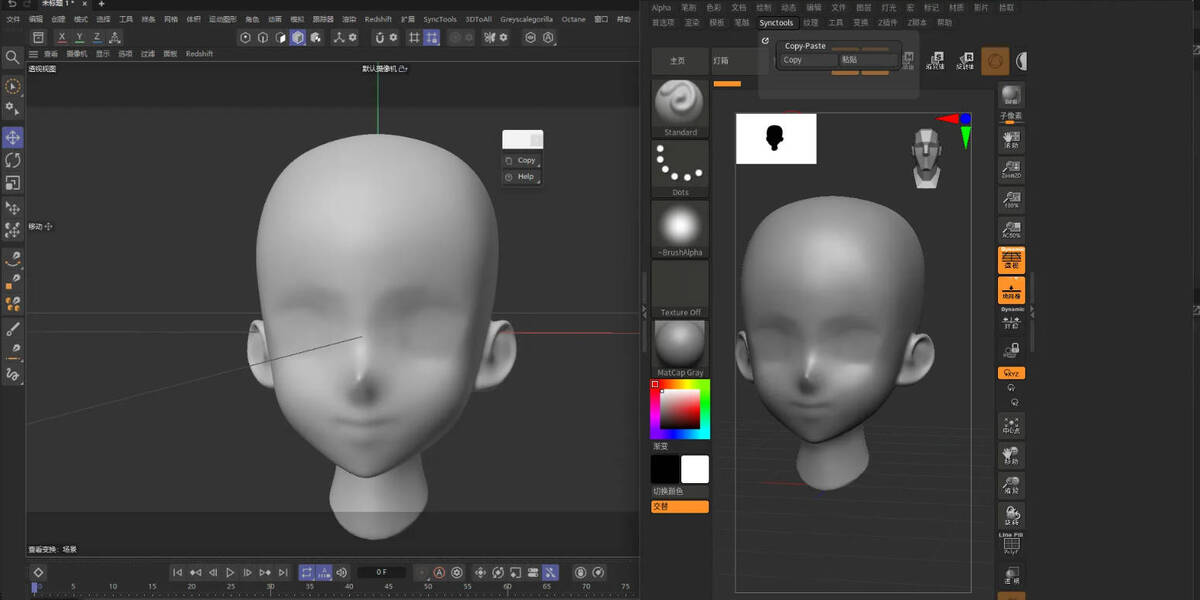
SyncTools Pro for ZBrush provides a Copy/Paste handoff between ZBrush and Blender. It can send a complete ZBrush tool set to Blender, and move Blender assets back to ZBrush. The workflow is intended to reduce repeated manual export and import steps during sculpting, retopology, look development, and revisions.
How assets move between ZBrush and Blender
The handoff uses the ZBrush plugin files and matching SyncTools add-on in Blender. In ZBrush, the SyncTools controls use Copy and Paste to move assets between the applications. The current product listing describes bidirectional transfers, including an All SubTools option for sending a complete ZBrush tool set to Blender.
This is useful when a sculpt needs retopology or cleanup in Blender, when a multi-part model needs to move between applications, or when Blender work needs to return to ZBrush for more sculpting. The listing also identifies character and creature work, hard-surface assets, look development, and rendering as workflows the plugin supports.
Data included in a transfer
The product listing says SyncTools Pro for ZBrush can carry geometry and object names, existing UV layouts, polygroups, basic material data, and color or polypaint data when available. It describes the material and color handoff as basic or availability-dependent, so treat it as a way to continue work across applications rather than a guarantee that every scene property will transfer unchanged.
- Geometry: sculpt meshes and production models.
- SubTools: complete ZBrush tool sets sent to Blender.
- Organization: object names and polygroup-aware handoff.
- Surface data: existing UVs, basic material information, and available color or polypaint data.
Compatibility and package details
The current product listing states support for ZBrush 2023 through 2026 and Blender 5.0 or newer. It identifies Windows 10 and Windows 11 for the current ZBrush 2026 package. The linked documentation page lists ZBrush 2022 as the minimum compatible version, recommends ZBrush 2023 or newer, and supports 64-bit Windows and macOS; its troubleshooting section instead says the minimum is ZBrush 2023. It also describes a narrower transfer scope. Check the documentation for the specific package you install, especially if you use macOS or an older application version.
Installation and first transfer
- Install the included plugin files in the ZBrush plugin folder.
- Restart ZBrush and open the SyncTools controls.
- Install the matching SyncTools add-on in Blender.
- Use Copy and Paste to move the selected assets between the applications.
For artists who regularly move models between ZBrush and Blender, the main benefit is a shorter handoff with SubTool organization and selected mesh data carried along. Confirm package compatibility and transfer details against the current listing before relying on it in a production pipeline.