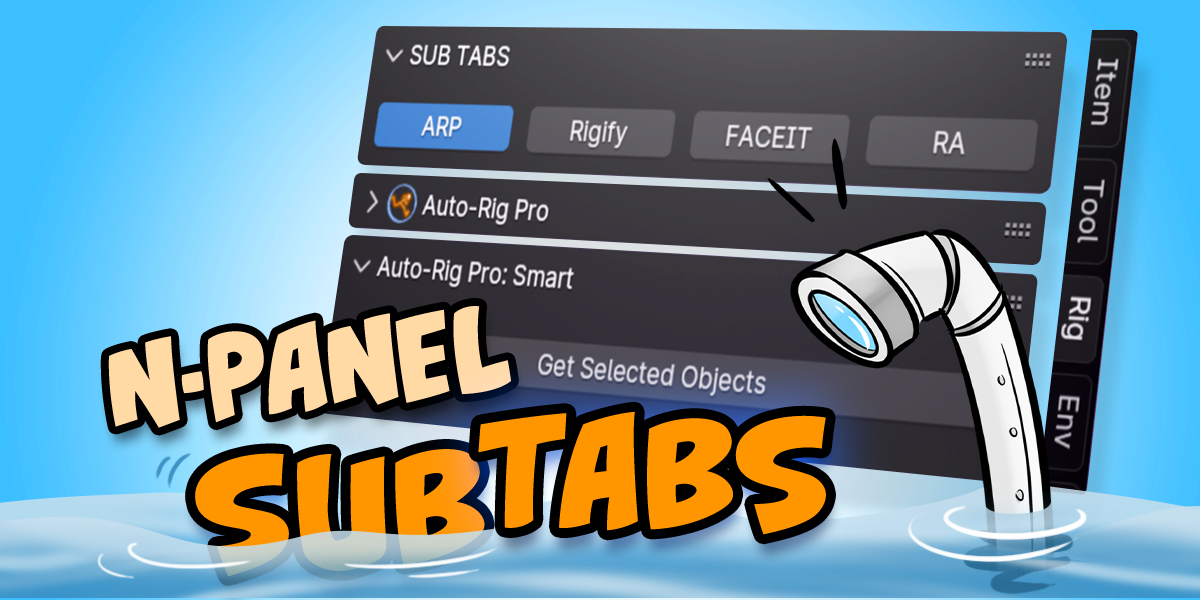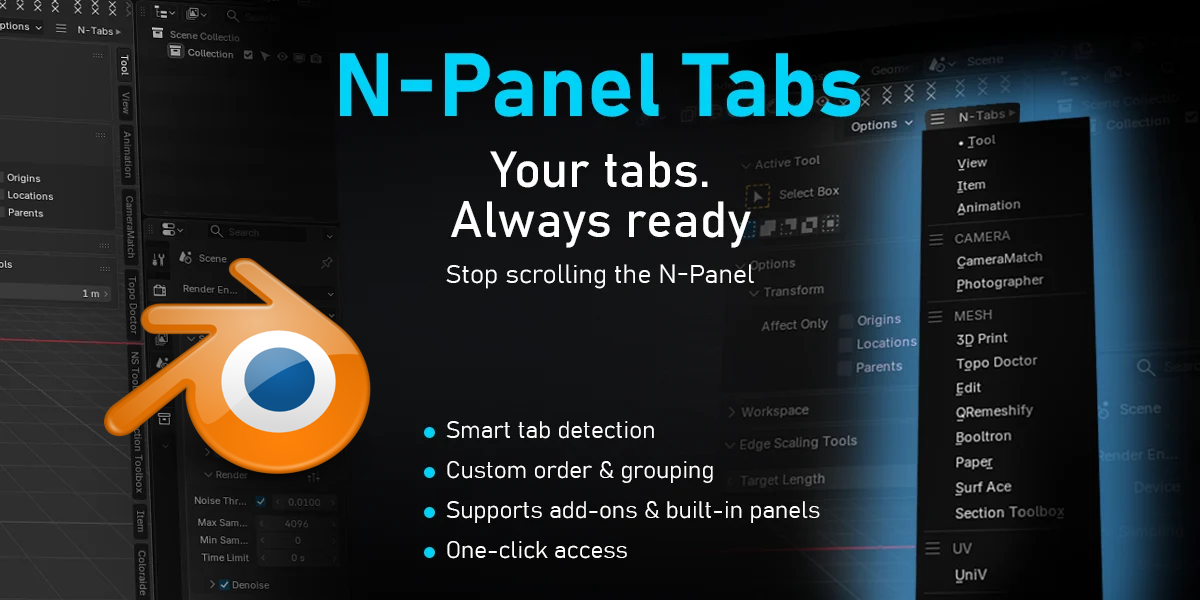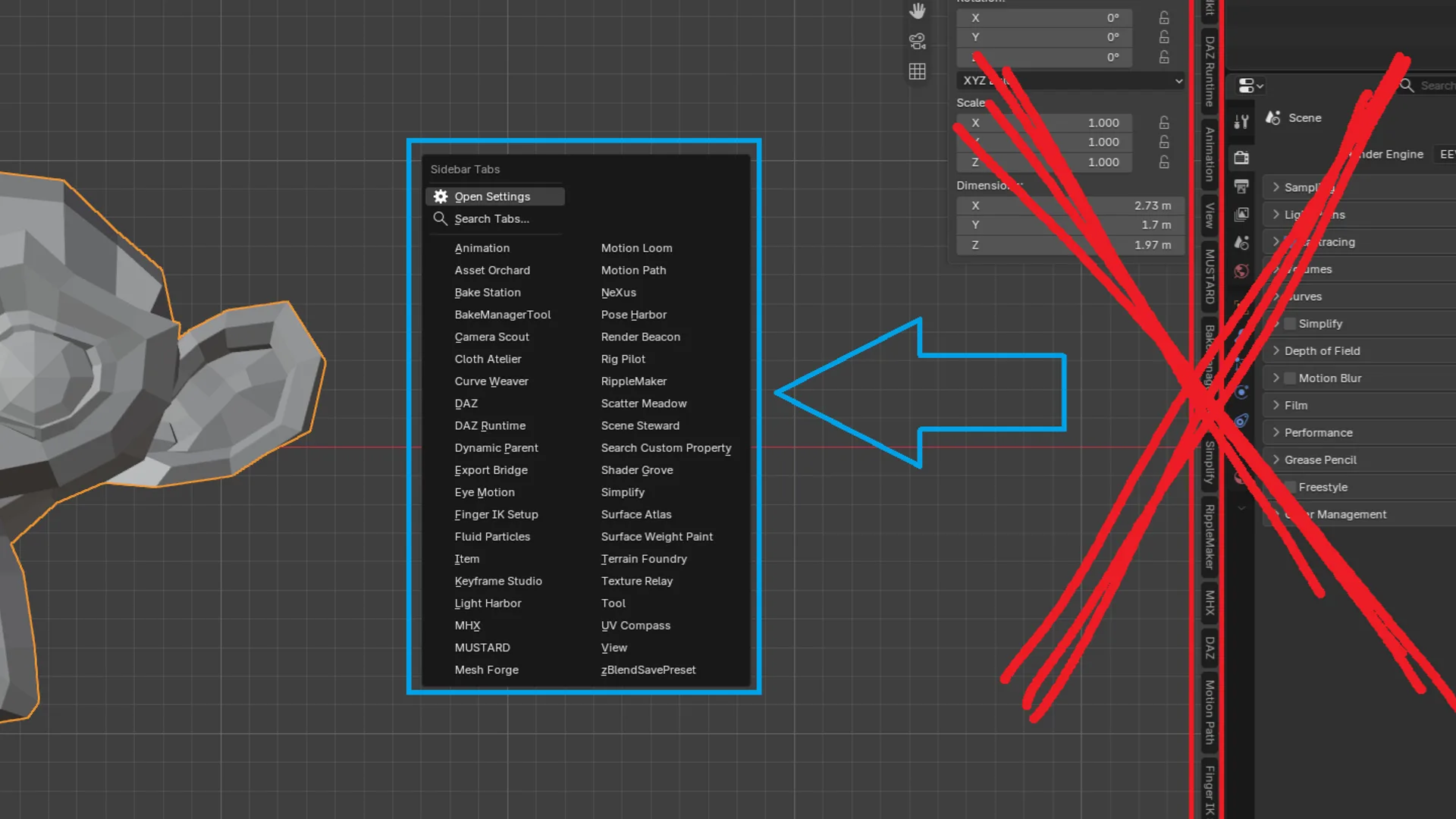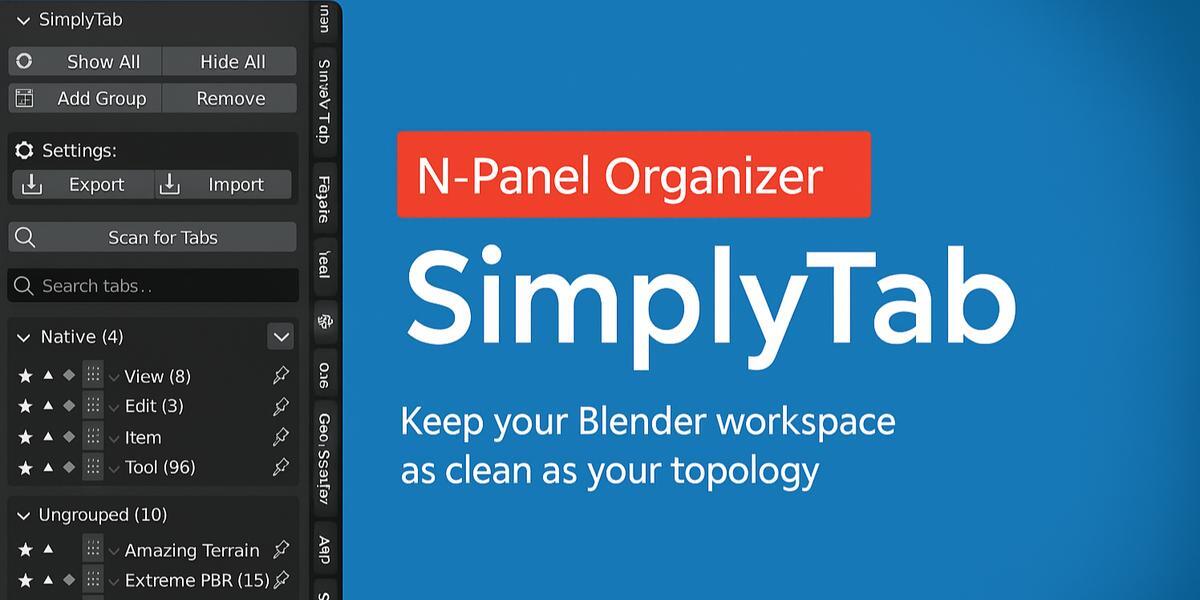
Ultimate N-Panel Organizer is a Blender add-on for arranging the panels in the 3D Viewport sidebar, also called the N-panel. You can hide entries, rename panel titles, change their order, save presets, and use different presets for different Blender modes. It is designed for setups where add-on panels have become difficult to scan.
Organize add-on panels
Open the organizer from the 3D Viewport header near the mode menu. Search or filter the panel list, use checkboxes to show or hide entries, edit names, and move selected panels up or down. After installing, removing, or updating other add-ons, use Refresh to update the list. Apply + Save stores your changes.
The organizer changes how panels are arranged and displayed. It does not change what the add-ons themselves do. The developer's FAQ on third-party panels says you can rename and reorder them.
Use different layouts by mode
Save presets for different tasks, such as modeling or sculpting. To switch layouts automatically when you change modes, create at least one preset, enable “Enable mode preset switching,” and assign presets to modes in the automation area. The organizer respects add-ons that only display their panels in certain modes; it does not force those panels to appear elsewhere.
Export and restore your setup
Use Export in the Presets area to save your setup to a file. You can import that file in another Blender version or on another computer. The developer documentation also describes the Missing refs indicator: it identifies saved entries that cannot be found, for example because an add-on is disabled or uninstalled, or its panel is unavailable in the current mode.
Install and open it
The documentation describes downloading the add-on ZIP, then dragging it into the 3D Viewport or installing it through Blender Preferences. Enable the add-on if prompted and save Preferences. To open it, look in the 3D Viewport header near the mode menu. The product listing names Vertex 404 as the creator.
Check Blender version compatibility
The supplied sources list different version ranges. The Superhive product listing says Blender 4.5 to 5.2, the AnyPlugins catalog record says 4.5 to 5.1, and the manual describes Blender 4.5 or later. Check the product listing for the range that applies to your installation.