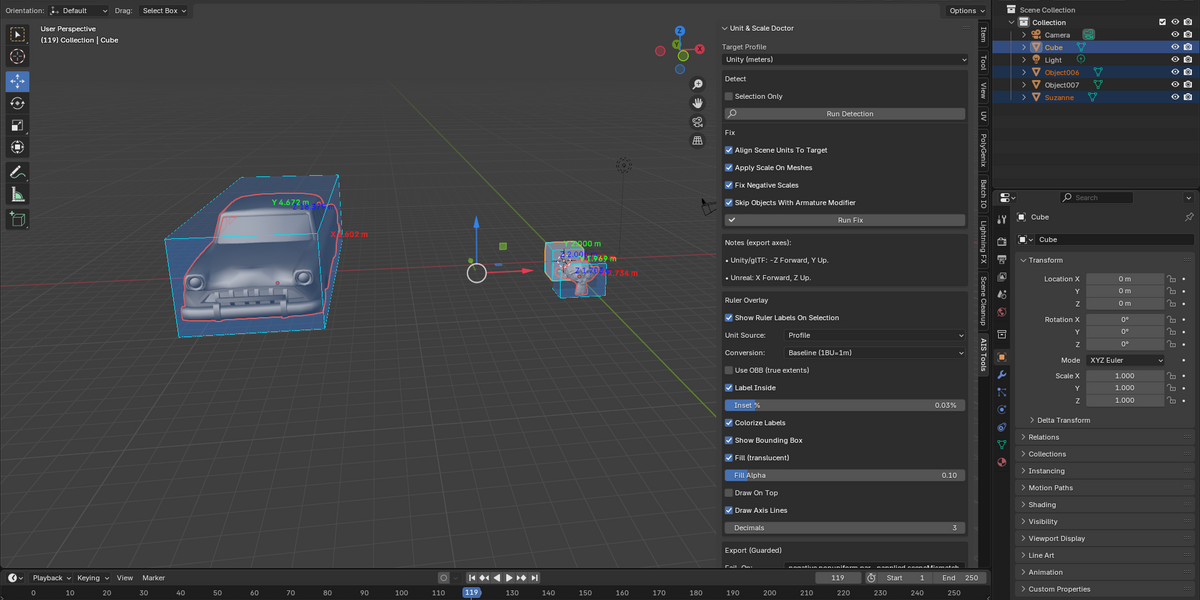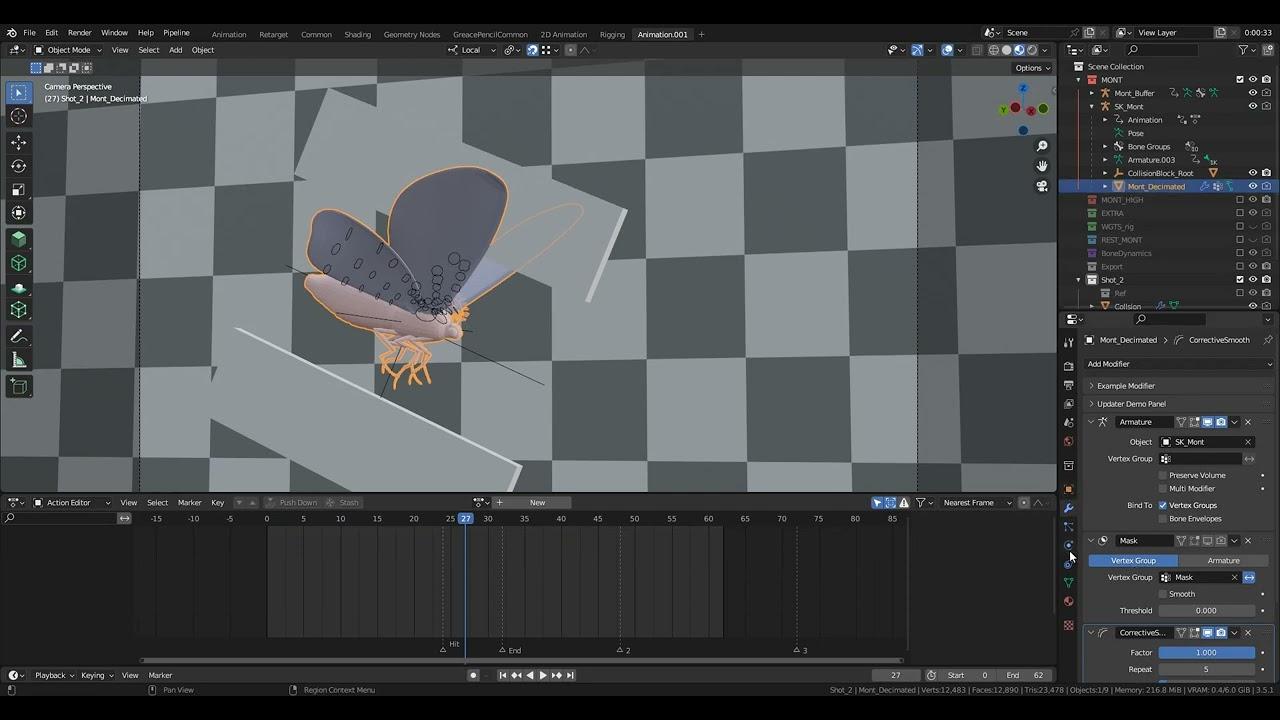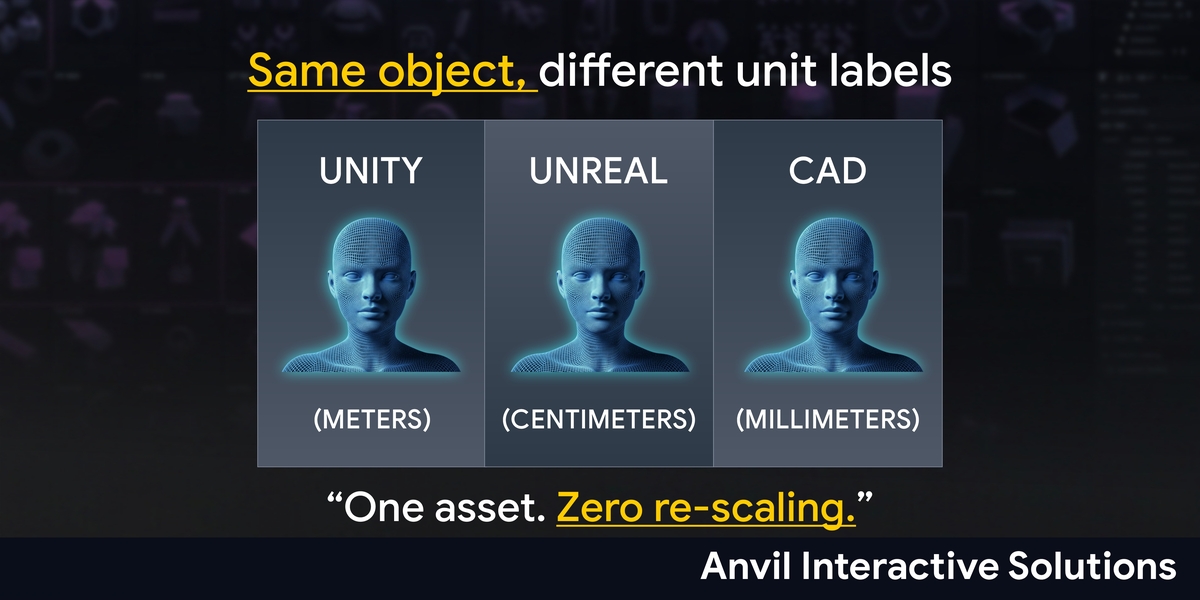
Unit & Scale Doctor is a Blender add-on for finding unit, scale, and axis mismatches before assets leave a scene. Choose a target profile, run a scene audit, and review the flagged objects before handing assets off to Unity, Unreal, glTF, or CAD workflows. Its guarded FBX and glTF exports can block files when configured rules find violations.
Find scale and unit problems in a scene
The audit checks for unapplied scale, non-uniform scale, negative scale, scaled parents, and a scene unit mismatch with the selected profile. These issues can leave assets at an unexpected size or orientation after transfer and can cause physics or collision problems downstream.
Profiles also guide the viewport rulers, axis labels, and export settings. The documentation describes Unity and glTF as Y-up targets, Unreal as Z-up, and a CAD profile measured in millimeters. Select the profile that matches the destination before interpreting the checks or labels.
Choose repairs for the affected objects
Unit alignment updates Blender’s scene unit settings to match the target profile. It does not rescale mesh vertices. Applying scale is a separate, explicit operation that bakes object transforms into mesh data, so use it deliberately and keep a versioned source if you may need to undo the change.
- After aligning scene units, apply scale on static meshes when the transforms need to be baked for export.
- For mirrored meshes, enable Fix Negative Scales when applying scale to recalculate their normals.
- Leave “Skip Objects With Armature Modifier” enabled to protect rigged meshes and skinning.
Applying scale skips non-mesh objects. The documentation describes applying scale as safe for static meshes and destructive to transforms, so inspect rigged or animated assets before choosing a repair.
Check dimensions and orientation in the viewport
Ruler labels show dimensions in profile or scene units, with controls for precision, axis colors, and label placement. Use an axis-aligned bounding box (AABB) for a quick world-aligned check. For rotated objects, an oriented bounding box (OBB) follows the object’s local axes and shows rotation-aware extents. The overlay can also display remapped axis lines and translucent bounds.
Guard exports and validate in CI
For interactive work, configure fail-on rules for violations such as negative, non-uniform, parent-scaled, or unapplied scale and scene mismatch. When a guarded FBX or glTF export is blocked, the add-on displays a warning and provides object-level diagnostics in the console. Fix the reported issues, run detection again, then retry the export.
The headless validator can run as part of a CI pipeline. It writes a JSON report and returns a non-zero exit code when violations are present, which can support vendor intake, asset checks, or pre-merge gates. Selection-only validation is available when a pipeline should inspect selected objects.
Check Blender compatibility before adding it to a pipeline
The listing’s main feature section and the documentation overview specify Blender 3.0–4.4, tested on 3.6 LTS and 4.4. A separate details block on the documentation page lists Blender 3.6–5.0. Verify compatibility against the current release before relying on a particular Blender version in production.
See the product documentation for installation, profile settings, repair details, and CI examples, and check the product listing for its listed Blender support range.