Unity Style Walk Navigation brings Unity Editor-style first-person navigation to Blender's 3D View, replacing the built-in Walk mode. Version 1.3.1 supports perspective, orthographic, and camera views, and requires Blender 4.2 or newer.
Install the extension ZIP through Edit > Preferences > Add-ons > Install from Disk. For a legacy-format ZIP, remove blender_manifest.toml, extract the add-on into scripts/addons, restart Blender, and enable it in Add-ons preferences. The Blender Extensions listing has the current download and release details.
Mouse controls and movement
In a perspective view, hold the right mouse button and move the mouse to enter navigation. Use W and S to move forward and back, A and D to move left and right, and Q and E to move up and down. Shift activates sprint. The listing names Alt on Windows and Option on Mac for slower movement, though its preference summary says Command on Mac; check the add-on's current controls if that modifier does not match your setup.
Release the mouse button to coast to a stop. Adjust movement speed with the scroll wheel. Press Tab to switch between World Space and View Space coordinates. World Space aligns movement to nearby world axes; View Space follows the screen axes. The coordinate choice can be set separately for perspective and orthographic views.
Orthographic and camera views
In orthographic view, a short right-click opens Blender's context menu. Hold the button for the default 0.18-second threshold, or drag, to begin navigation. Right-click movement rotates the view while preserving orthographic projection. The default WASD keymap pans with WASD and zooms with Q and E. The optional QEAD keymap uses E, Q, A, and D for panning, with W and S for zoom.
Camera navigation is also supported. In an orthographic camera, WASD pans across the camera view and Q or E changes ortho_scale. Perspective camera rotation can use FOV compensation, which adjusts rotation speed according to lens focal length. Tab switches coordinate space across navigation modes.
Trackpad, settings, and platform notes
To use a trackpad, open Edit > Preferences > Keymap, search for Unity Style Walk Navigation (Trackpad), and enable it. A two-finger swipe enters and controls navigation; press Ctrl on Windows or Option on Mac while swiping up or down to adjust speed. Trackpad sensitivity is separate from mouse sensitivity.
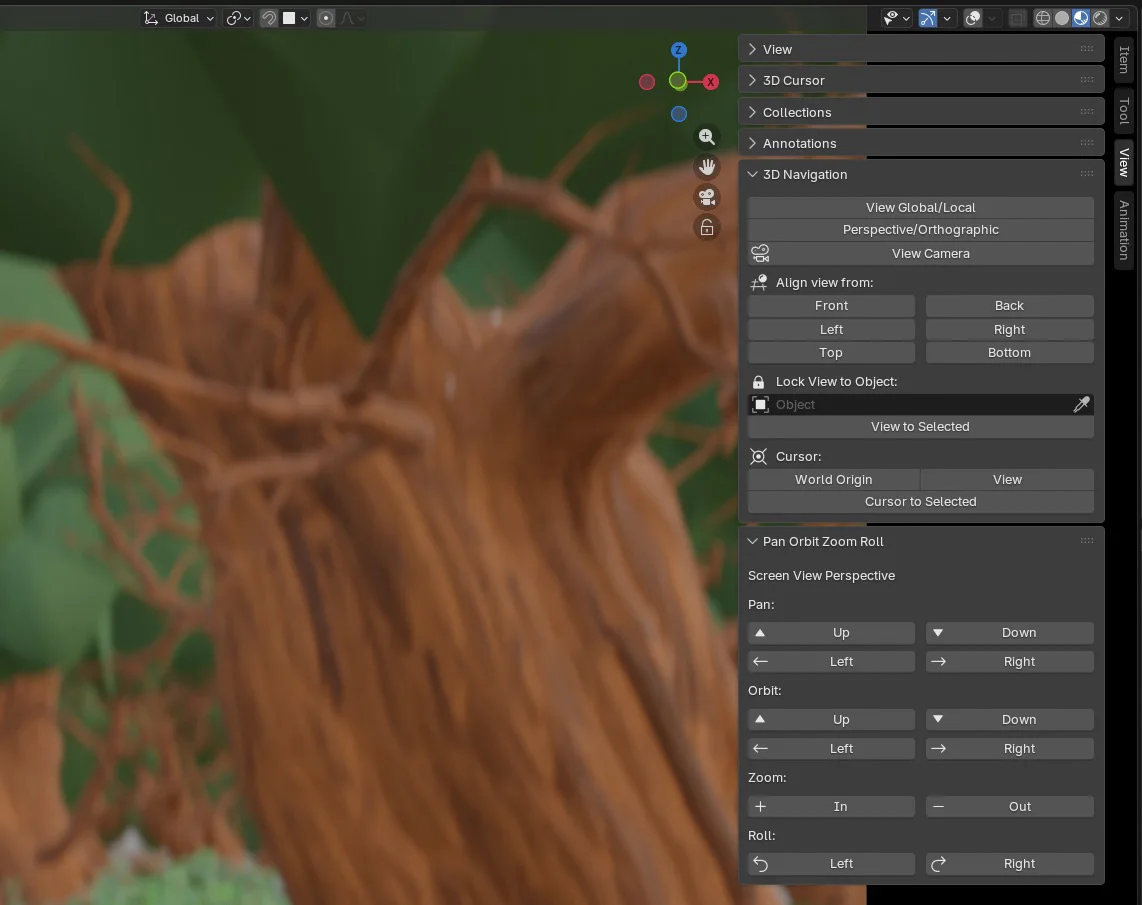
The N-panel View tab and add-on preferences expose movement speed, sensitivity, inertia resistance, edge behavior, and other navigation settings. These settings are global add-on preferences rather than values stored per .blend file. The add-on switches between Chinese and English with Blender's interface language, but its hover tooltips remain in Chinese.
- On Windows, a swipe cannot interrupt trackpad coasting until it finishes.
- On Mac, pressing a keyboard key interrupts system-level trackpad momentum.
- A swipe over the N-panel may start navigation accidentally. The developer reports no current workaround for this Blender API limitation.
- On Windows, Blender 4.5.x with the Vulkan backend may stutter. The developer recommends OpenGL or Blender 4.2.x for that setup.
Version 1.3.1 and licensing
Version 1.3.1 removes the custom Scene.uw_target_speed property. Speed now uses an in-memory session variable and add-on preferences, avoiding an Undo side effect and keeping the value out of shared scene data. The extension is released under GPL-3.0-or-later.