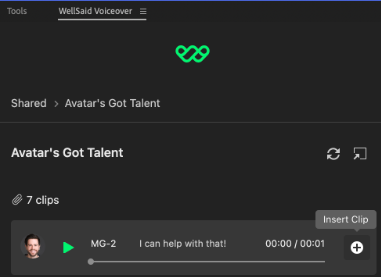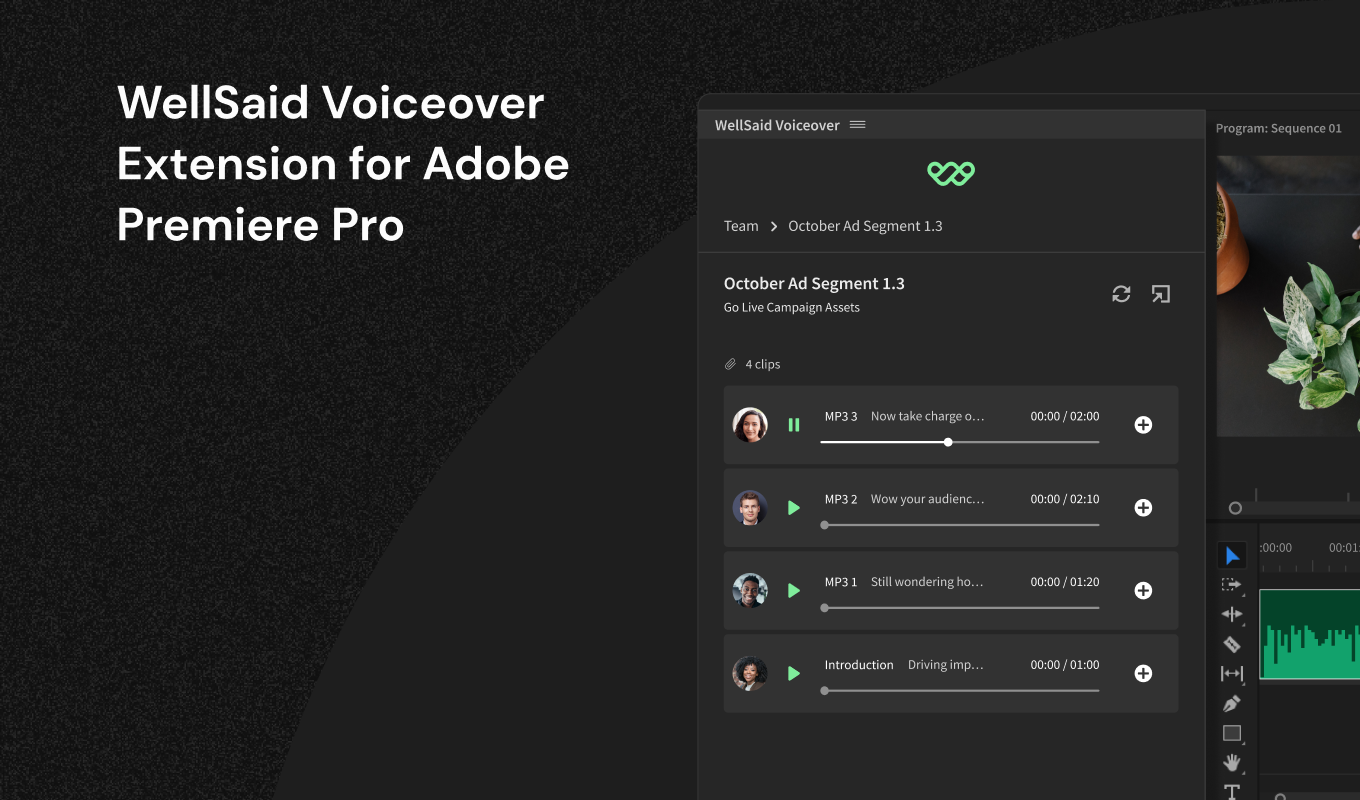
WellSaid Voiceover is a Premiere Pro extension for accessing AI voiceovers created in WellSaid Studio. Its panel connects Studio projects to the Premiere timeline, where you can preview and insert audio. It suits editors who create narration in Studio and want to work with it in Premiere. You can acquire the extension for free through Adobe Exchange, but full access requires a WellSaid Business or Enterprise plan, according to the WellSaid setup guide.
How clips move into Premiere Pro
Open a Studio project in the extension to see its sections. Preview a clip, expand a section to view its available versions, then select the plus icon beside the section to add the audio to your active timeline. To change a project or create new audio, open it in WellSaid Studio. Return to Premiere and refresh the extension to load the latest changes.
Install and open the extension
- Sign in to Adobe Exchange with your Adobe ID and acquire WellSaid Voiceover.
- In Creative Cloud Desktop, open Manage and install the extension.
- If Premiere Pro is already open, close and reopen it after installation.
- In Premiere Pro, choose Window, then Extensions, then WellSaid Voiceover. Sign in to your WellSaid account to view your Studio projects.
The official setup instructions include the installation and panel steps. Check the Adobe Exchange listing for availability and host-app requirements before installing.
Plan access and audio settings
Free acquisition on Adobe Exchange does not mean the extension includes a WellSaid Studio plan. WellSaid lists Business and Enterprise as the plans with full access to the Premiere Pro integration. Review WellSaid’s current plan details if you are choosing an account for this workflow.
The extension uses WAV by default, with MP3 also available in its settings. Premiere saves audio in the project folder by default, and you can select another download folder. You can also choose where new audio is placed: at the current cursor, at the start of the project or section, or in the media library.