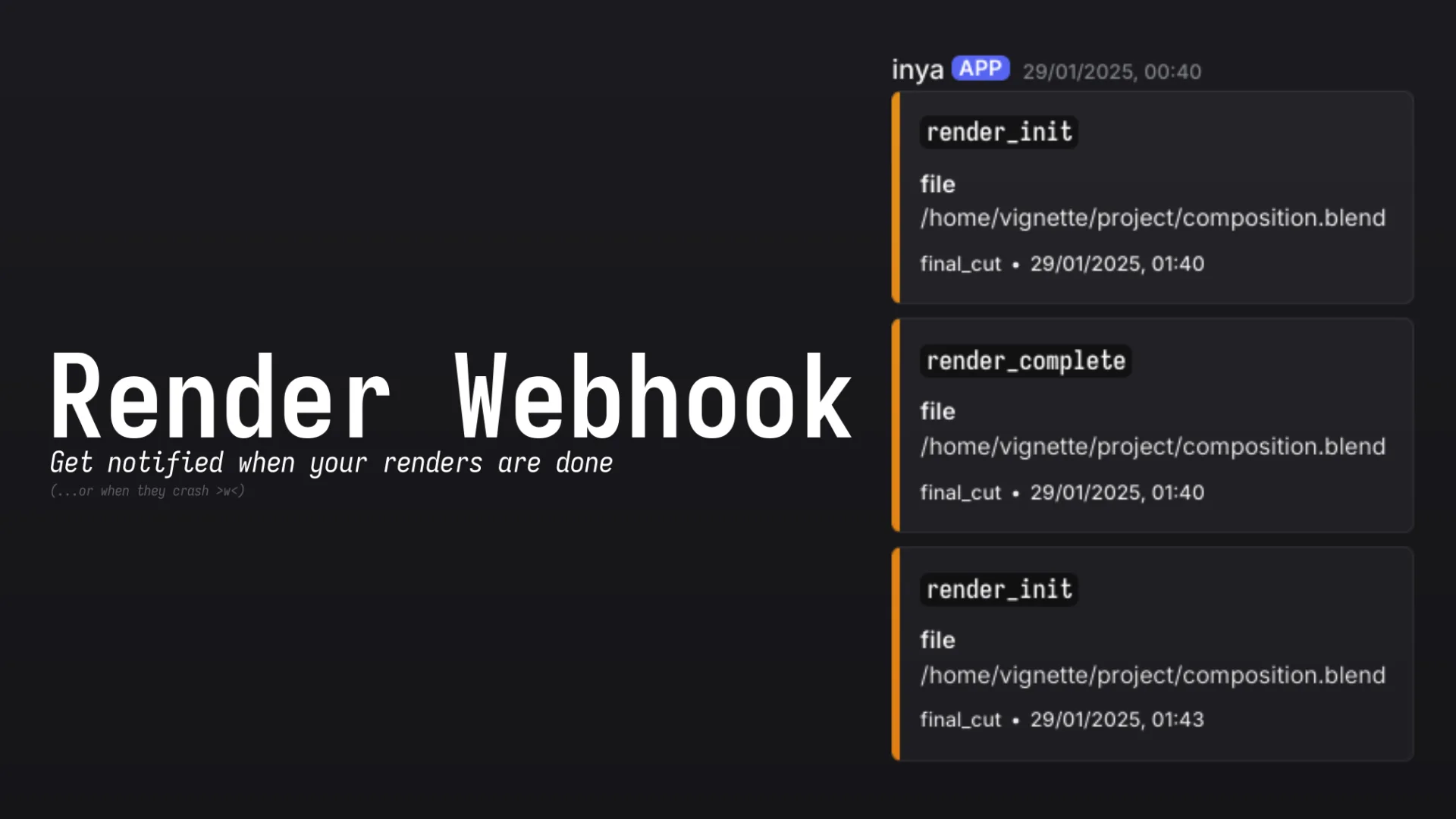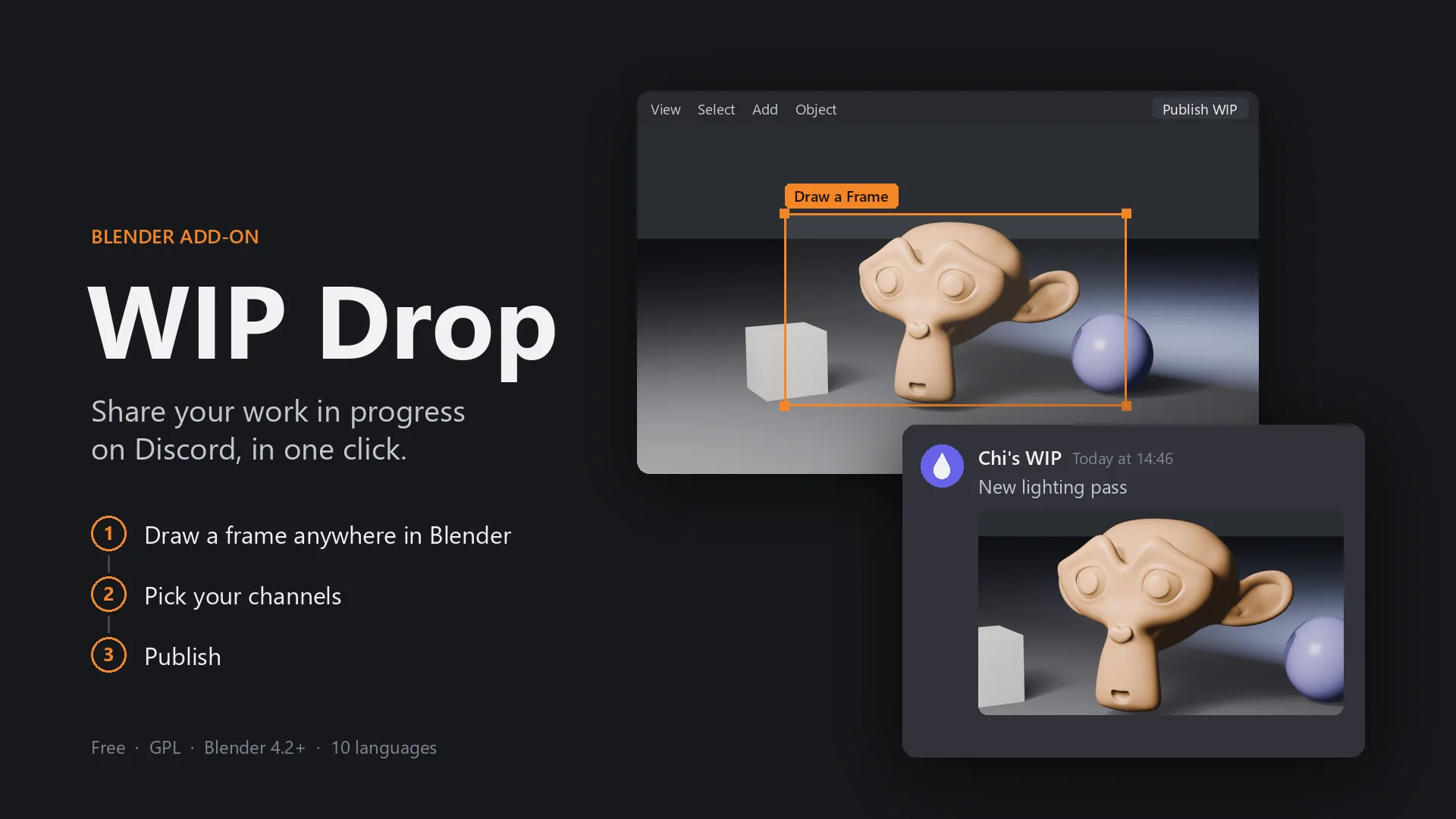
WIP Drop lets you share work in progress from Blender to Discord through webhooks you configure. Choose a finished render, a viewport capture, or a selected area of the Blender window, then publish to one or more channels.
Choose what to capture
Last Render sends the most recent F12 render with the scene's color management. Viewport captures the 3D View; in camera view, it captures only the camera frame. Draw a Frame lets you drag a rectangle anywhere in the Blender window. The captures omit grids, outlines, gizmos, and panels. Use Same Frame to send that composition again later, or enable Before / after to send the previous image alongside the new one.
Set up a Discord channel
- In Discord, open the channel settings, choose Integrations, then Webhooks, and create a webhook. Copy its URL.
- In Blender, open Preferences, then Add-ons and WIP Drop. Click the plus button, paste the URL, and test the channel.
- Publish from Properties > Output > Publish WIP, the Publish WIP button in the 3D Viewport header, or with Ctrl+Alt+Shift+P.
You can configure several channels and test each one. Add a message, reuse saved messages, or mark a post as a Discord spoiler. Automatic publishing after each render is available and off by default.
Choose image and render details
WIP Drop can send PNG or JPEG images, with an optional maximum size. You can include render information such as the engine, sample count, and resolution. A copy of each sent image is saved in a WIP folder next to the .blend file.
Compatibility and privacy
The Blender Extensions listing identifies version 1.1.1 for Blender 4.2.0 or later. It says WIP Drop connects only to the Discord webhooks you add, when you publish or when automatic posting is enabled, and only while Blender's Allow Online Access setting is enabled. Keep webhook URLs private. See the Blender Extensions listing for product details and the public issue tracker for reporting problems.