Oblique by Gleb Tanskiy imports Figma frames into After Effects as compositions with their Figma layer names intact, ready for motion designers to animate. Text stays live; vectors and basic shapes become shape layers, and gradients use After Effects’ built-in Gradient Fill and Gradient Stroke with editable color stops. Blurs, drop shadows and inner shadows arrive as effects.
Send a Figma frame to After Effects
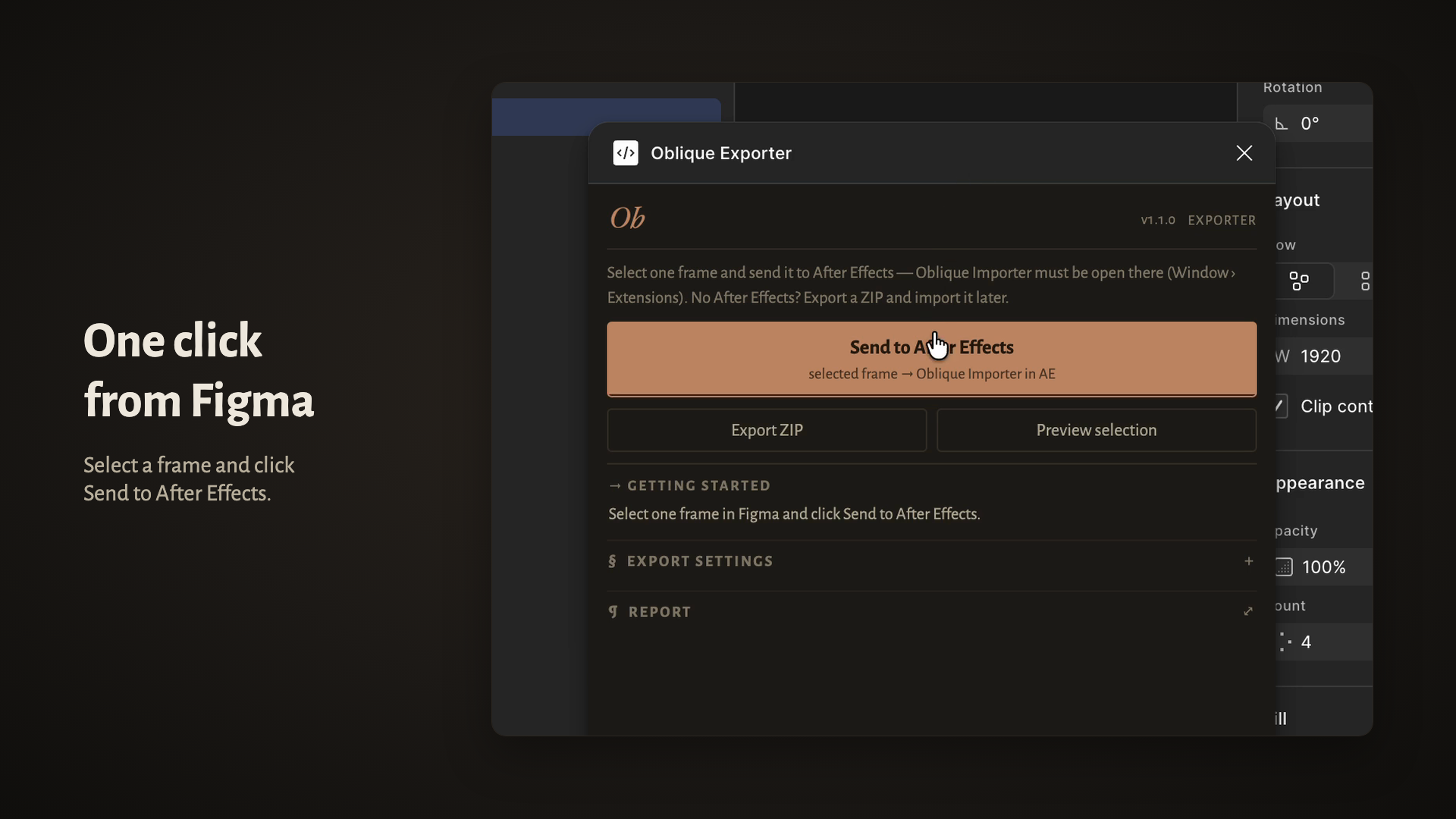
In Figma’s desktop app, select a frame and choose Send to After Effects. The free Oblique Exporter connects to the Oblique Importer panel on the same computer. On the first send, allow the connection once in the panel. If After Effects is closed or busy, Oblique saves the export as a ZIP; import it later with Import latest export.
For Figma in a browser, use Export ZIP and import that file in the panel. The desktop Send to After Effects flow uses localhost; the product listing says design files are not uploaded. Oblique says it collects no usage data; the aescripts license window has a separate checkbox for anonymous statistics.
What stays editable in the composition
Each Figma frame and group becomes a precomp with its original name. Vectors and basic shapes become shape layers with their strokes and corner radii. Text stays live, including its fonts, line breaks and mixed styles within a text layer. Gradients use After Effects’ built-in Gradient Fill and Gradient Stroke, with editable color stops.
Use Simplify hierarchy to remove empty precomps and unwrap precomps containing just one layer. One Undo removes the whole import.
Figma Glass and other effects
The bundled Figma Glass effect exposes Refraction, Dispersion and Light Angle as sliders in Effect Controls, which can be keyframed. Blurs, including progressive background blur, and drop and inner shadows also arrive as effects. Native mode builds the design with After Effects’ own effects, so the project does not need Oblique’s effects to open.
Compare the render and review approximations
Oblique adds Figma’s frame render as a hidden Reference layer. Turn it on to compare the composition; in Difference mode, matching areas turn black. The product page reports a median 97.0% pixel match across 24 test designs immediately after import, with no hand corrections. Each import also produces a report listing approximated elements by layer name. The reported result describes that test set, not a guaranteed match for every design.
Requirements and trial
Oblique requires After Effects 2024 or later and macOS 11 or later, or Windows 10 or 11 on x64 or ARM64. Install the fonts used in the design on the computer running After Effects, and enable Allow Scripts to Write Files and Access Network in the After Effects scripting settings. Figma desktop users need the free Oblique Exporter plugin; browser users can import an exported ZIP. The trial includes all features, so you can compare an import with its Reference layer before buying. See the Oblique product page for the listing and current details.