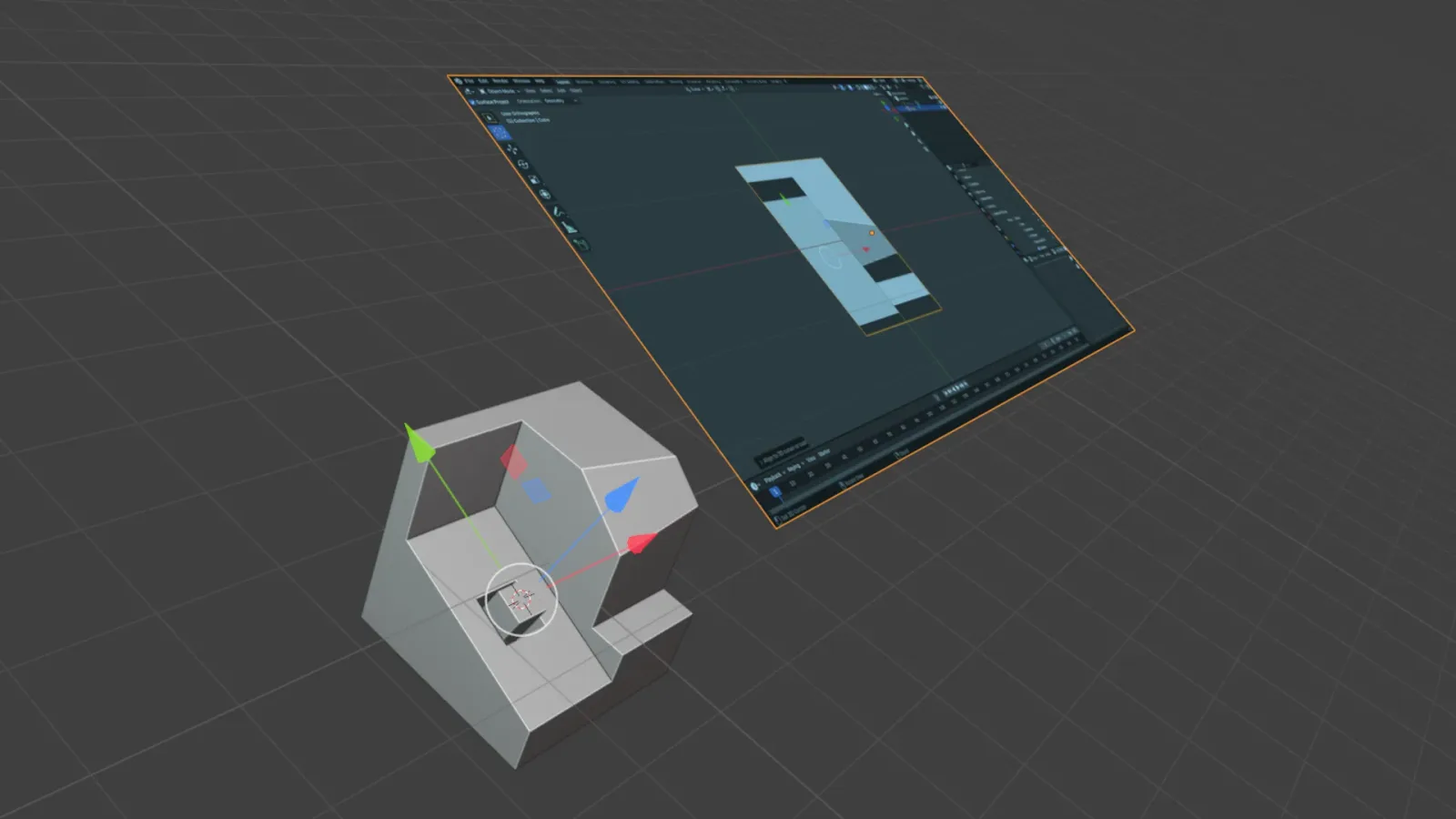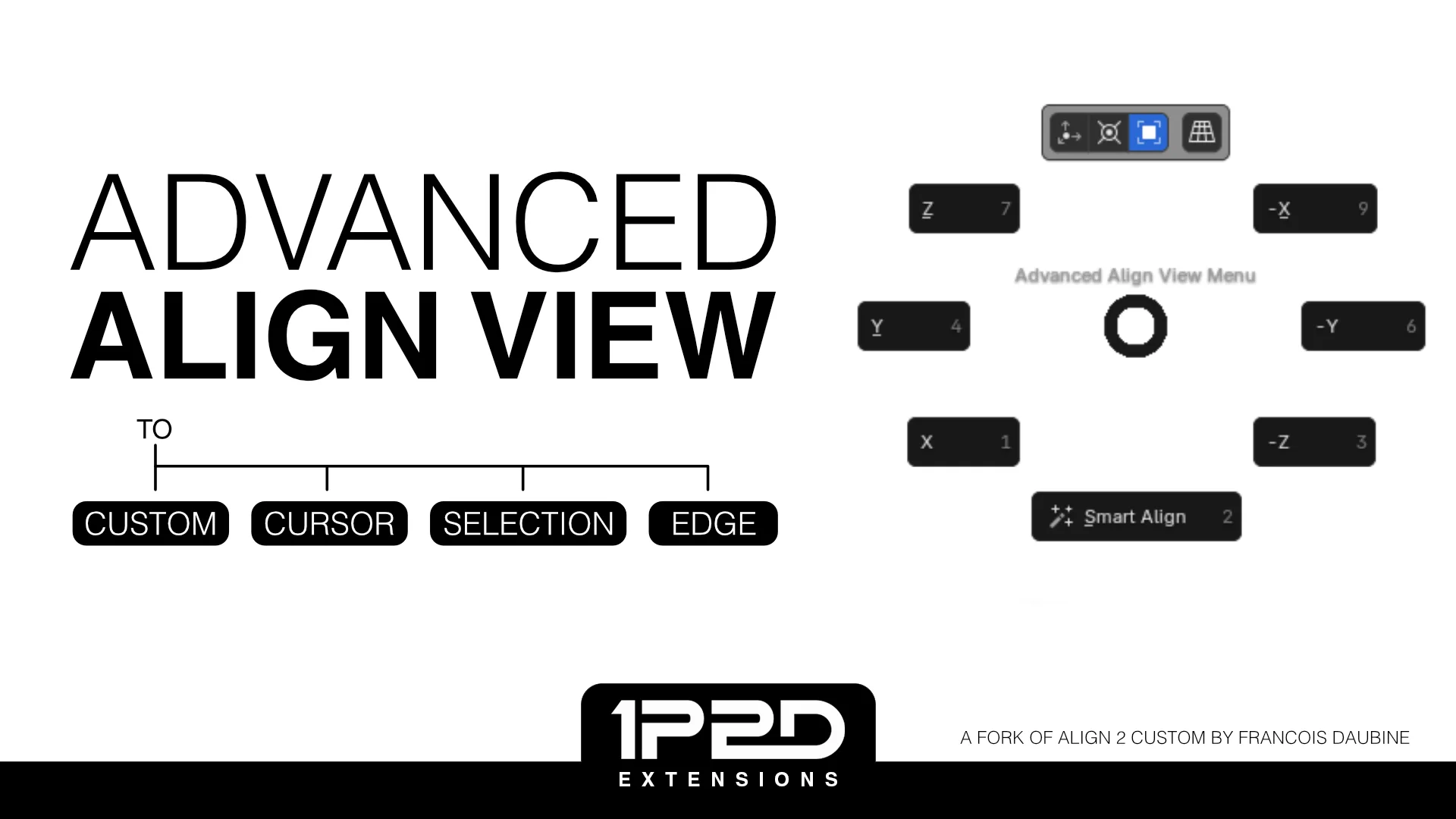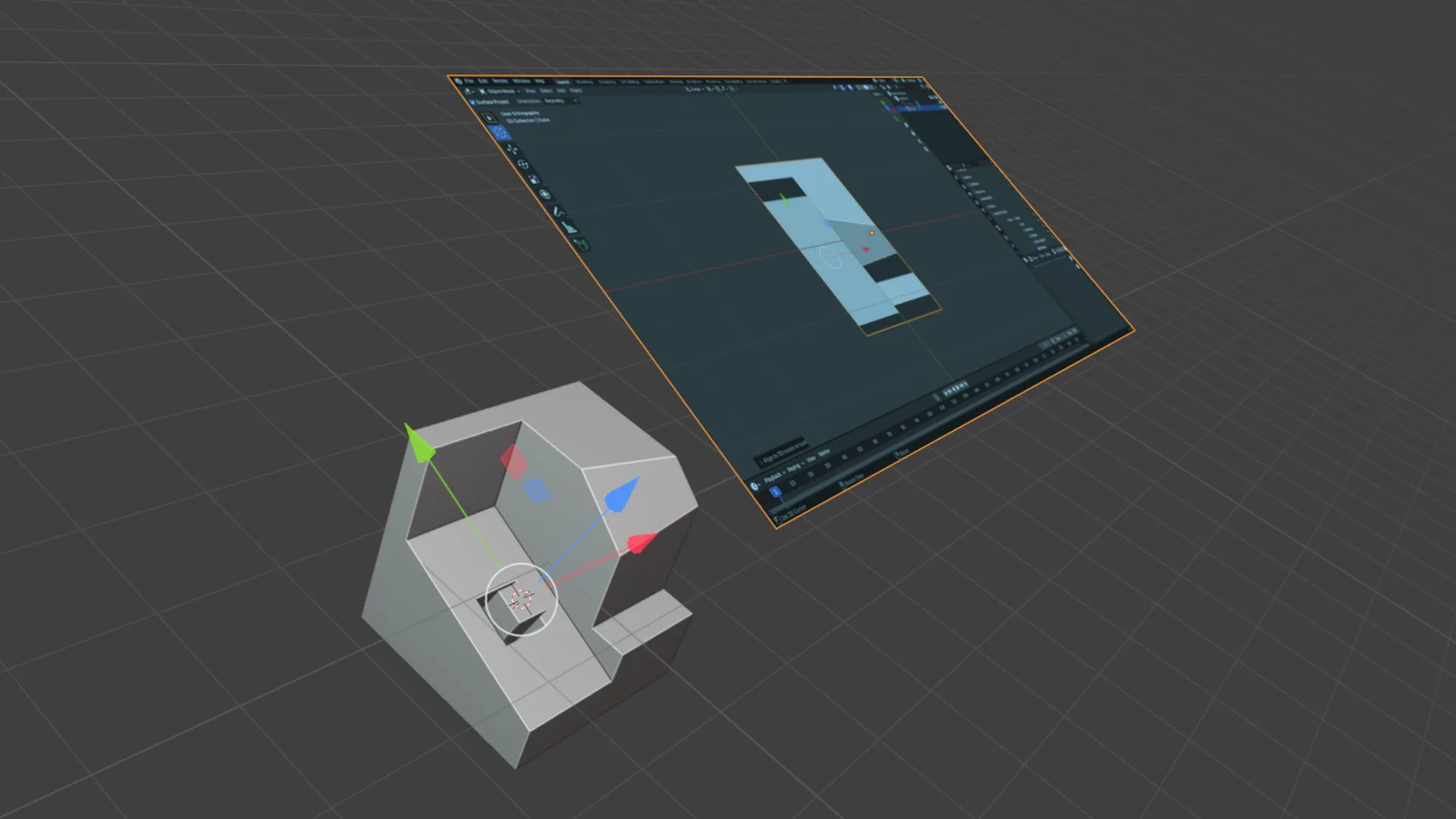
Align 2 Custom adds two ways to align Blender's 3D View: to the 3D cursor's orientation and to a custom transform orientation. The commands are available by keyboard shortcut and from the View > Align View menu.
Align the view to the 3D cursor
Use ALT + NUMPAD 8, 5, or 6 to align the view to the top, front, or right. Add CTRL to switch to the opposite view: bottom, back, or left. These shortcuts use the 3D cursor's orientation as their reference.
Align to a custom transform orientation
For a custom transform orientation, use ALT + NUMPAD 7, 1, or 3, with CTRL for the opposite views. A custom orientation must be active for these commands to work. You can create one from geometry, such as the normal axes of an object's face, then align the viewport to that orientation.
Transition and compatibility
The alignment uses a smooth transition by default. In the add-on preferences, you can disable it for a hard transition or if you encounter unusual behavior or performance problems.
The Blender Extensions catalogue lists version 2.1.2, a minimum Blender version of 4.2.0, and a GPL-3.0-or-later license. Check the Align 2 Custom listing for release details. For installation from a downloaded file, follow Blender's extension installation instructions.