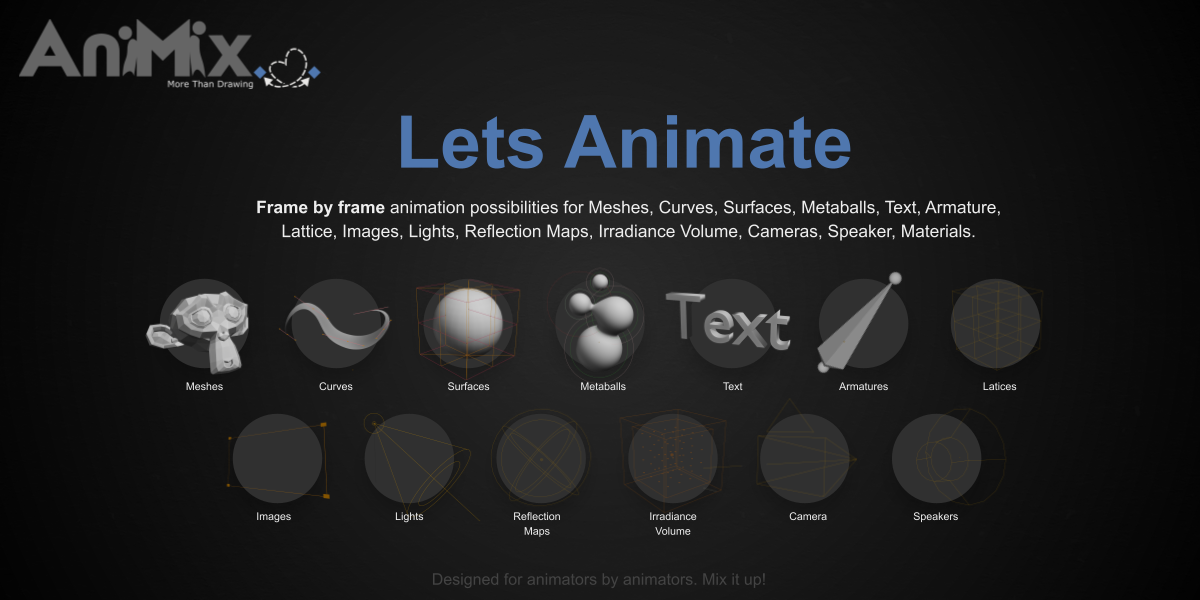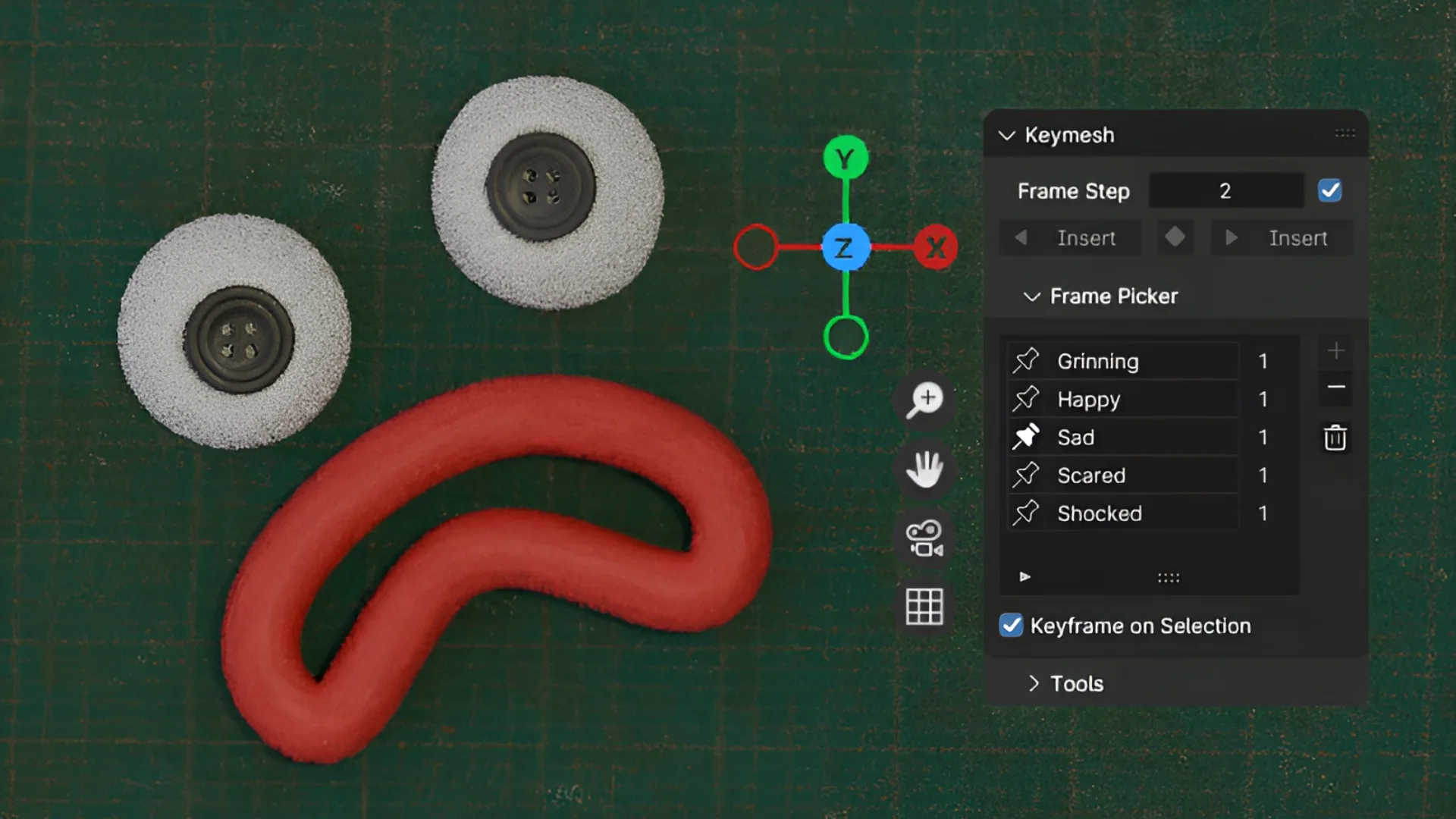
Animix is a Blender add-on for stop-motion and frame-by-frame animation. Anthony Aragues says he re-engineered the free Keymesh add-on to cover more than meshes, including curves, text, metaballs and cameras. Animix also has keyframe spacing controls and Pin Frame, an onion-skin feature that keeps selected objects and their needed relationships available as references while you work on other frames. The product listing credits Aragues and lists Blender 3.4 and a GPL license. That is the version shown on the listing; check the product page for current compatibility before installing.
Frame-by-frame animation and key management
Animix's Stop Motion Keys tools insert keys with a unique StopMotion Object ID. A click inserts a key to the right of the timeline playhead, while Ctrl-click inserts one to the left. The documentation also describes removing keys by pulling other keys into the cleared position. Its Clear Keyframes control clears the selected StopMotion object's ID data while leaving the keyframe itself in place.
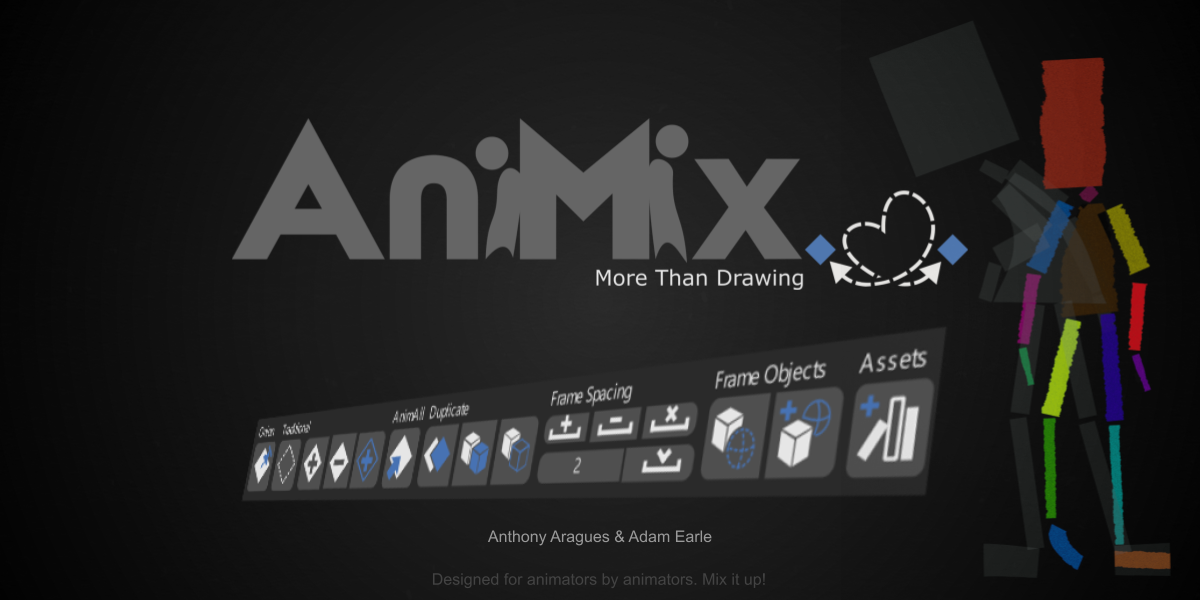
Frame Spacer adjusts the gaps between selected keyframes. It can add or subtract space, set a spacing count, or apply the current spacing. Subtracting space closes gaps without deleting keys.
Pin Frame and other tools
Pin Frame holds the current selection, with its needed relationships, as a reference for work in other frames. The documentation says a click pins the selection and Ctrl-click removes all pinned frames. Other documented tools can duplicate keyframes, duplicate objects with keys or blank keys, and separate or combine objects with keyframe data.
Multi Key advances through frames while inserting a swap key. A preference can also apply the modifier stack on each frame, which the documentation describes for cumulative Geometry Nodes work. The Asset Library tool can create assets from selected objects and supports keyframe data.
Installation and compatibility
The product documentation says Blender must be installed first. It describes installing the downloaded add-on through Blender's Edit > Preferences screen, then enabling it. Since the product listing names Blender 3.4 and does not confirm support for newer releases, check the listing or documentation for the version you use.