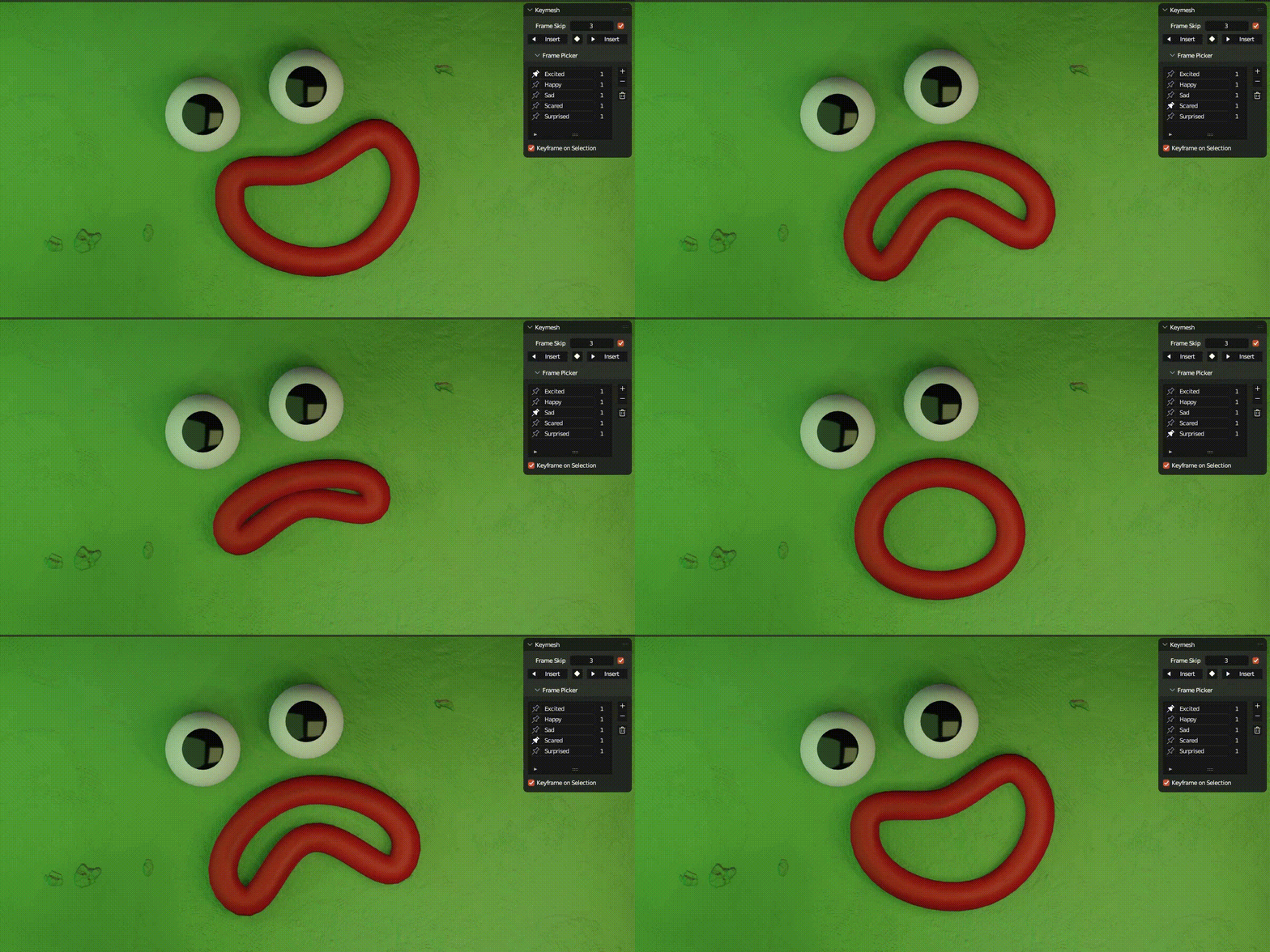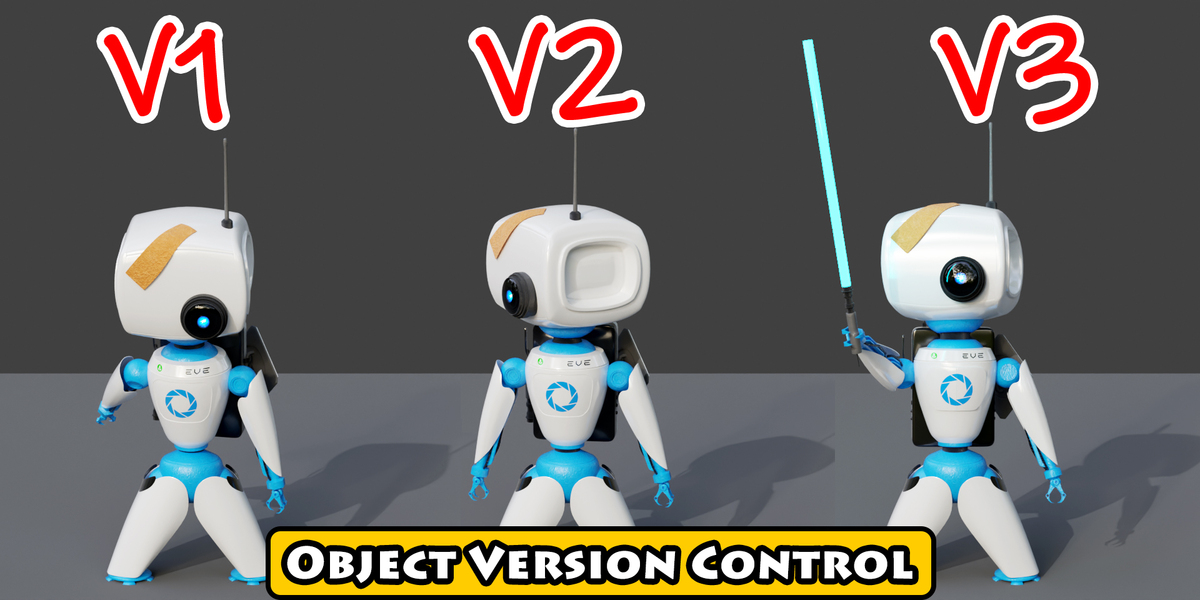
Keymesh Too is a Blender add-on for stop-motion animation and object versioning. The cataloged release is version 2.1. The Superhive listing describes the Blender 4.1-and-earlier build as free, with a purchase available to support development. For Blender 4.2 and newer, it directs users to Keymesh on the Blender Extensions platform, also available through Blender Preferences under Get Extensions.
How Keymesh Too handles frame-by-frame animation
Keymesh stores multiple versions of an object’s data and lets you place them on the timeline. You can sculpt or model a different mesh state for each Keymesh keyframe, then scrub through the frames to preview the sequence. The add-on can also animate UV maps, attributes and color attributes such as vertex paint.
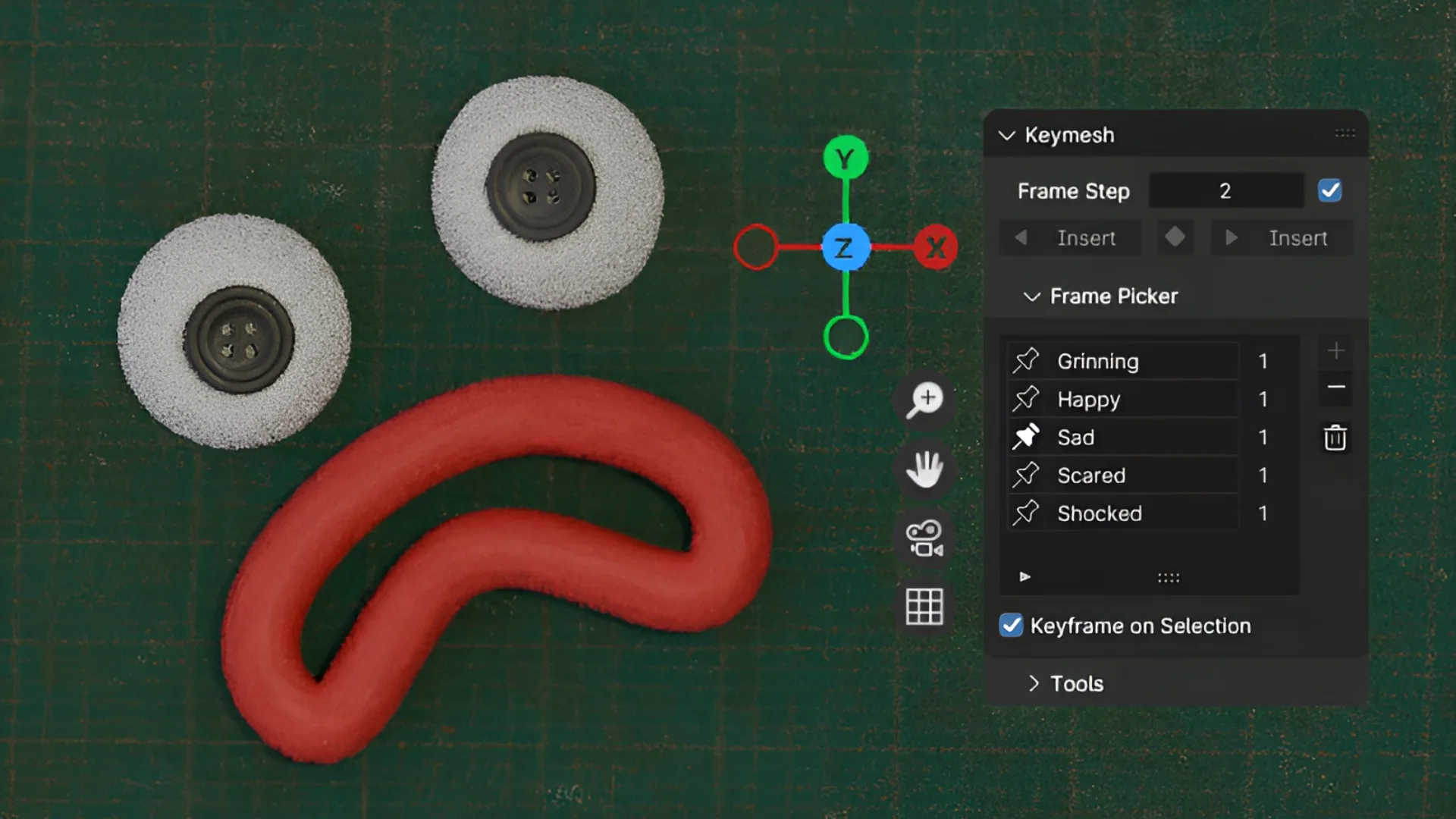
The Frame Picker shows the versions registered for an object. From its interface, you can insert keyframes without duplicating them in the Dope Sheet, name or remove versions, and see how often each version appears in the animation. Page Up and Page Down move between Keymesh keyframes; Ctrl with either key inserts a keyframe forward or backward.
Animate more than meshes
Keymesh Too supports Curves, Metaballs, Lattices and nearly every other Blender object type. The stated exceptions are empties, armatures and Grease Pencil objects. Curves can hold replacement-mouth shapes for lip sync, hair curves can change frame by frame, and text can switch between versions over time.
The same version storage can help when you are comparing sculpt or model variants rather than making an animation. Place alternate object data on the timeline and scrub through the versions in the scene.
What version 2.1 adds
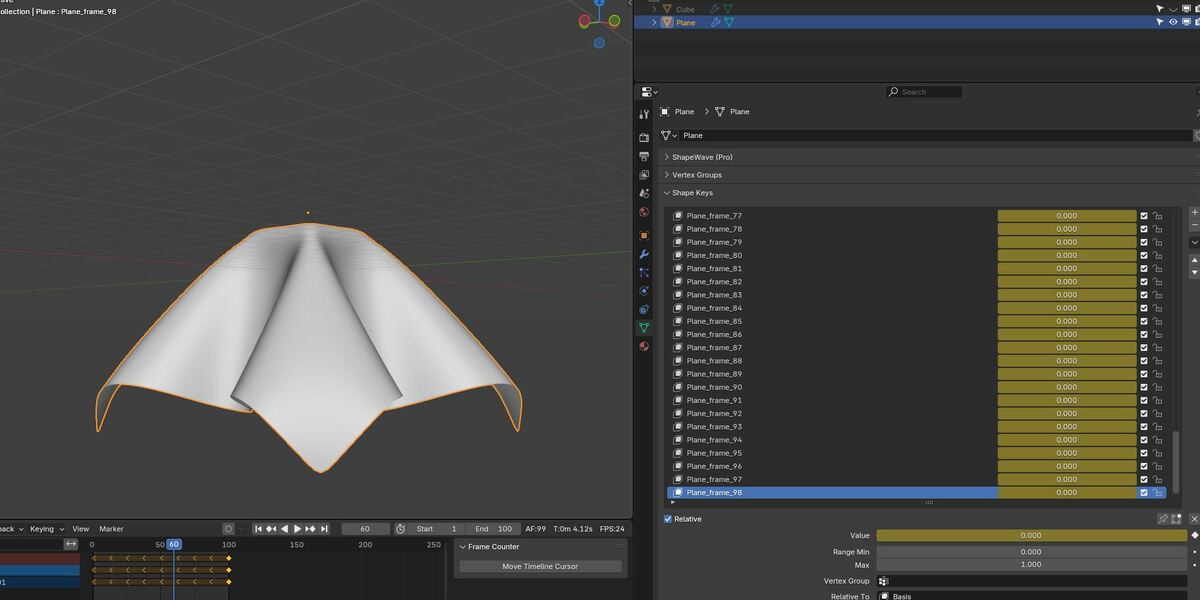
The Shape Keys to Keymesh operator converts animated shape keys into Keymesh frames by baking the sculpted states and removing the shape keys. The product notes warn that copying shape-key data can cause issues such as delays while scrubbing the timeline. Remeshing an object also deletes its shape keys, so account for that before using the conversion workflow.
Convert to Separate Objects creates one object for each animated frame and lines the objects up in the scene. The developer describes it as useful for making the separate parts for a real-world stop-motion production with 3D-printed pieces.
Workflow controls and fit
A preference can back up the original object data before Keymesh data is added. Another setting controls whether Keymesh keyframes can be created in Edit Mode. The listing notes that Blender’s Edit Mode evaluation can make updates invisible or cause problems.
Keymesh Too suits Blender artists who want discrete shape changes across frames, including stop-motion animators, sculptors and modelers who need to compare object versions. Check the Blender version first, then choose the matching distribution listed by the developer.