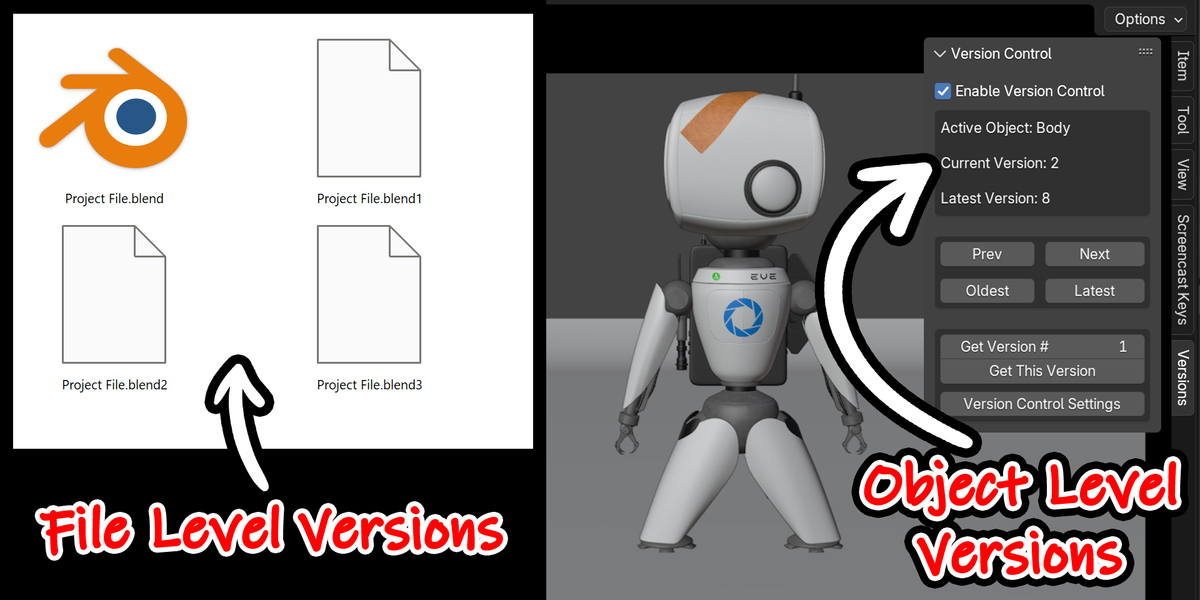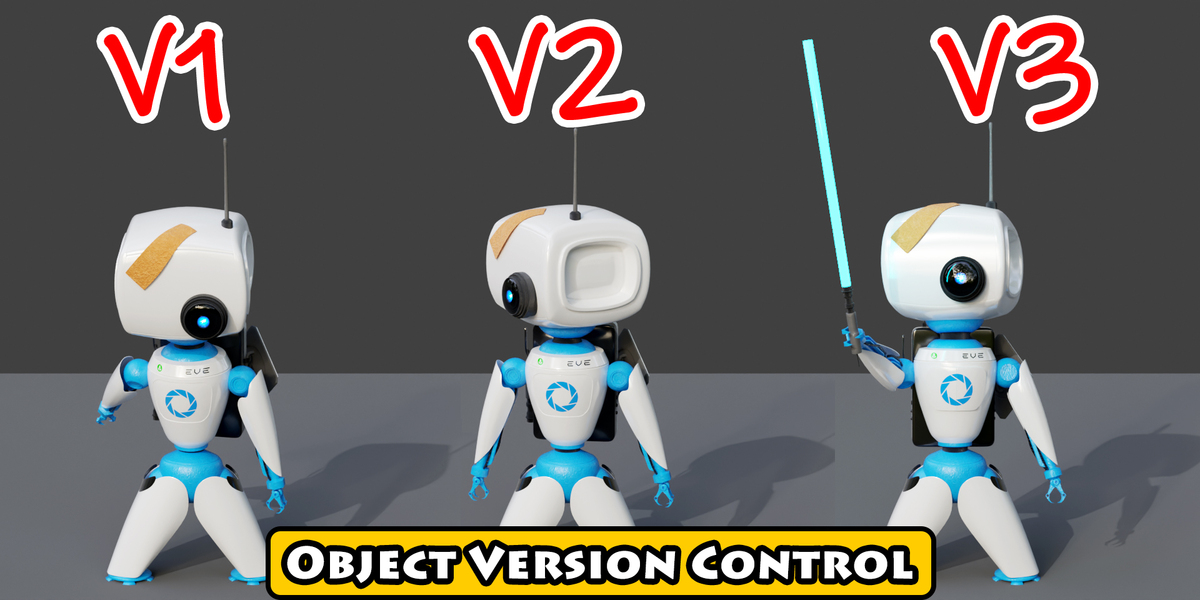
Blender's built-in versioning keeps backups of entire .blend files. Object Version Control, by 5 Minutes Blender, keeps a separate history for each object in a scene. You can inspect an earlier version of one object while the rest of the scene stays in the same file, without opening a separate backup.
Track object changes when you save
When version control is enabled for a blend file, the add-on checks objects on save. It creates a new version for an object when that object has changed. The history stays in the current blend file, alongside the scene, rather than in a separate backup file.
Navigate an object's history in Blender
To open the version list, move the pointer over the 3D Viewport and press N to show the sidebar. Select an object, then switch to the Versions tab. Use Prev and Next to move through its history, or jump to the Oldest or Latest version. To go to a specific entry, enter its version number and choose Get This Version.
Choose what gets versioned
The settings let you control how much history is kept and which objects are tracked:
- Enable or pause version creation for the current blend file. Existing versions remain when the feature is disabled; enabling it again resumes version creation.
- Set the maximum number of versions to keep for each object.
- Choose whether unsaved changes should be captured as a version when you navigate back to an earlier one with Save Draft Versions.
- Limit tracking to the active scene, active object, or active collection.
- Show debugging information in Blender's console window.
Adjust the data recursion level
Blender objects can contain nested data. Data Recursion Level controls how deeply the add-on checks that data when looking for changes. The product documentation describes the default value of 2 as a reasonable balance between correctness and performance. If versions are sometimes missed, the documentation suggests raising the value. A deeper check can slow saving and cause temporary lag.
Compatibility and setup
Superhive lists Blender 3.4 through 5.0, marks the add-on as Blender Extension Compatible, and lists its license as GPL. Its documentation page says the download package includes a PDF with installation steps, screenshots, usage instructions, and field details. A video tutorial covers the functions and options. Check the current product listing for compatibility and license details before installing.