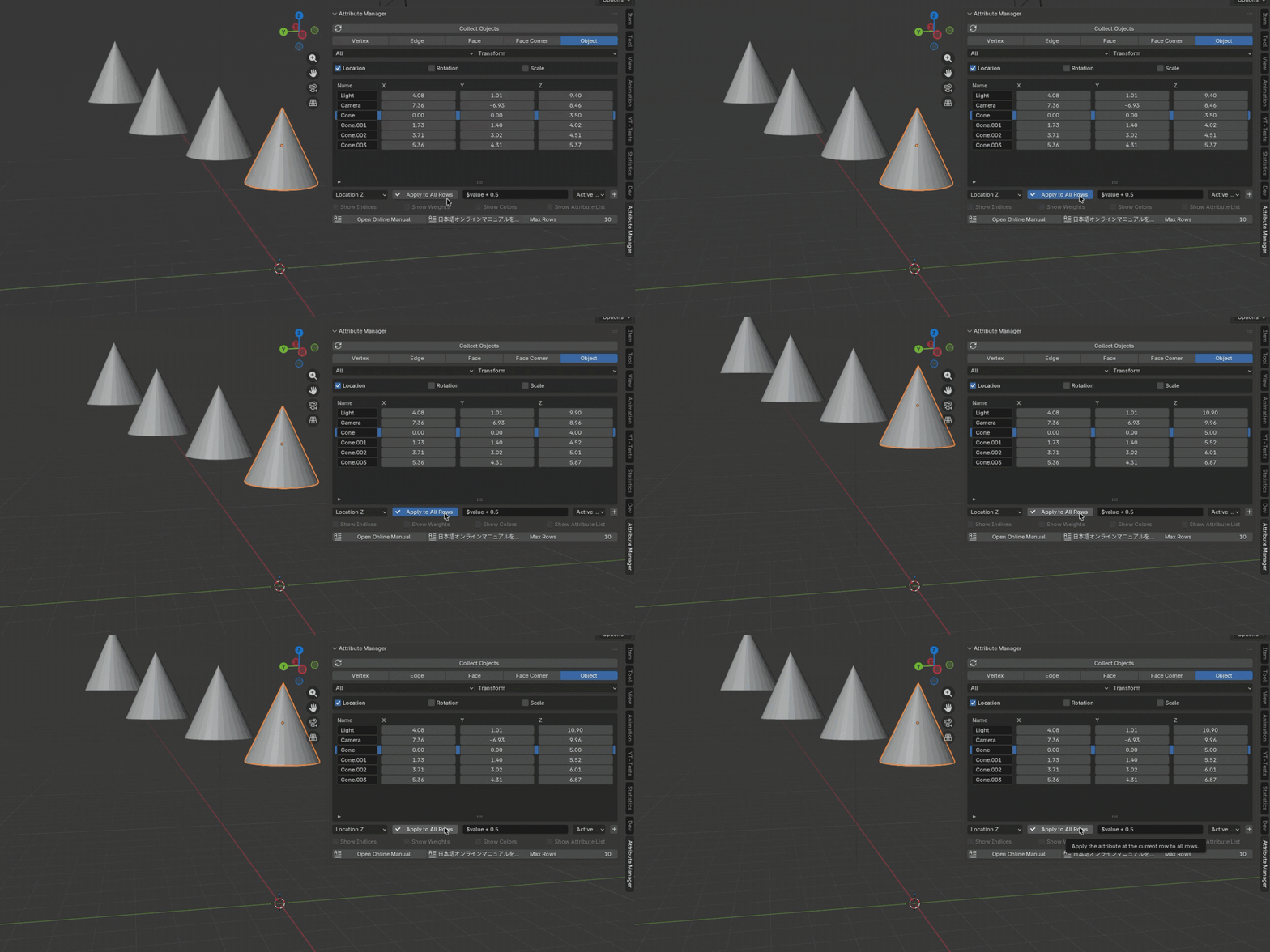
Attribute Manager for Blender is an add-on for viewing and editing selected mesh and object attributes in a spreadsheet-style table. You can change cell values directly, apply values or expressions across rows, and choose which attributes appear as columns. This suits bulk cleanup and scene edits where changing values through separate Blender panels would take repeated steps.
Load selected mesh elements or objects
In Mesh Edit Mode, press Correct Selected to load the selected vertices, edges, or faces. In Object Mode, it loads selected objects. Attribute toggles let you choose which fields appear in the table, and selecting a row sets that element as active. The panel width and visible row count are adjustable; the default Max Rows value is six. If the selection or mesh structure changes, press Correct Selected again to refresh the table.
Choose a mesh, object, or modifier mode
- Vertex mode edits coordinates, shape keys, vertex group weights, crease, bevel weight, point color attributes, and user-defined attributes. Coordinates can be displayed and edited in local or global space.
- Edge mode includes smooth, Freestyle, crease, bevel weight, length, and user-defined attributes.
- Face mode includes material slots, Freestyle marks, and user-defined attributes.
- Face Corner mode includes UVs, corner color attributes, and user-defined attributes.
- Object mode includes transforms, relations, visibility, viewport display, and type-specific attributes for Mesh, Light, Camera, and Empty objects.
Viewport aids can show mesh indices and vertex weights as gradients. Modifier mode displays modifier attributes. In its Properties view, Apply to All Rows copies the selected row's modifier properties to modifiers of the same type.
Apply values and expressions across rows
Apply to All Rows can set a column to one value across the loaded rows or calculate values for float fields with an expression. The expression field supports basic arithmetic and Python's math module. For example, + 2.0 adds two to each current value, while clamp($value, 0.0, 1.0) limits each value to the range from zero to one. For other field types, the command applies the active cell's value to the same item in all rows.
Install and check compatibility
- The developer manual lists Blender 4.0, 5.0 or later; the Superhive listing shows a compatibility range of 4.0 to 5.0. Check the developer manual against your build before installing, then download the add-on ZIP file.
- In Blender, open Edit > Preferences > Add-ons and choose Install. Select the ZIP file and enable Attribute Manager.
- In the 3D View, open the sidebar with N and select the Attribute Manager tab.
The developer manual describes the add-on as Python-based, with no external dependencies, for Windows and macOS. The Superhive product listing identifies the license as GPL. Check the license terms before redistributing the add-on.