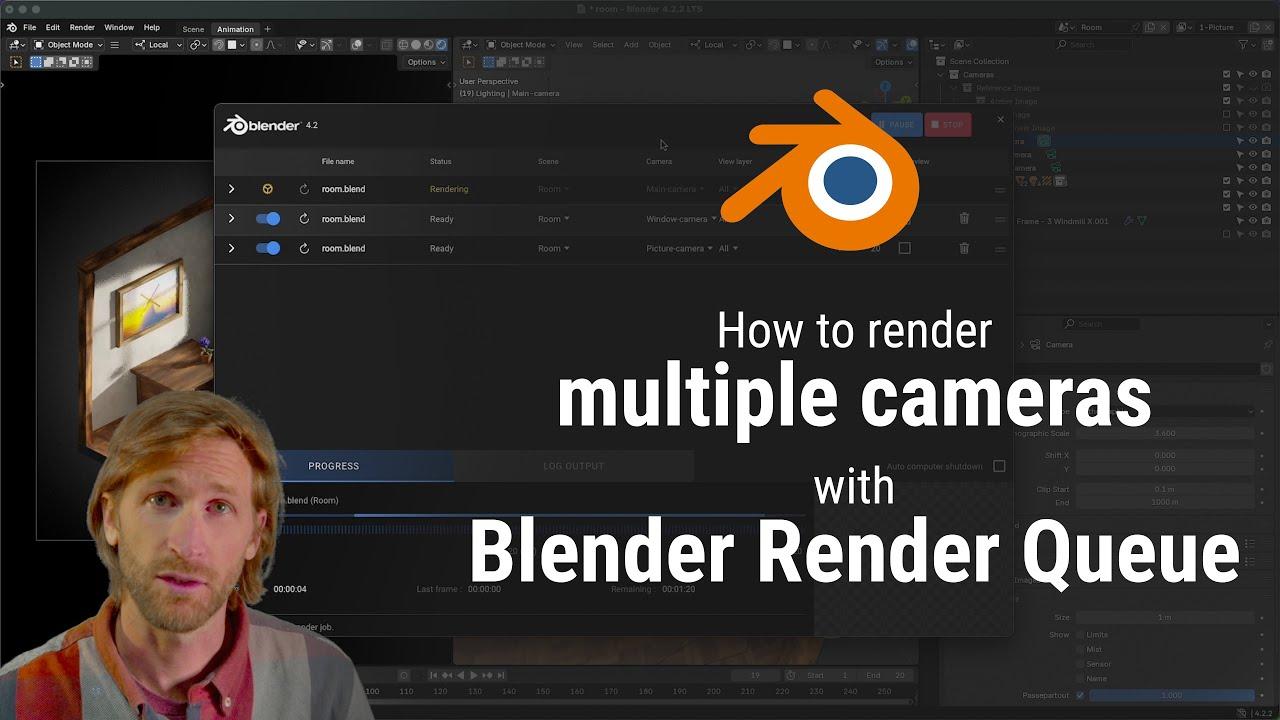
Auto Render Queue Pro is a Blender add-on from Mamba CG for processing multiple .blend files in a sequential render queue. Add project files, choose a scene for each one when needed, set output locations, then start the jobs with generated scripts. It supports Cycles and Eevee and suits artists and studios that render several projects in order for review queues or overnight work.
Organize a queue around Blender files
Add one or more .blend files to the queue. The list can be reordered or entries removed before a run. For a file with multiple scenes, select the scene to render; if you skip scene selection, Blender uses that file’s default scene. When custom output is enabled, choose a base folder and each project renders into its own subfolder. The add-on reads render settings from each project file.
It can help with repeat batch jobs, review rounds and sets of projects that need to be processed in sequence.
Generate and run render scripts
Auto Render Queue Pro generates a .bat script for Windows or a .sh script for macOS and Linux. Complete the batch checks below before choosing Start Rendering. The add-on generates the script if needed and launches it in a terminal window. You can select a different Blender executable in the panel, which is useful when the default application path is not the one you want to use.
One queue uses a single Blender executable for all its files. If a batch needs different Blender versions, separate the work into scripts and adjust them manually as needed.
Plan scheduling separately
The add-on does not include a built-in scheduler. After generating a script, schedule it with an operating system tool, such as Windows Task Scheduler on Windows or cron or at on macOS and Linux.
Check the batch before starting
Confirm that the Blender path points to a valid executable and that every queued .blend file is accessible. Check that the intended scene is selected, or that the default scene is correct. For a custom output folder, confirm it exists or that Blender has permission to create it. If a script does not render, check the terminal for errors from Blender.
Install and open the add-on
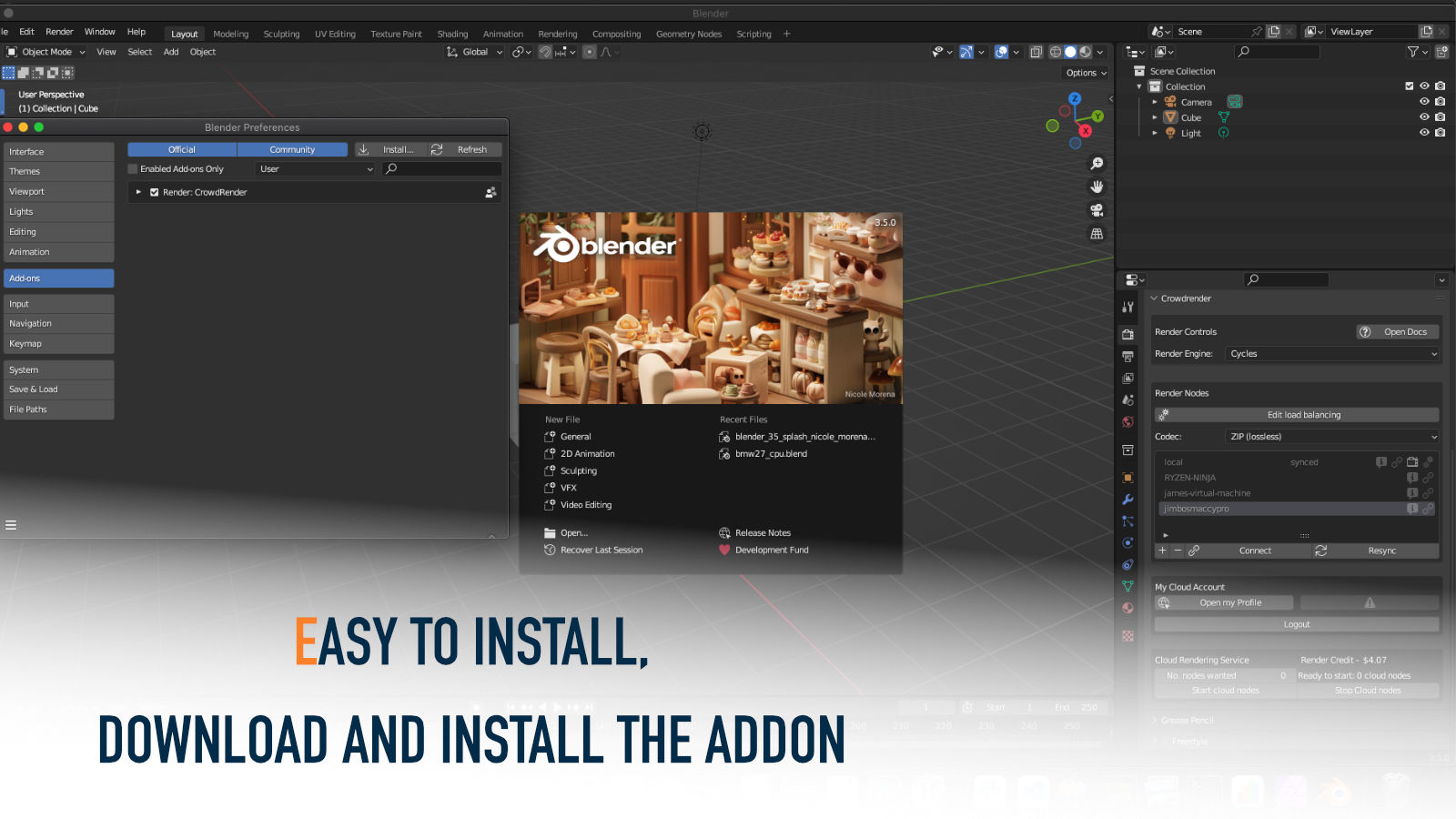
The Superhive setup guide describes installing the add-on file through Blender Preferences under Add-ons, then enabling it. To open the panel, go to a 3D Viewport, press N to show the Sidebar and choose the Auto Render Pro tab. The product FAQ covers scheduling, Blender executable selection and common setup checks.