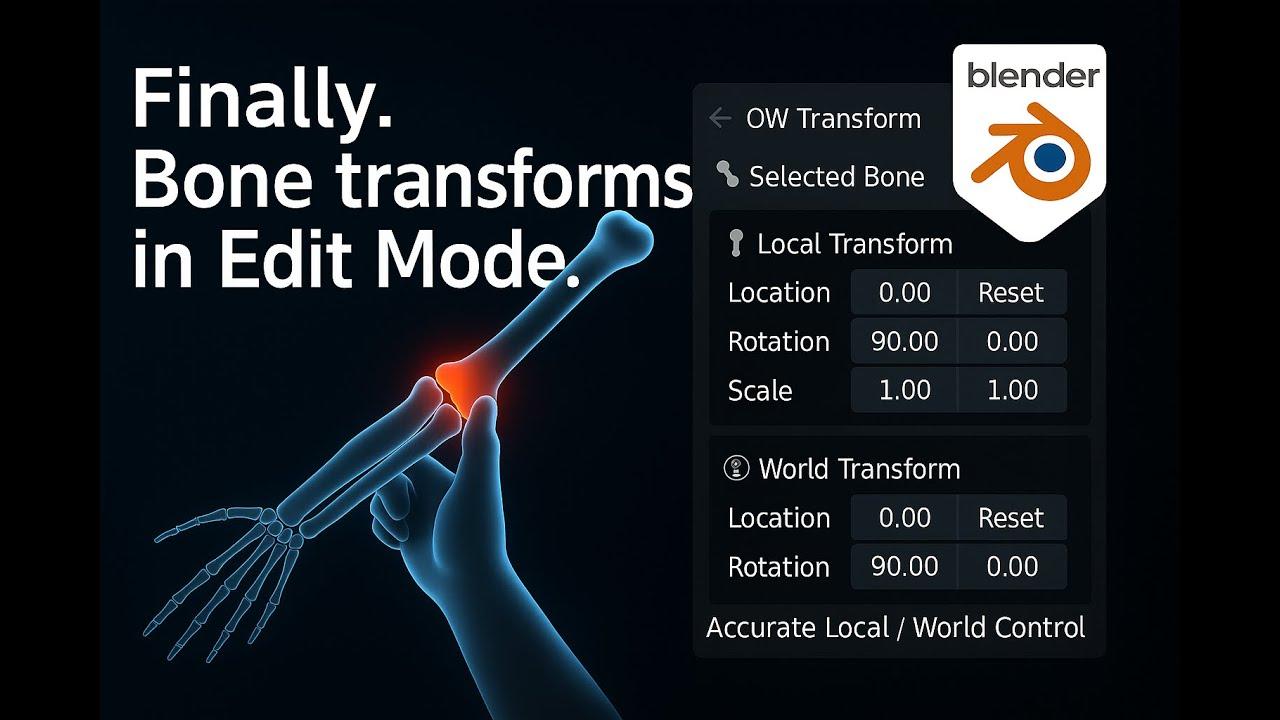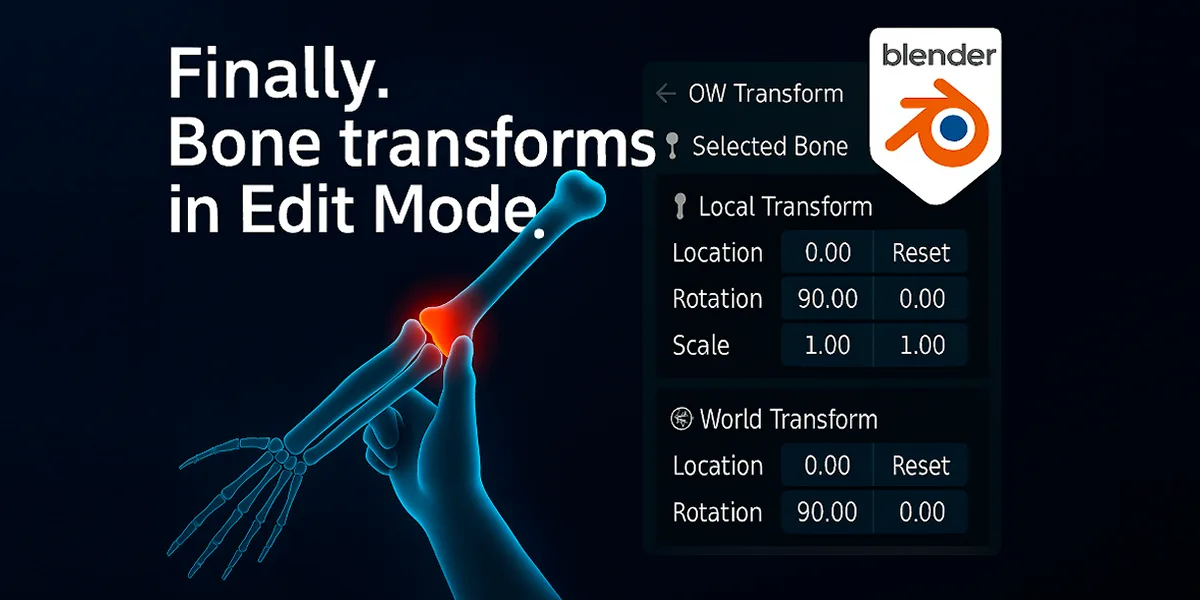
Blender Bone Transform Pro - Edit Mode Local Matrix Tool is a Blender add-on for entering numeric transforms on armature bones in Edit Mode. Its OW Transform panel adds Local and World fields for location, rotation and scale in the 3D Viewport sidebar. It addresses a gap in Blender’s default Transform panel, which does not provide numerical input for bones in Edit Mode.
What the panel adds
Select an armature, enter Edit Mode and open the sidebar with N to find the OW Transform tab. The panel shows the selected bone and provides X, Y and Z fields. Local coordinates are relative to the parent bone; World coordinates describe position in 3D space. The add-on also includes gizmo switching, individual or batch reset controls, and undo support.
For simultaneous multi-bone control, select child bones first and the parent last; the hierarchy is controlled based on that parent bone. Values update in the viewport, so you can inspect the result as you adjust them. Its scope is armature bones in Edit Mode; the documentation does not list object-transform controls.
Rigging tasks it addresses
The product materials describe use on character and mechanical rigs. Examples include setting knee or ankle alignment for IK/FK transitions, entering exact gear or hinge angles, and matching left and right bone positions with mirrored coordinates.
The documentation notes that large rotation values with XYZ rotation order can encounter gimbal lock. It suggests trying World coordinates or adding a parent bone and controlling it with local rotation set to 0, 0, 0. If the panel is missing, check that the add-on is enabled, an armature is selected and Blender is in Edit Mode, then press N to open the sidebar.
Compatibility and installation
The Superhive listing identifies Blender 3.6 and later and shows a 3.6–4.5 range. Its documentation says 3.3 or later is supported, with 3.6 or higher recommended. For Blender 3.3–3.5, the documentation’s support statement extends below the listing’s displayed range, so confirm support with the developer before relying on it. The listing names Windows, macOS and Linux.
Install the downloaded add-on package through Blender’s Edit > Preferences > Add-ons panel, then activate it. Select an Armature, enter Edit Mode, press N and open the OW Transform tab to access the controls.
AnyPlugins lists the add-on as free. The Superhive listing shows a GPL license, while the product documentation describes commercial use as included. Confirm current price and licensing terms with the developer before relying on them.