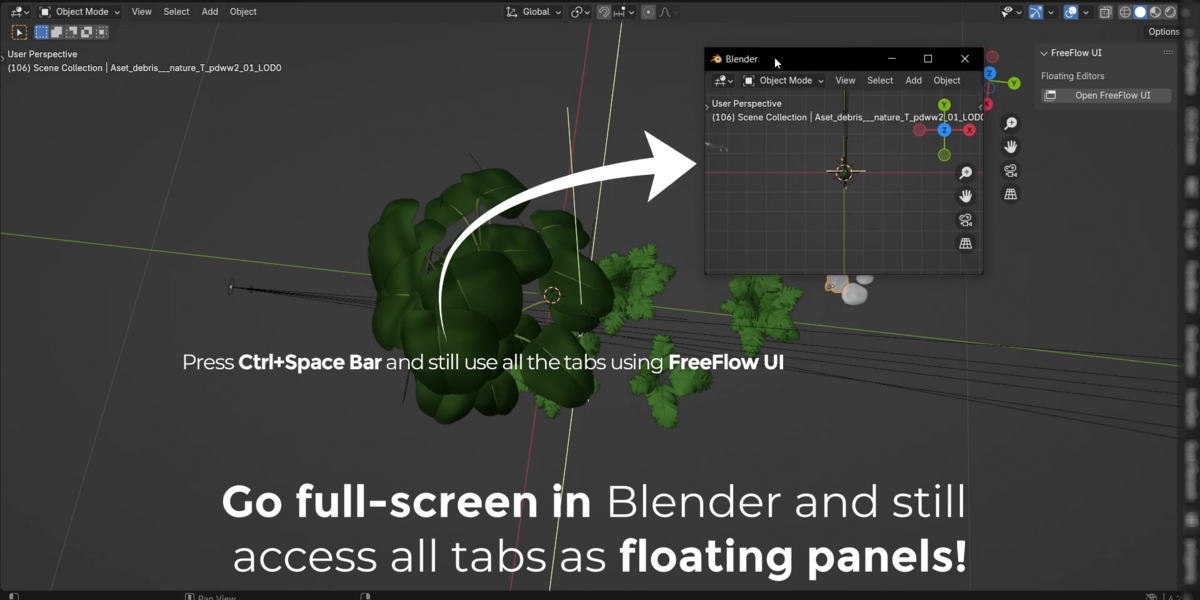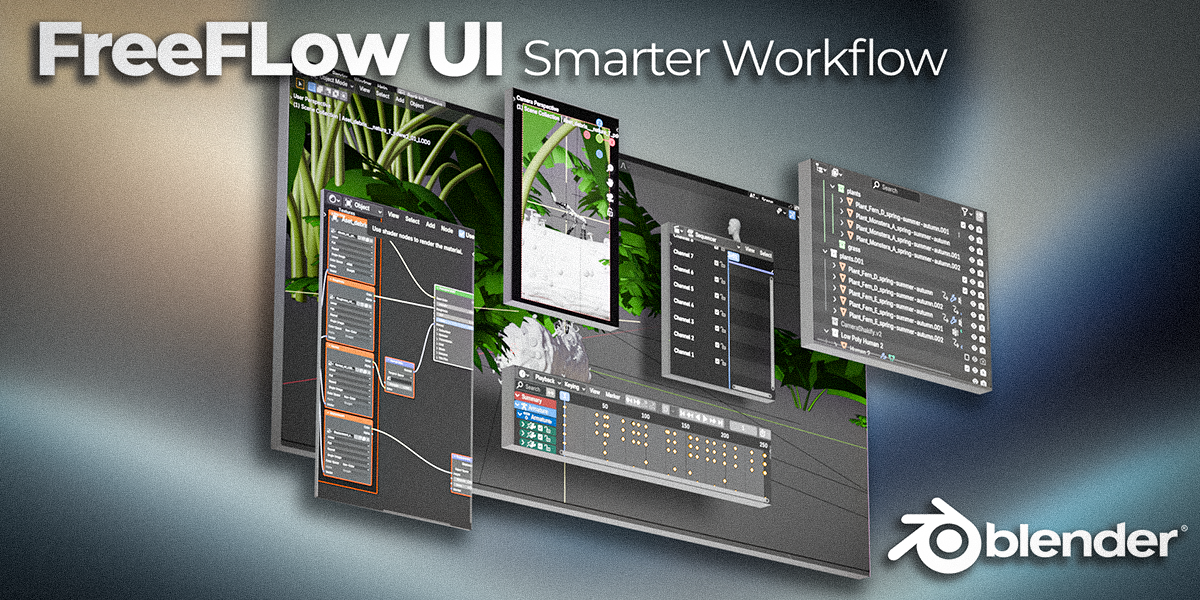
Freeflow Ui is a Blender add-on by K&K Visual Productions that opens editors in separate floating windows. It can help when you work across several panels or want to rearrange tools around the main Blender workspace.
Open Blender editors in floating windows
Supported editors include the 3D Viewport, Image Editor, Node Editor, Text Editor, Graph Editor and more. Choose an editor in the FreeFlow UI panel to open it as a floating tab; multiple floating editor windows can remain open at once.
Open, dock and manage windows
After enabling the add-on, find its panel in the 3D Viewport Sidebar under the UI tab. Select an editor there to open it. To return a floating window to Blender’s main interface, drag it back to dock it. This keeps the same editors available while you change how they are arranged.
Set up a hotkey
Freeflow Ui supports a user-defined hotkey for opening editors but does not assign one automatically. Set one in Blender with these steps:
- Open Edit > Preferences > Keymap.
- Find the Window section, or another relevant section, and choose Add New.
- Set the operator to
wm.freeflow_ui, then choose a shortcut. The FAQ gives Shift + F as its example and specifies the key type as Press. - Save the preferences and test the shortcut.
Install and check compatibility
Download the add-on ZIP, open Edit > Preferences > Add-ons in Blender, choose Install, select the ZIP file and enable Freeflow Ui in the add-ons list. Its panel then appears in the 3D Viewport Sidebar under the UI tab.
The product listing names Blender 3.6, 4.0, 4.1, 4.2 and 4.3 as compatible versions. Its description also says Blender 3.6 and above; check the creator’s listing for confirmation if you use a later version. The listing identifies the license as GPL.
See the developer’s documentation for setup sections, and the product FAQ for hotkey details.