In Premiere Pro, a clip name and the name of the media file it references are separate. Game Changer connects them: its ClipName to FileName function renames source media to match clip names and updates the project link to the changed path. The extension also moves or copies files and organizes clips into bins.
Rename source files and clip names
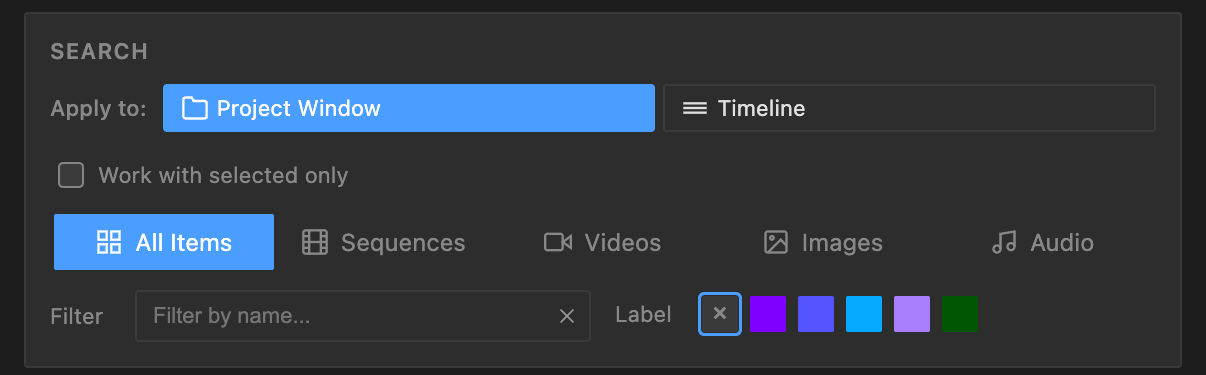
Use Game Changer to batch edit selected names with Replace, Add, or Format. Replace changes matching text, Add inserts text before or after a name, and Format combines a custom name with a serial number; if the custom name is blank, it uses the current clip name plus a serial number. The extension can also rename sequences, color mattes, and bins. Restore returns a clip name to its original file name.
Premiere Pro keeps Project panel names and timeline clip names separately. Apply to TrackItem copies the Project panel name to timeline instances across sequences. Version 2.0 also supports working with clips selected in the Timeline, including renaming, moving, and copying.
Move, copy, and organize media
Move relocates files and updates their paths in the project. When the destination is on another device, the operation copies the files and leaves the originals in place. Copy duplicates files; enable Link if you want Premiere Pro to point to the copy afterward. When you select a bin, Game Changer can move or copy the bin with its structure. A setting lets you work with the clips inside the bin instead.
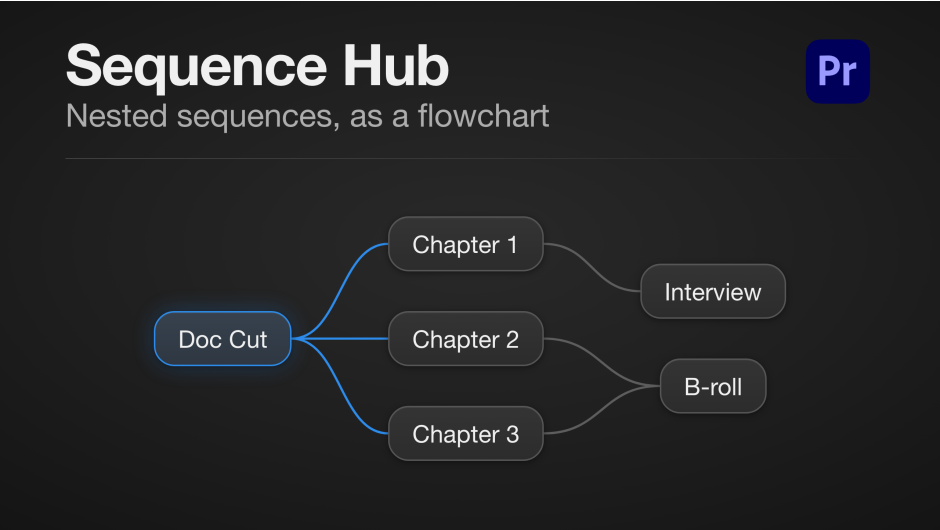
Version 2.0 added three bin tools. Sync Folder groups selected Project panel clips into bins that follow their folder structure, with sequences, multicamera sequences, and color mattes grouped separately. Collection puts selected clips into a new bin, including clips selected in the Timeline. Release Bin removes the selected bin while keeping its clips; the bin goes to a Trash Bin. With Sync Folder, Shift-click applies the action to all clips in the selected bin; with Release Bin, Shift-click removes all bins inside the selected bin while leaving the clips.
Check file paths before changing shared media
Renaming a source file can affect other Premiere Pro projects that use the same media. Game Changer relinks the project where you make the change, but another project may still point to the old path and show the media as offline. Before renaming or moving files, display the File Path column in the Project panel and check which media will be affected, especially when sharing projects with others.
For timestamp-sensitive work, 884’s update notes also warn that copying through a script on Macs after Premiere Pro 2020 can set a file’s modification time to the time of copying. Check the developer’s Game Changer notes for the described behavior and the Adobe Exchange listing for current product details.