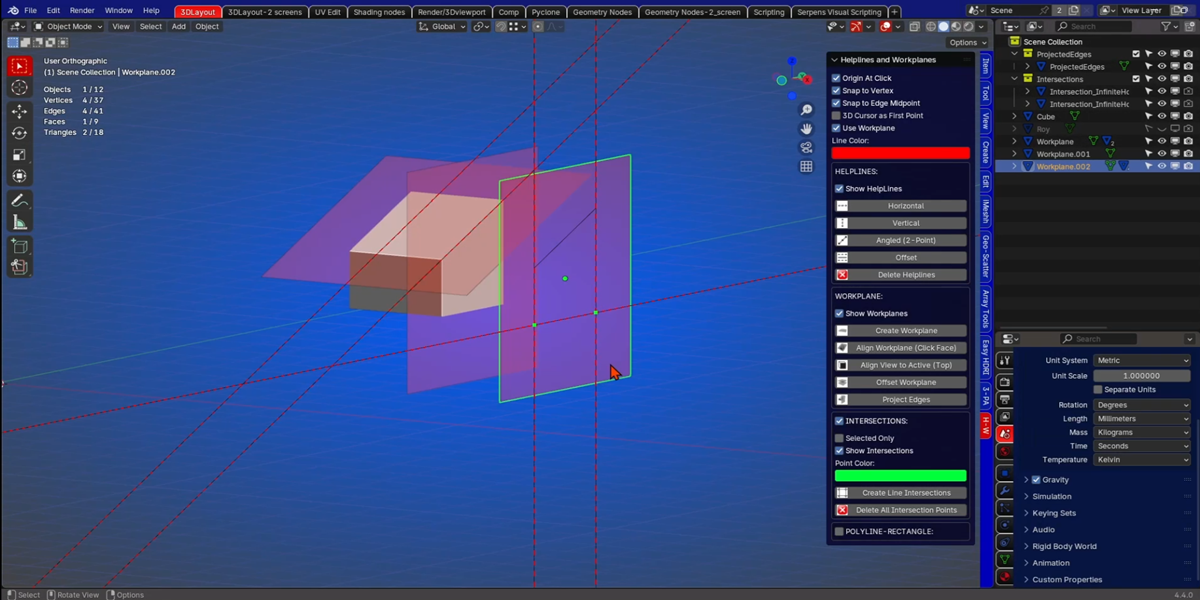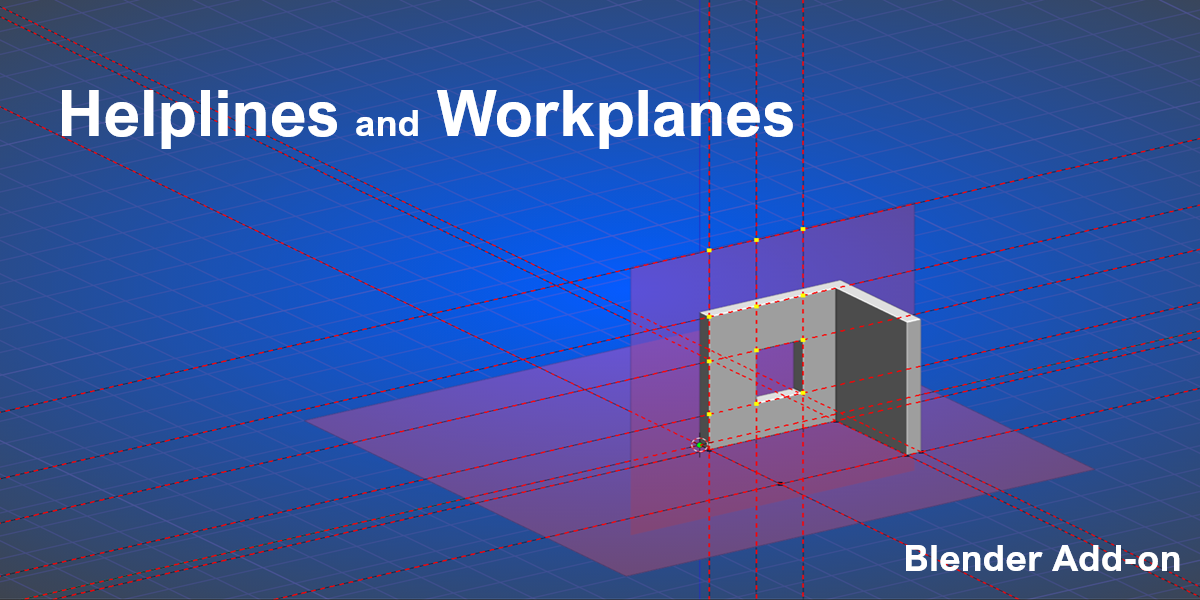
Helplines And Workplanes is a Blender add-on for modeling with CAD-style construction lines and workplanes. It also includes intersection points, polylines, and a snap rectangle, so you can build guides on the X-Y plane or a custom workplane.
Use it when a model needs reference lines, angled drawing surfaces, or constrained outlines. Helplines can be selected and moved; lines can snap to intersection points, which move to the new crossing when a helpline moves.
Place helplines and intersections
Add horizontal or vertical helplines continuously in the X-Y top view, or create an angled line by picking two points. The general instructions describe Shift plus a left click after the first point for angle entry; for Blender 5.0+ V1_3, the changelog says Shift alone opens the angle popup after a point is picked. The 3D cursor can serve as the first point for precise placement, and line and point colors are adjustable.
To offset a selected line, enter a distance and choose its side. The offset tool stays active for repeated placements until you press Esc or the right mouse button. Where lines cross, create intersection points from the panel. Enable snap to vertex to use those points as snapping targets; the select-only option limits new points to selected lines.
Work on custom planes
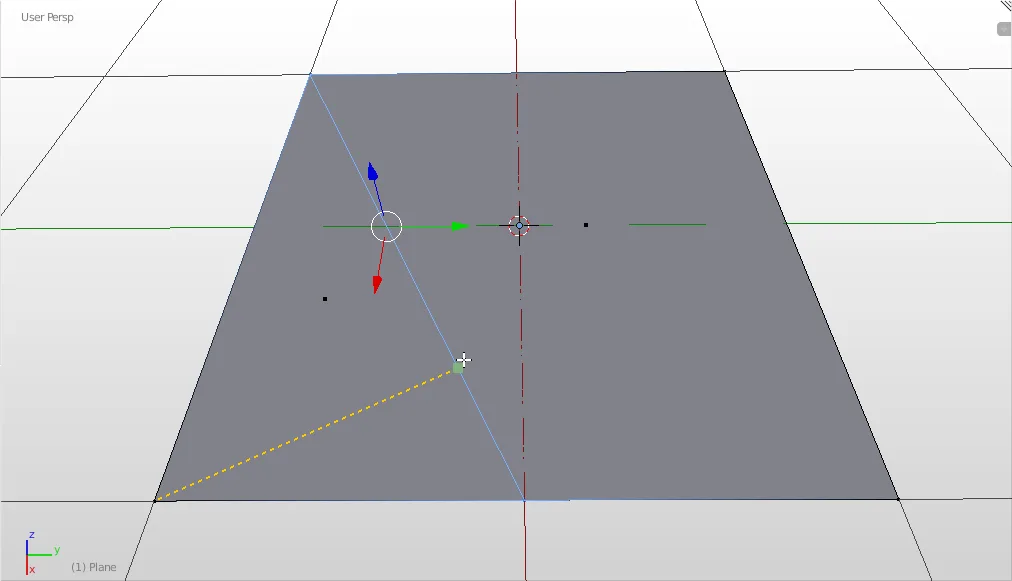
Create a workplane at the world origin, choose an axis, or make one from a selected mesh face. Move or rotate the plane, then use Align View to Active to see its top view before drawing. Enable Use Workplane so new lines follow the selected plane; otherwise, they are added to the X-Y plane.
You can create multiple workplanes and offset one from the selected plane. A negative offset places it on the other side. The project-edges tool projects edges from a selected mesh onto the last selected workplane. Use the projection as a guide or edit the projected mesh. Helplines and their intersection points follow workplane movement and rotation.
Draw polylines and rectangles
The open Polyline tool draws continuous segments. Close joins the ends when you press Esc or the right mouse button, while Close and Fill also creates a face. Press O while drawing to enable ortho, or hold Ctrl to snap to the grid. Polylines can use a workplane, and an option displays segment lengths.
The snap rectangle starts from a picked point or the 3D cursor. Draw it using snapping points, or enter its length and width. The rectangle tool also works on a selected workplane when Use Workplane is enabled.
Choose a Blender build
The KVD product listing assigns V1 to Blender 4.0 through 4.4, V1_1 to Blender 4.5 and later, and V1_2 and V1_3 to Blender 5.0 and later. Since more than one build is listed for Blender 5.0+, check the current release files and changelog before installing. The product documentation includes the tool instructions and links to a visual demo.