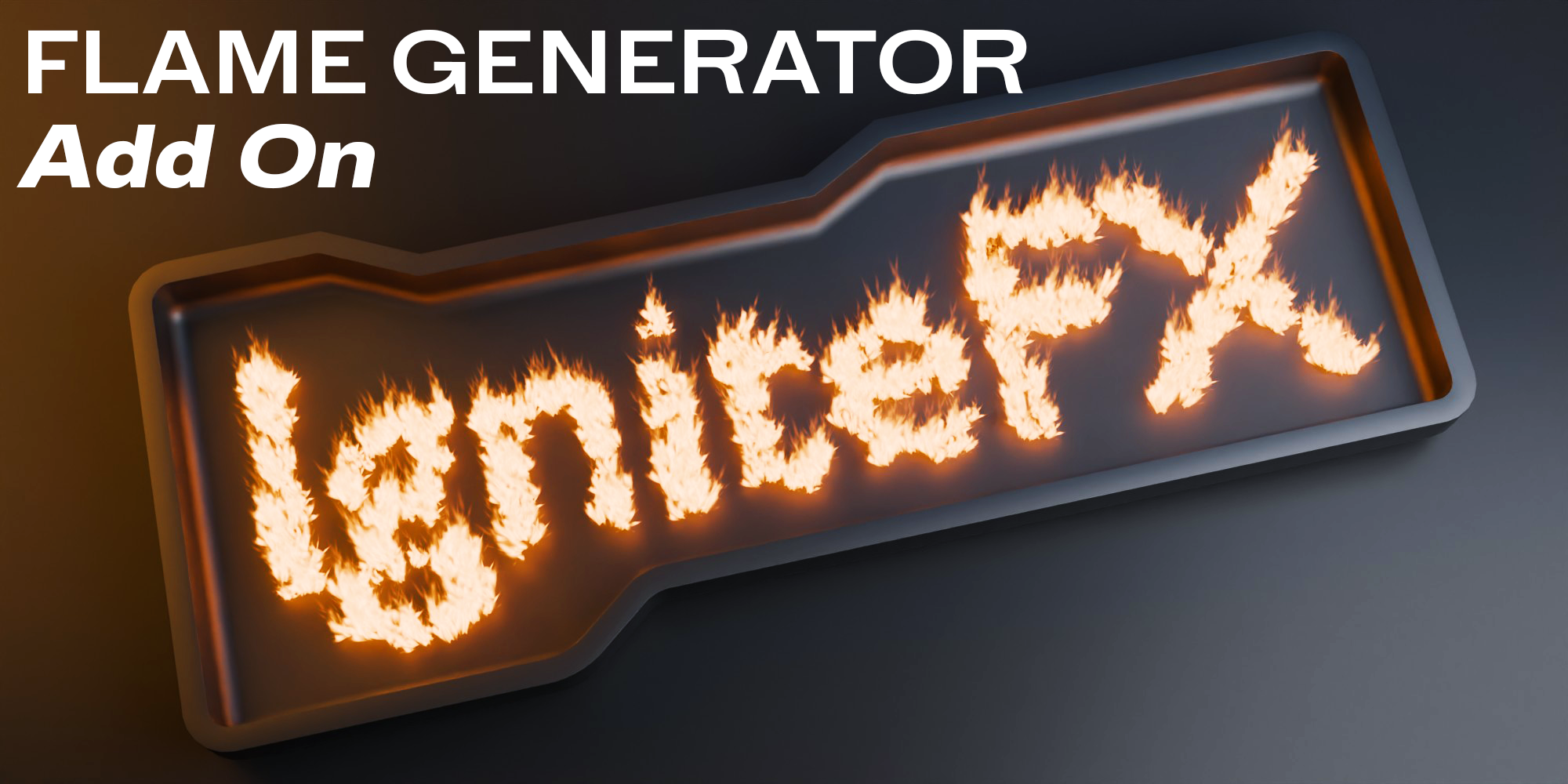
Ignitefx Flame Generator is a Blender add-on by George Kayesi for creating procedural flame effects with Geometry Nodes. The listing identifies Blender 4.0 or higher and support for both Eevee and Cycles. Its documentation explains how to add the flame setup to a project, assign it to objects, and adjust its appearance.
How to add flames to an object
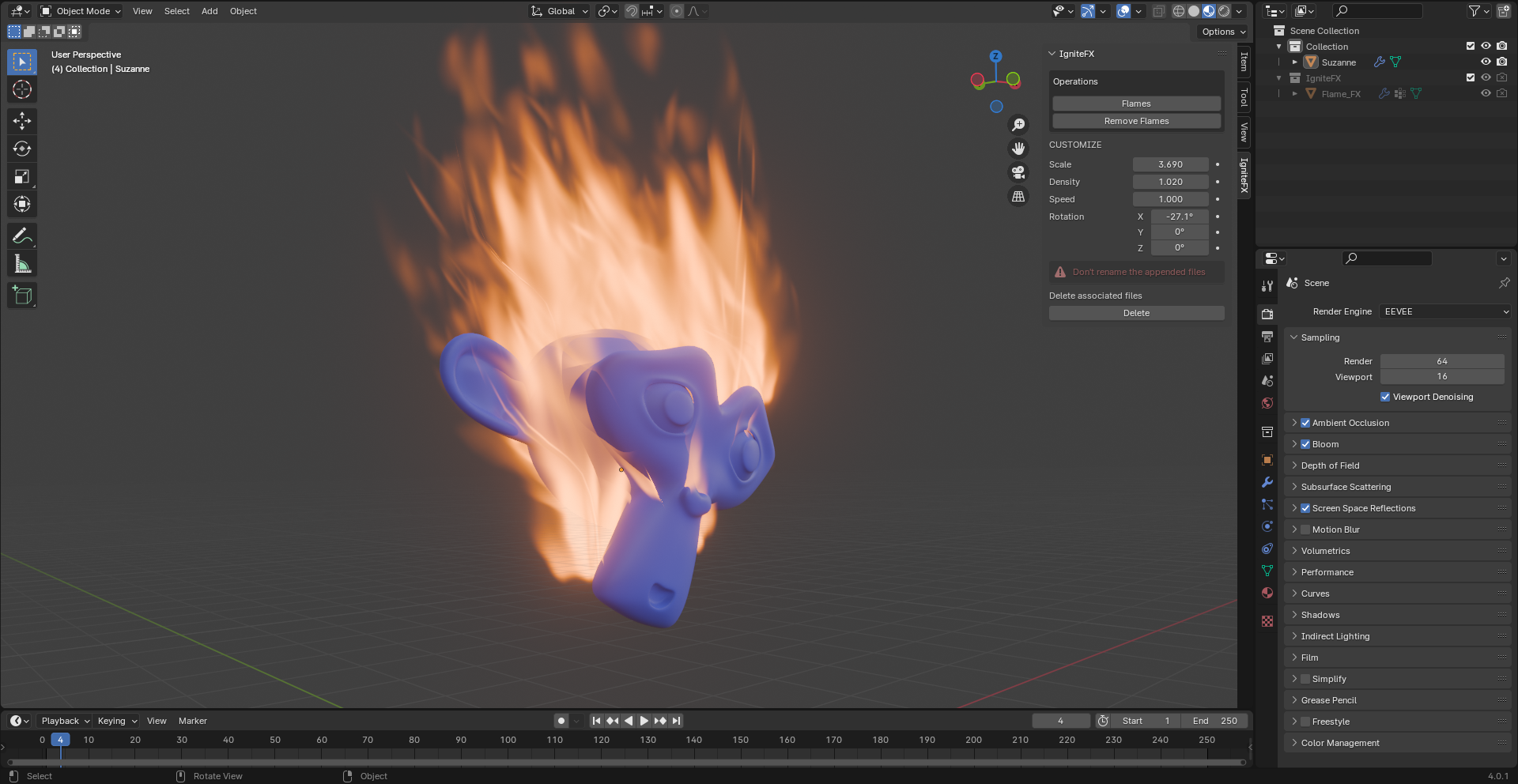
After installing the add-on, open the IgniteFX panel in the 3D Viewport's N-side bar. The first click on Flames appends the required components and associated files to the project. Blender places an object named Flame_FX in a collection named IgniteFX; both are hidden in the viewport and render by default.
Select an object in the viewport and click Flames to assign the effect. Use the CUSTOMIZE section in the panel to adjust the flame values. The product listing describes the add-on as intended for VFX and animation projects.
Keep the appended file names intact
Do not rename the files added by IgniteFX. Its Python scripts rely on their names, and changing them can cause errors.
To remove the flame effect from one object, select that object and click Remove Flames. The panel's Delete button removes all files associated with the flame setup. The documentation warns that deleting those files also removes the flame data from objects in the scene, so use Delete only when the project no longer needs them.
Change the flame color
In the Outliner, select Flame_FX, then open its Flame_FX Mat node group in the Shader Editor and press Tab to edit it. The documentation identifies the upper Color Ramp as the one to adjust. Leave the lower ramp in place; it can be used to restore the default flame color if needed.
Rendering and Blender compatibility
The listing says IgniteFX works with Eevee and Cycles and requires Blender 4.0 or higher. It does not name a maximum supported Blender version, so check the developer's current documentation if you use a newer release.
The documentation notes a Cycles artifact workaround: increase Transparent under Light Paths' Max Bounces. It does not specify a universal value, so adjust that setting for the scene rather than assuming one fixed setting will suit every project.