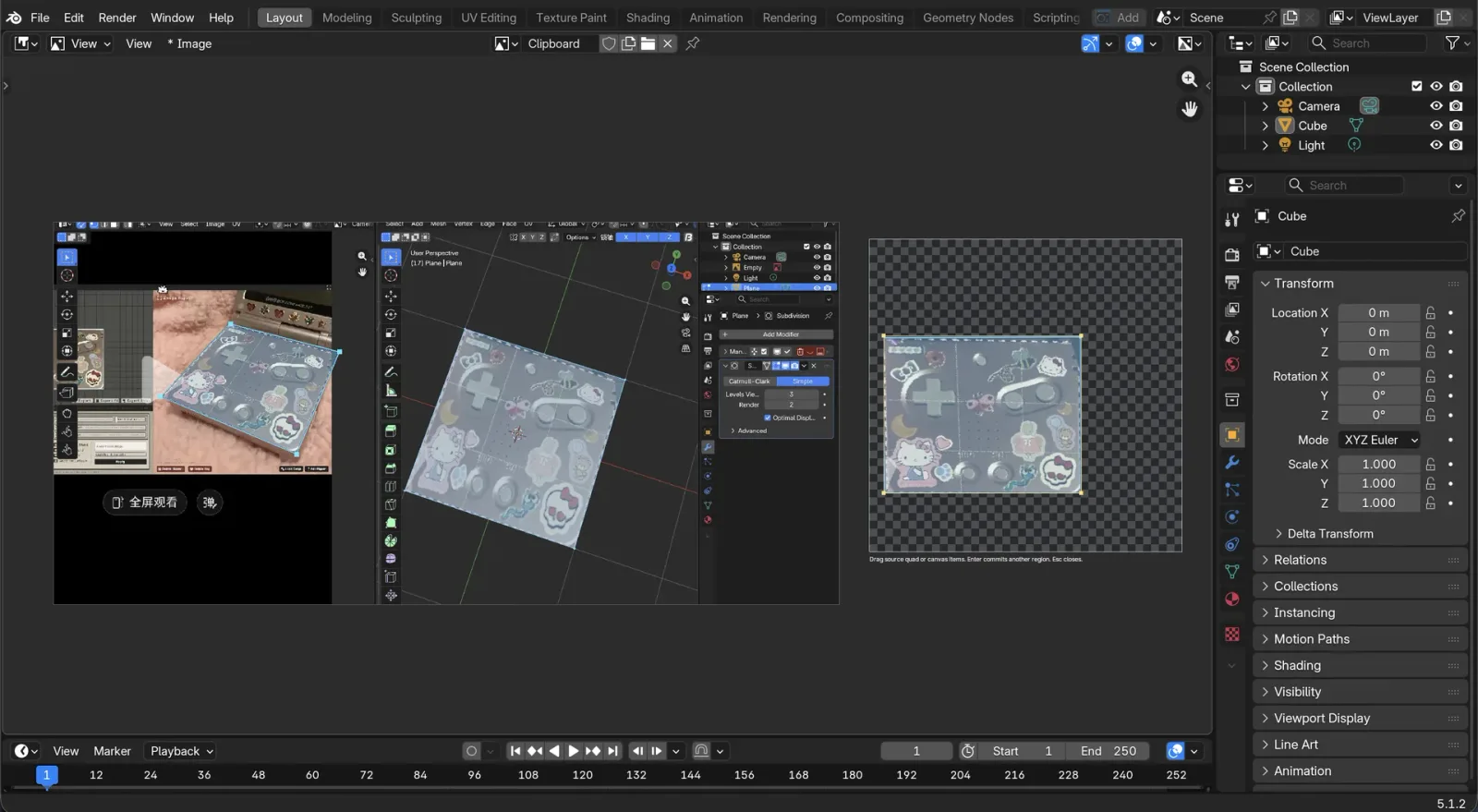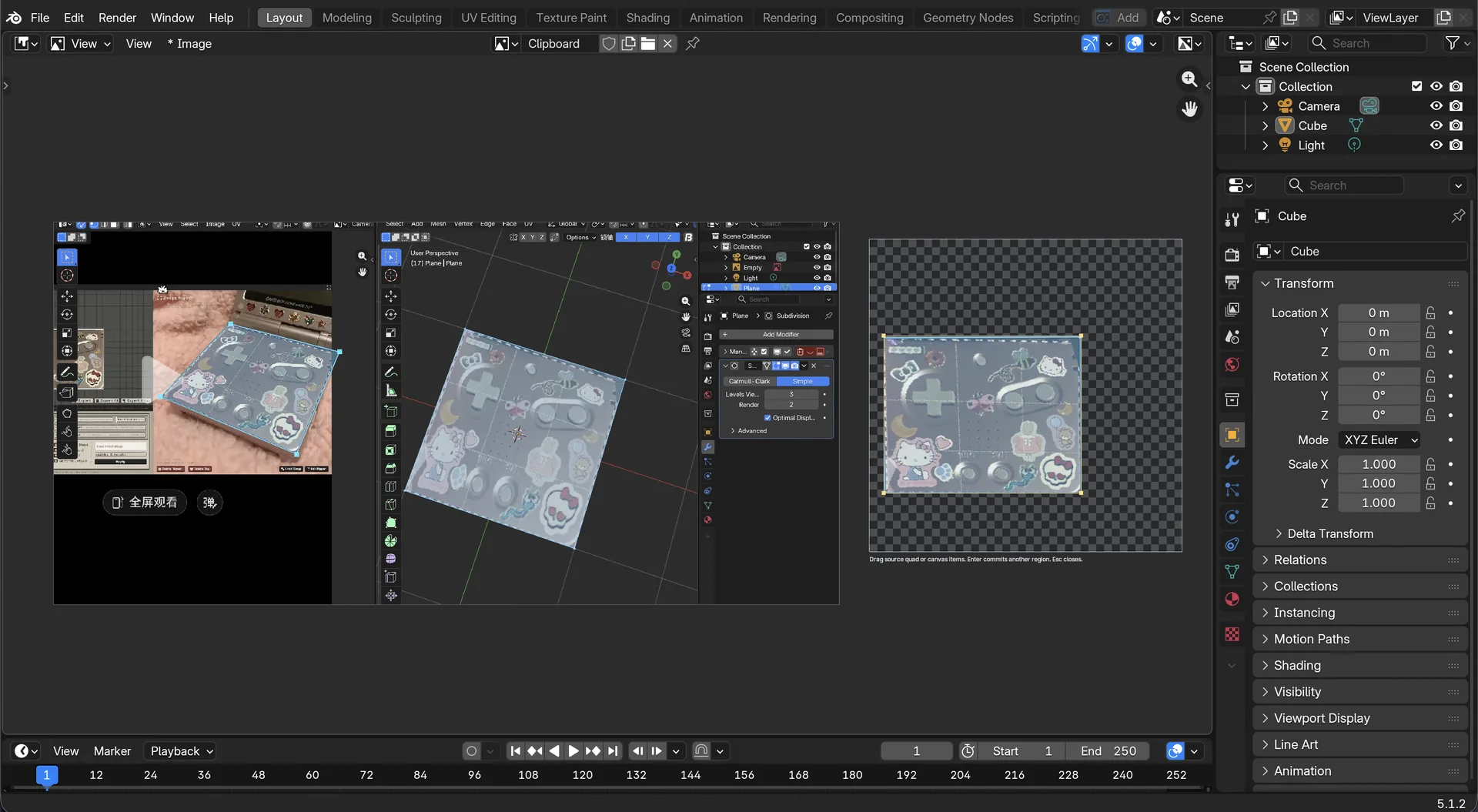
Image Remap Canvas is a Blender Image Editor extension for selecting a four-point region in an image, correcting its perspective, and arranging the resulting patch on a canvas. It is suited to workflows where you want several perspective-corrected regions together in one Blender image. You choose each region manually by placing its four selection points.
Extract a perspective-corrected patch
Open an image in Blender's Image Editor, press N to reveal the sidebar, and select the Image Remap tab. Set the canvas size, patch size, and interpolation mode, then click Start Canvas. Drag the four selection points over the region to extract. A live preview uses GPU textures, and the result canvas appears to the right of or below the source image so it stays visible while you work.
Press Enter or click Commit Region to fix the current patch and begin another. This lets you build a composition from multiple regions without leaving the canvas session.
Arrange regions from one or more images
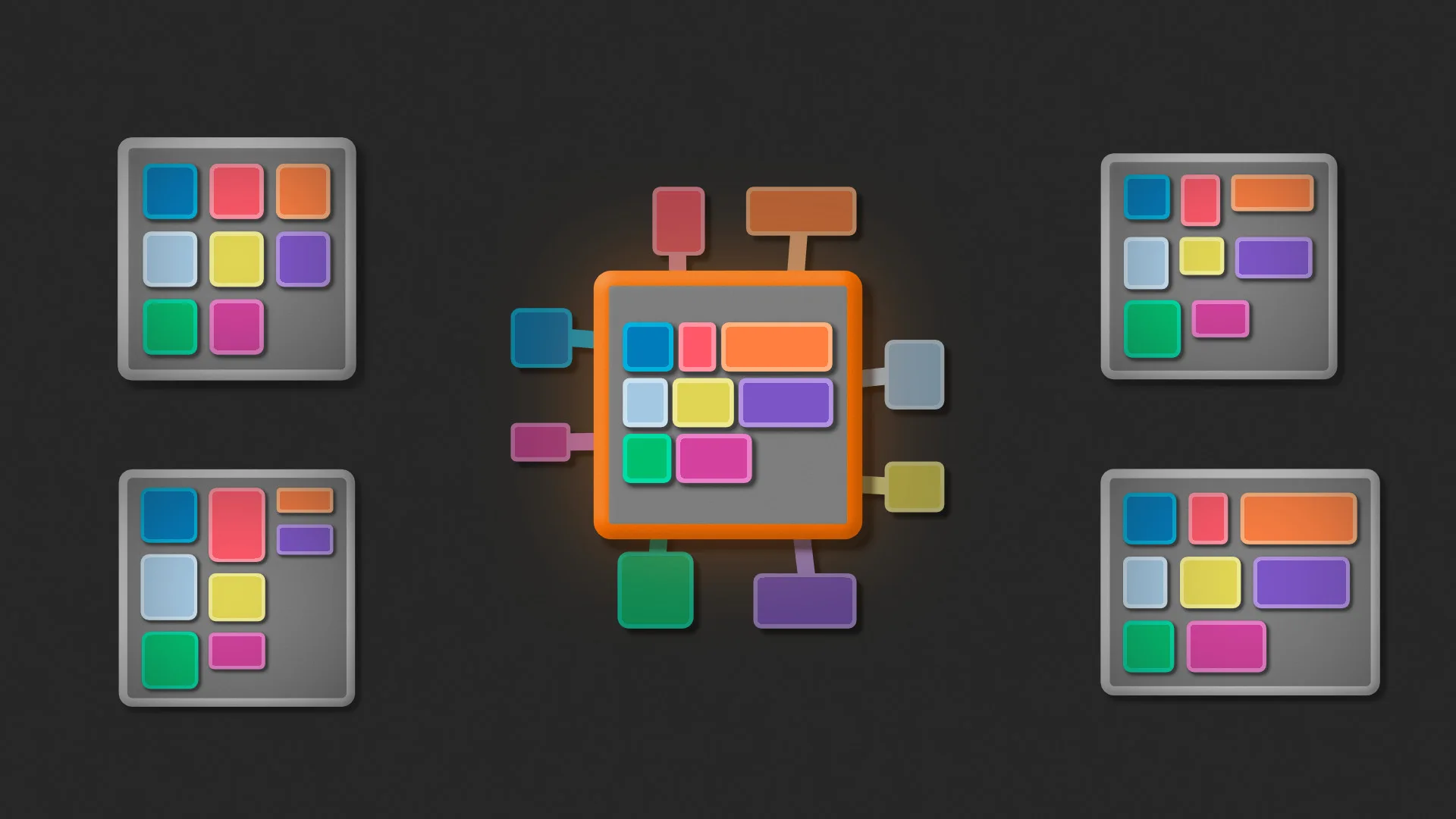
Select a committed patch to move or resize it, scale it uniformly, or rotate it in snapped 90-degree steps. Use X or Delete to remove a committed region. Ctrl/Cmd+Z undoes moves, resizing, rotation, commits, and deletions; add Shift to redo. You can also switch the active Image Editor image during the modal session to collect regions from another source image.
Save the canvas in Blender
Press Esc to close the modal session, then choose whether to save or discard the canvas with Y or N. Saving creates a new Blender image datablock. The extension is useful when the next step in your workflow needs a single image containing several manually selected, perspective-corrected patches.
Compatibility and installation
The Blender Extensions listing identifies version 0.2.0 as compatible with Blender 5.0 and newer, under the GNU GPL version 3.0 or later. The listing provides drag-and-drop installation and a download option for installing from disk. Check the official Blender Extensions listing for current release and compatibility details.