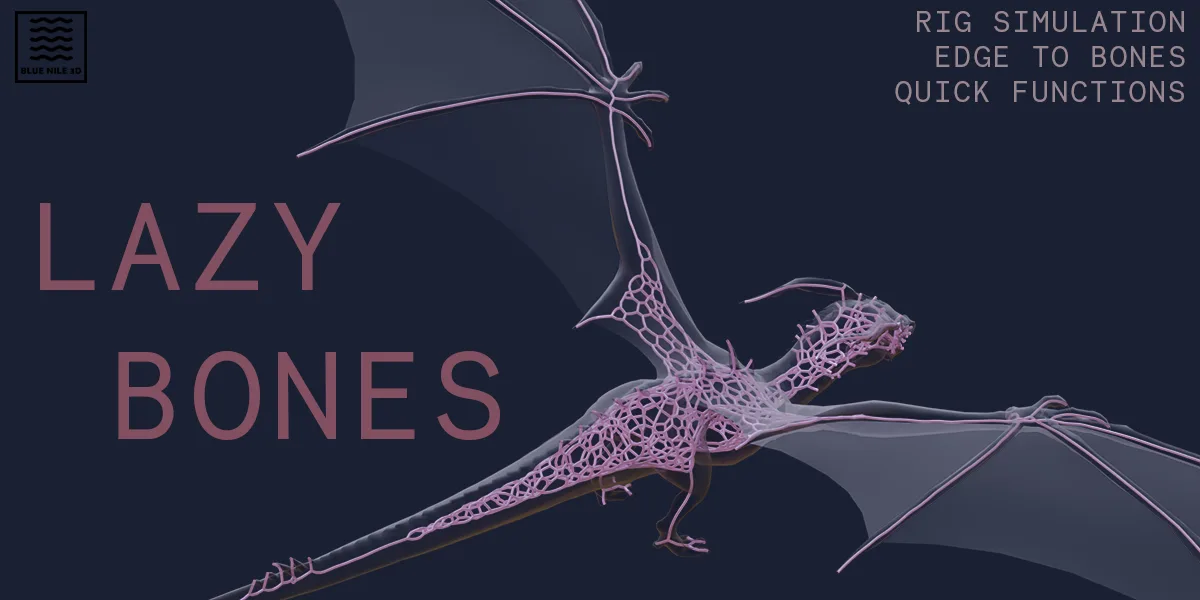
Lazy Bones is a Blender rigging add-on from Blue Nile 3d. Its documented workflow simulates a selected mesh to create edges, then converts selected edges into bones. The result is a starting point for a bone layout that you can refine in Blender.
The product documentation covers the Mesh-2-Edge Sim and Edge-2-Bone tools. The Superhive listing identifies the add-on as GPL licensed and lists compatibility with Blender 4.3 through 5.2.
From mesh simulation to bones
- Select a mesh, right-click, and choose “Lazy Bones...Mesh-2-Edge Sim.” Let the simulation play, or pause and scrub the timeline to find a result you want to keep. Choose Apply.
- Use the Sim Clean tools to improve the simulation result, then apply the Sim Clean modifiers.
- Place the 3D cursor at the hips, base, or another reference point. The documentation says the bones will attempt to point away from the cursor.
- Switch to Edit mode and Edge Select mode, select the edges, then right-click and choose “Lazy Bones...Edge-2-Bone.”
- Use the Bone Doctor menu to refine the generated bones, then adjust them by hand.
Simulation checks
If a simulation fails, the product FAQ recommends using a model larger than 2 meters and says larger is better. It also recommends checking for holes or non-manifold geometry, making sure the model has length, and confirming it has volume; the FAQ notes that solid squares and spheres shrink to a single point. If the mesh is planar, extrude or solidify it. Check the model’s normals with the Face Orientation overlay and try disabling the cache in Preferences. If the simulation expands instead of shrinking, check face orientation and flip any incorrectly oriented faces.
Check the current Superhive listing for compatibility with your Blender release, and use the linked documentation for workflow details.