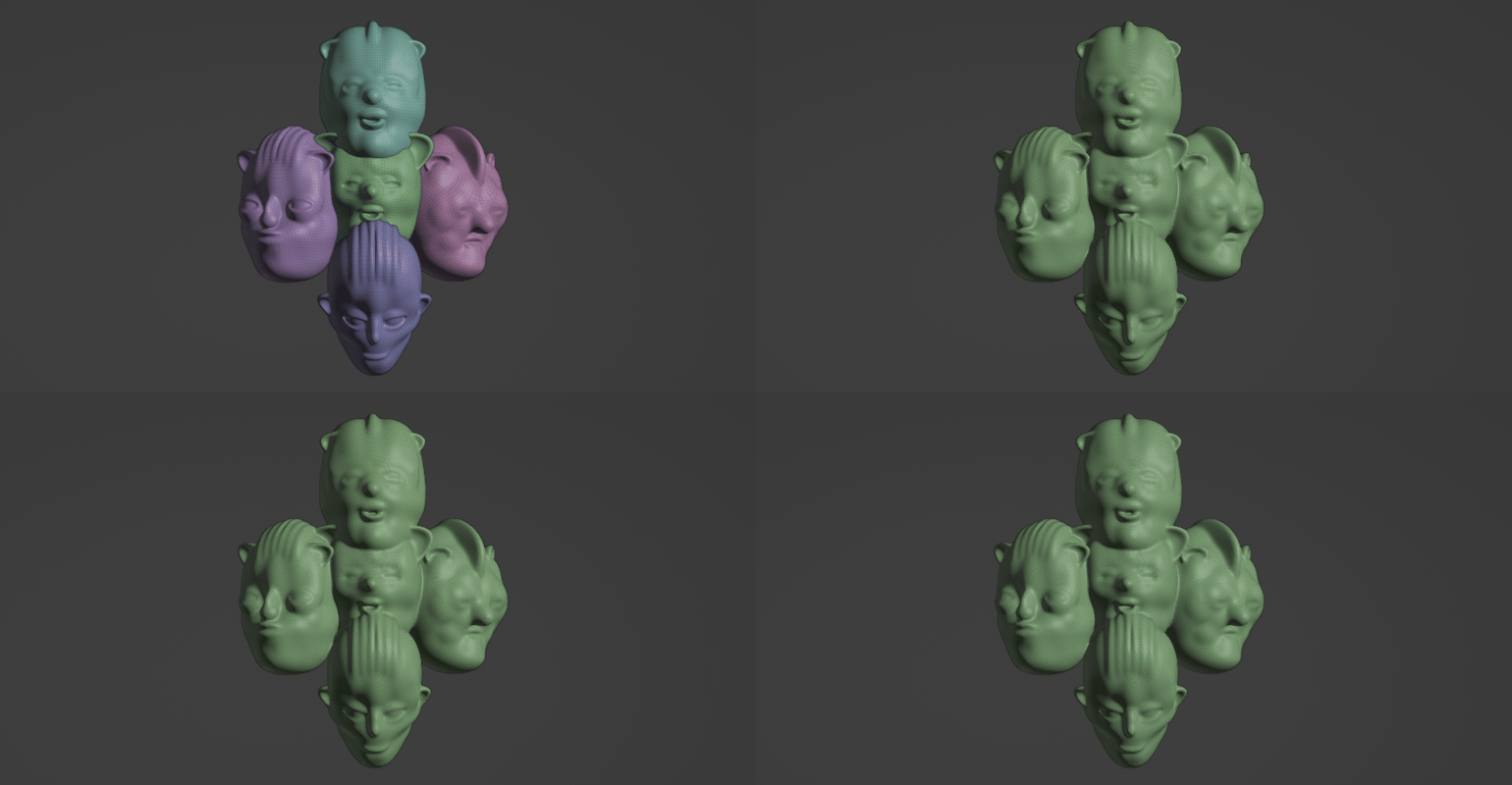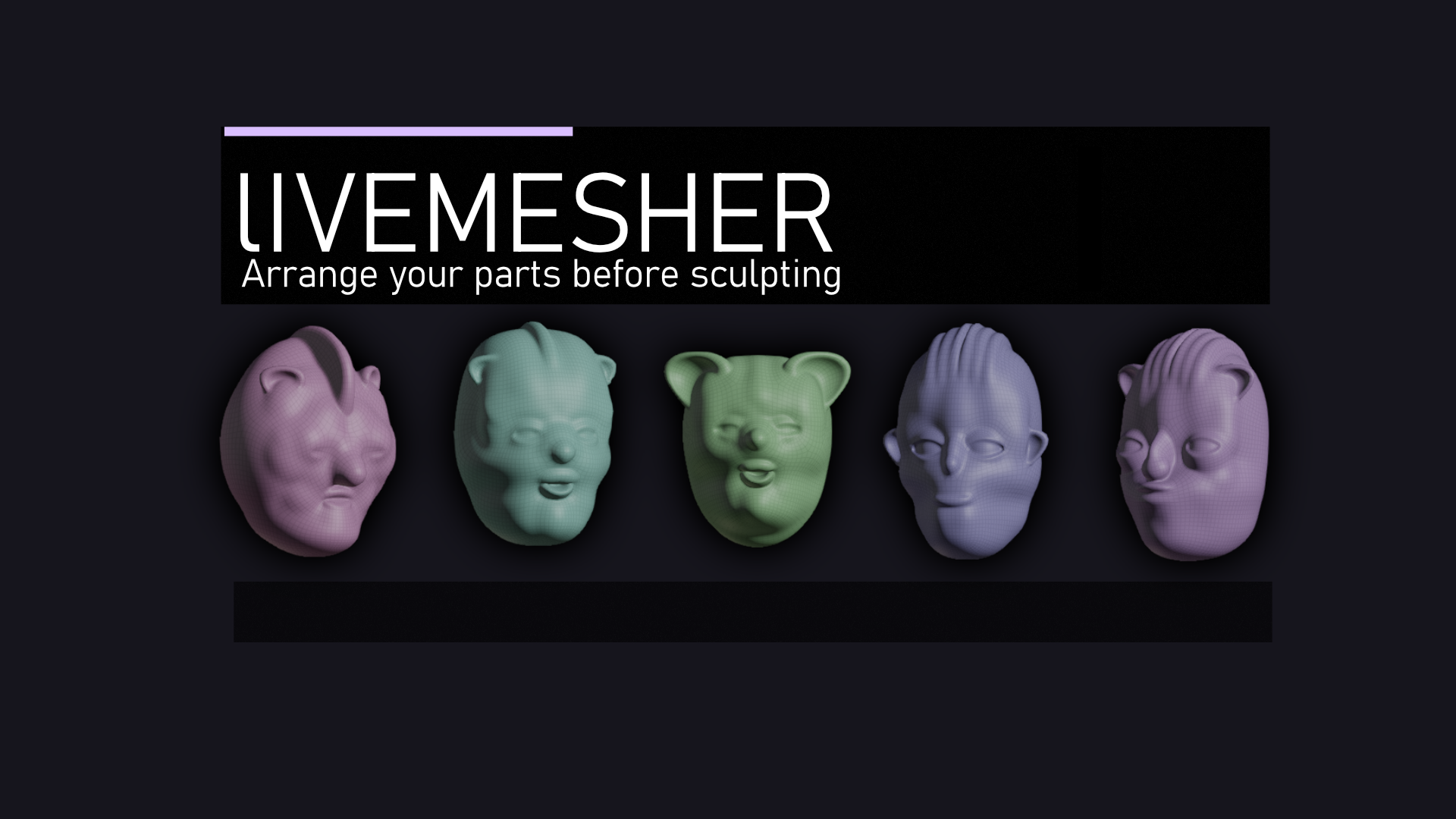
Livemesher is a Blender workflow add-on by Synthomesh, built around Blender’s remesh modifier. Select a group of objects in Object Mode to preview their remeshed form, then switch to Edit mode to adjust the parts before sculpting. The preview lets you assess an arrangement before applying the result.
Preview a group of parts
Start a session with Launch, select the meshes, and press Remesh. Use Preview to inspect the result; preview mode is for viewing and does not let you move parts. Switch to Edit mode when you need to adjust the pieces. If you add another mesh during a session, press Remesh again so the conversion includes it. The voxel size setting controls remeshing fidelity.
Press Apply when you are ready to commit the remeshing and sculpt the resulting mesh. The Livemesher documentation describes the session controls and where to find the add-on in Blender’s 3D Viewport.
Choose between remesh and union
Remesh mode is the simpler option. It adjusts voxels equally across the parts, but small details can be lost even at high density. Union mode, added in version 1.2, preserves the parts’ topology better. It needs more preparation: some parts need subdivision, and the parts' density should match for a better sculpting result.
Preview union mode before converting. It can create artifacts; switching to Edit mode and moving a part slightly can resolve them.
Save a basemesh for variations
Save the project without pressing Apply to keep a basemesh you can tweak later and use to create variations.
Where Livemesher fits
Synthomesh describes Metaballify as a separate add-on for creating natural shapes and says it can be combined with Livemesher. See the Livemesher product listing for product details and the current Blender version information.