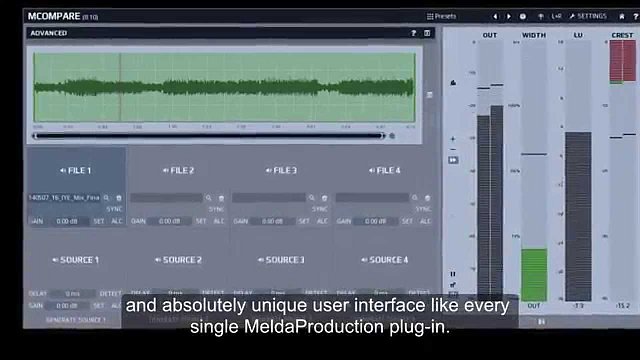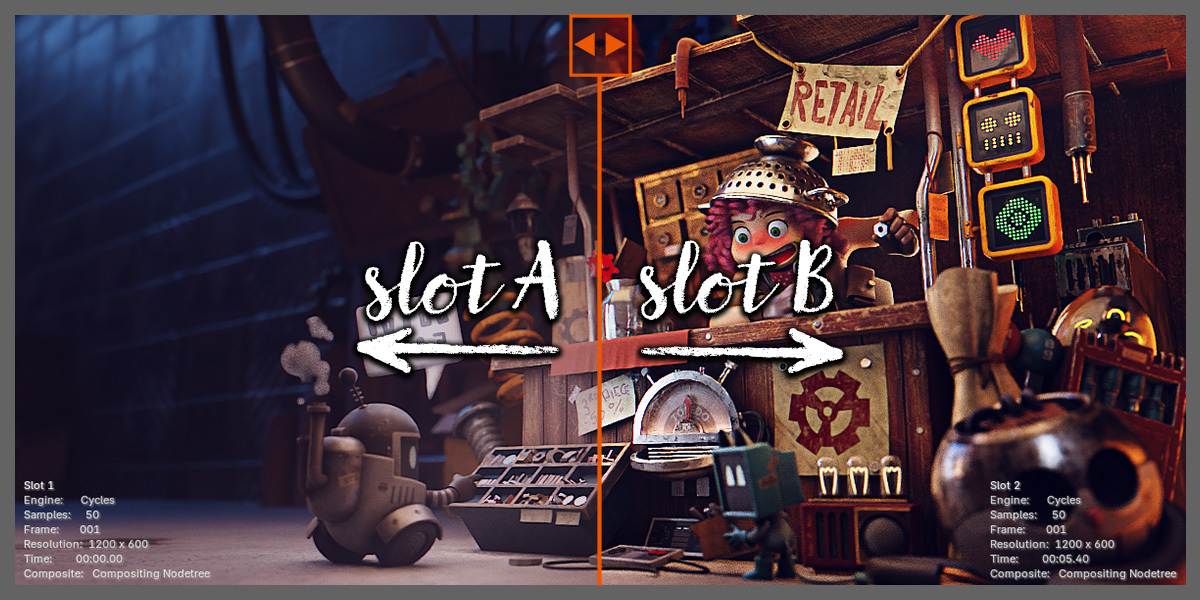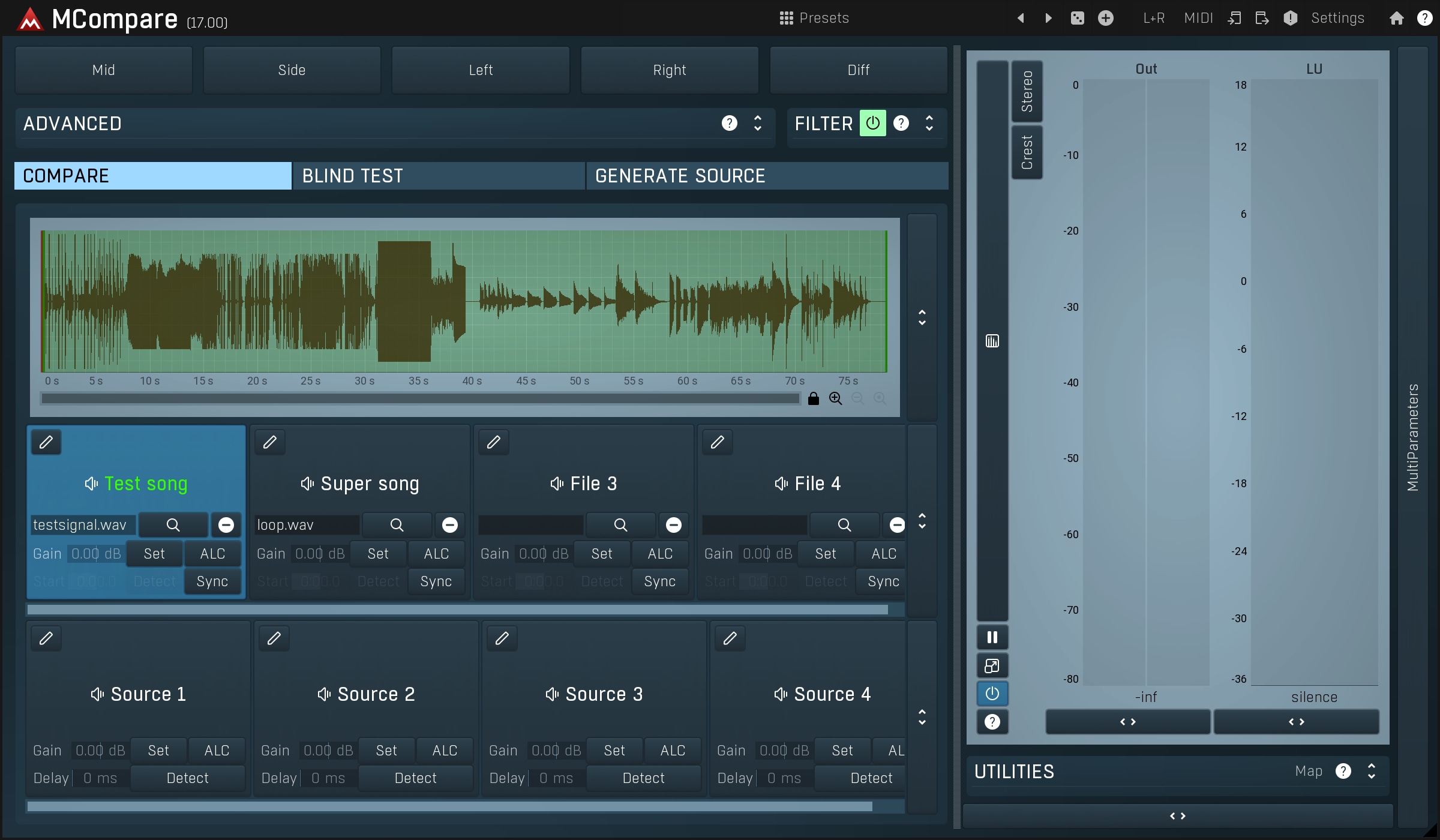
MCompare is an audio comparison plugin for checking a mix or master against reference files, earlier versions, and points in a processing chain. It crossfades between the live input and a selected comparison. Its loudness matching and latency tools help make those checks more useful when the signals differ in level or timing.
Compare reference tracks
Load audio files into comparison slots, including WAV, MP3, and FLAC files. MCompare resamples them to the project rate and displays a waveform where you can set a loop region or jump to a position. Use a similar section of the reference and your own mix for a more relevant comparison.
Automatic loudness compensation (ALC) continually adjusts the comparison level. The Set control applies a one-time gain match instead. MeldaProduction’s manual suggests ALC as a starting point during mixing. For mastering, it recommends an initial gain match, then returning the comparison gain to 0 dB when judging final output loudness, since loudness is part of that decision.
Check stages in a processing chain
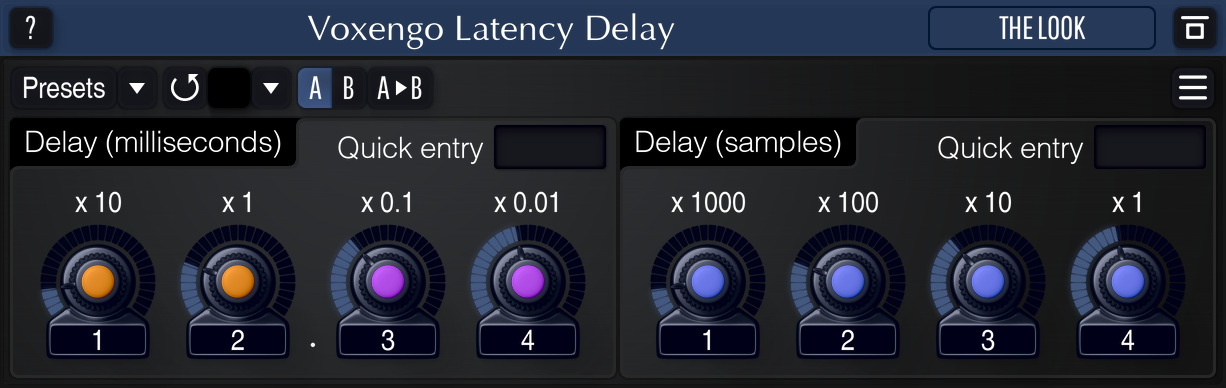
To compare a dry mix with a processed signal, place one MCompare instance before the processors and set it to generate a source. Put a second instance after the chain to monitor the result, then select that source for A/B listening. Additional source instances can capture other points in the chain. During playback, use Detect to estimate and compensate for latency when processors delay the signal. If the source bypasses the mastering limiter, lower MCompare's output volume as needed to prevent clipping.
For an exported version of the same track, load the file and enable Sync so playback follows the host transport. Use Start to bring the file roughly into sync, then run Detect during playback for closer alignment. The manual says file detection handles only small offsets, roughly up to two seconds, so larger timing differences need an initial manual adjustment.
Monitoring and channel options
MCompare includes output, loudness, stereo-width, and other meters, with time-graph views. Channel modes include left and right, mid/side, surround up to eight channels, and ambisonics up to 64 channels. These modes depend on the host and session setup. VST2 surround requires enabling the global surround mode and restarting the host; VST3, AU, and AAX do not require that activation. Ambisonics must be activated in the DAW, then the host restarted.
Compatibility and licensing
MeldaProduction lists Windows 10 or 11 (64-bit) and macOS 10.14 or newer (64-bit), with VST, VST3, AU, and AAX formats depending on the platform. The vendor says Linux is not directly supported. MCompare uses a personal license file; the license can be used on the owner’s computers, and activation does not require a dongle or internet access. Purchased software includes free updates. Check the MCompare support page for current system requirements and the MCompare manual for setup steps. The official product page offers a trial to check compatibility with your host.