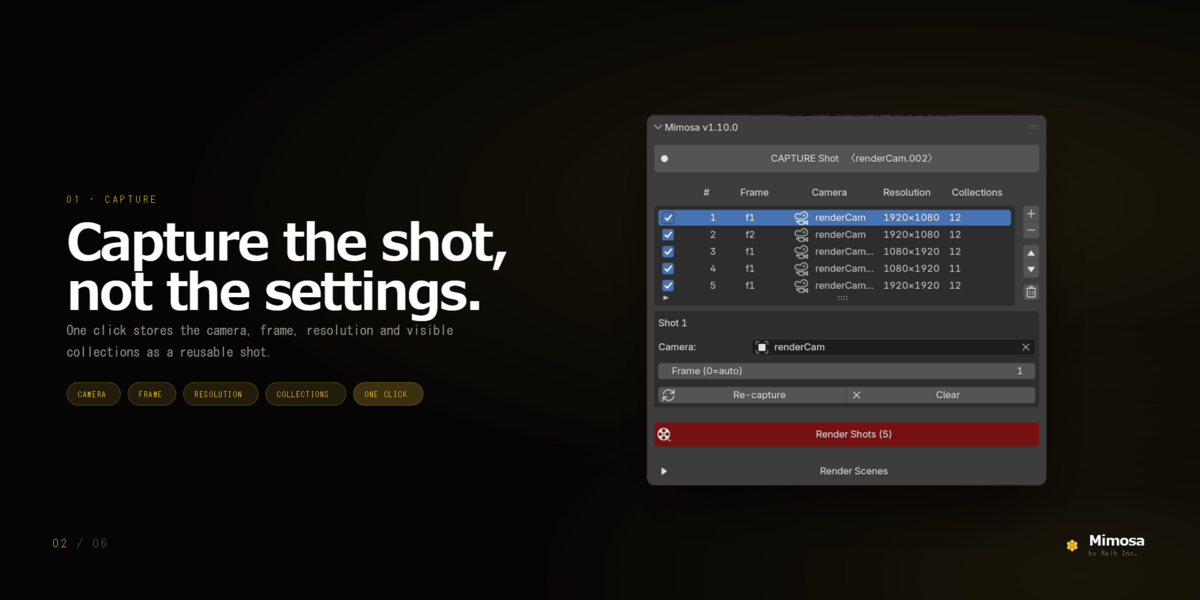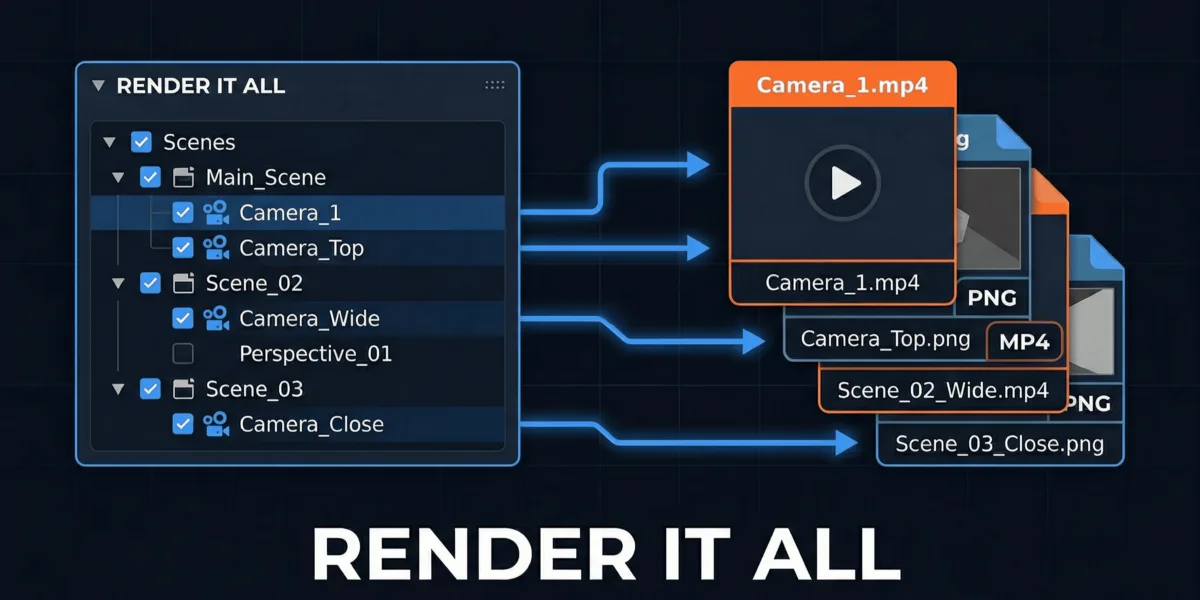
Mimosa is a Blender add-on for capturing scene setups as shots and rendering a list of them in one batch. A shot stores the active camera, timeline frame, X and Y resolution, visible collections and view layer. This suits archviz, interior and product scenes where the same scene needs several camera angles or design states.
What each shot remembers
Capture a shot after setting the camera, frame, resolution and collection visibility you want. For example, separate shots can use different furniture collections, finishes or timeline frames for day and night lighting. Mimosa also records the view layer. Since v1.12.1, a shot with a view layer follows that layer’s collection settings; the documentation explains how to change those settings without recapturing, or clear the shot’s view layer to use its captured collection state.
Capture a list and render it
- Set the camera, timeline frame, resolution and collection visibility for the first view.
- Click Capture Shot to add that setup to the list. Repeat for each angle or scene state.
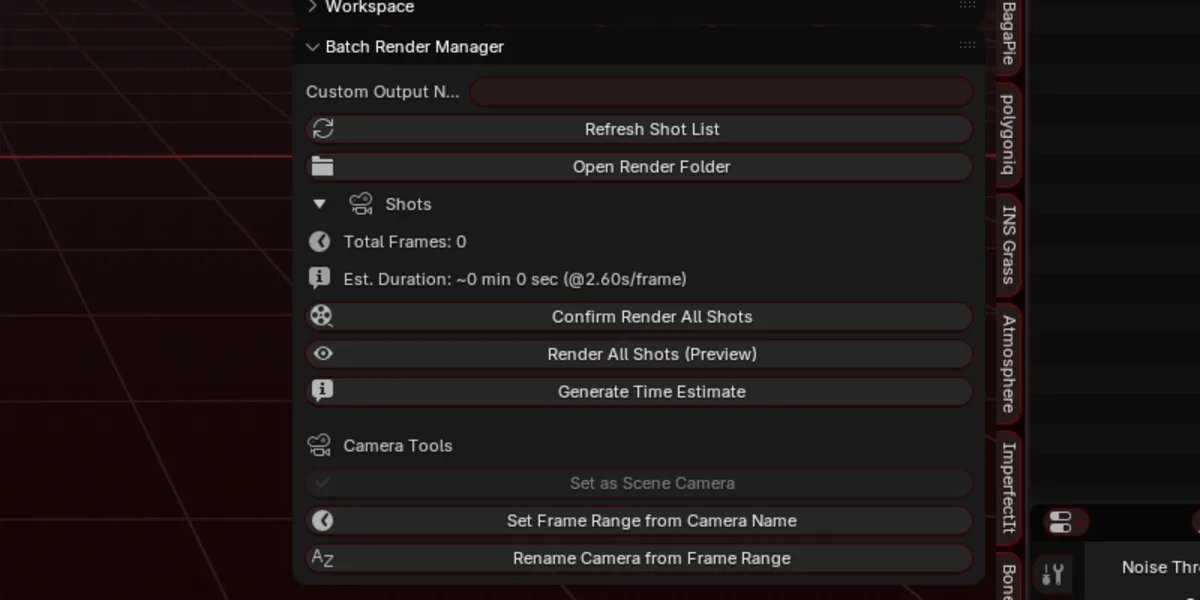
- Click Render Shots to render the list. Each shot runs as its own job, so its resolution applies to that render.
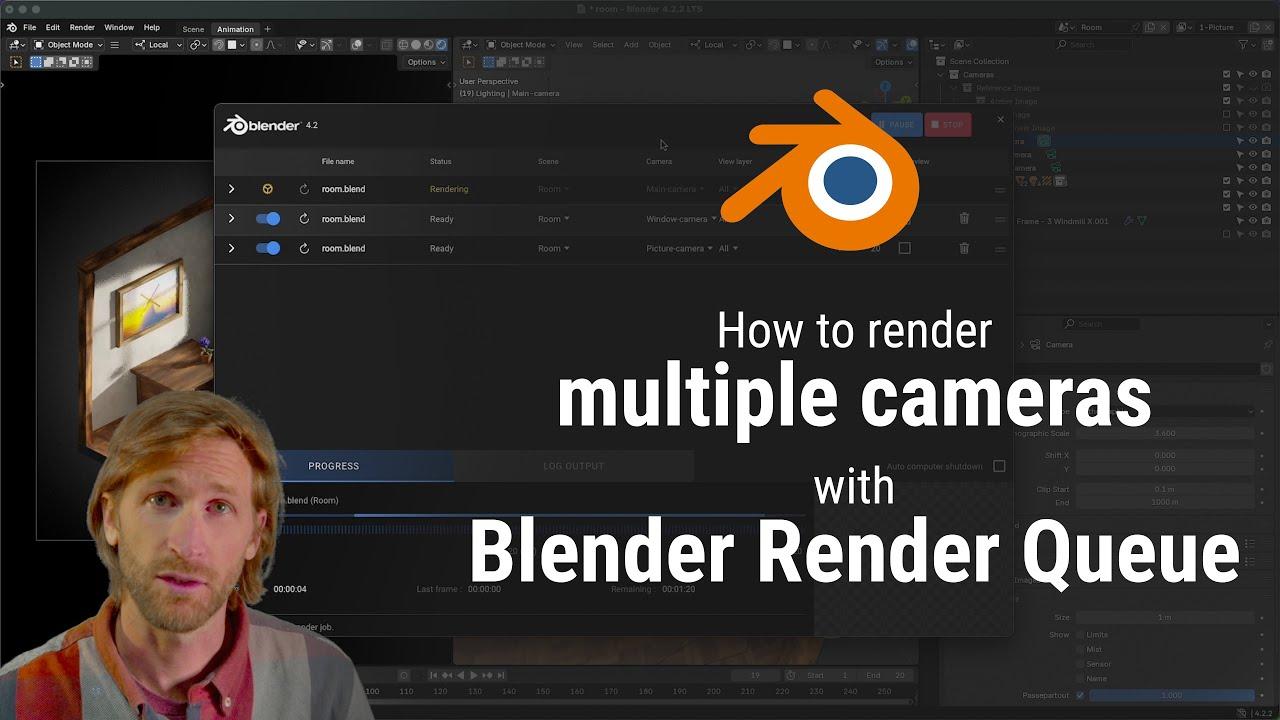
Use Render Shots when shots need different resolutions. Blender’s built-in animation render, started with Ctrl+F12, locks the resolution when it starts, so it will not apply a different resolution to each shot.
Render design options and multiple scenes
For day and night views, animate the lighting on the timeline and capture a shot at each frame. For furniture or finish alternatives, change collection visibility and capture each version. To render Plan A and Plan B from one scene, use separate view layers and capture a shot for each. Mimosa also has a Render Scenes queue for sending several scenes through one sequence.
Keep Blender’s render setup
Mimosa assigns sequential filenames and triggers Blender’s own renderer. It leaves the scene’s render settings and Compositor File Output nodes in place, including configured AOVs, multi-pass output, EXR, color management and path branching. The product listing describes it as render-engine independent, with Cycles and EEVEE among the supported examples.
Installation and compatibility
The product listing says Blender 4.2 or later and lists tests on 4.2, 4.5, 5.1, 5.2 and 5.3, while its Details field lists Blender 4.2 through 5.1. Its FAQ describes Blender 4.x and 5.x, including 4.2 and 4.3 LTS, and lists tests on 4.2, 4.5 and 5.1. The supplied sources do not clarify the upper supported version. For Blender 4.2 and later, the installation guide recommends installing the ZIP as an extension, either by dragging it into Blender or using Preferences and Install from Disk. The guide also describes a legacy add-on installation path for Blender 4.0 and 4.1, but does not state that those versions are supported. After installation, open the 3D Viewport, press N to open the sidebar and select the Mimosa tab.
Price and license details
AnyPlugins labels Mimosa as free, while Raih’s Superhive listing describes a one-time purchase with free updates and a launch price that may increase. The listing text gives no amount, so check its current price and terms before downloading. Superhive lists the license as GPL.