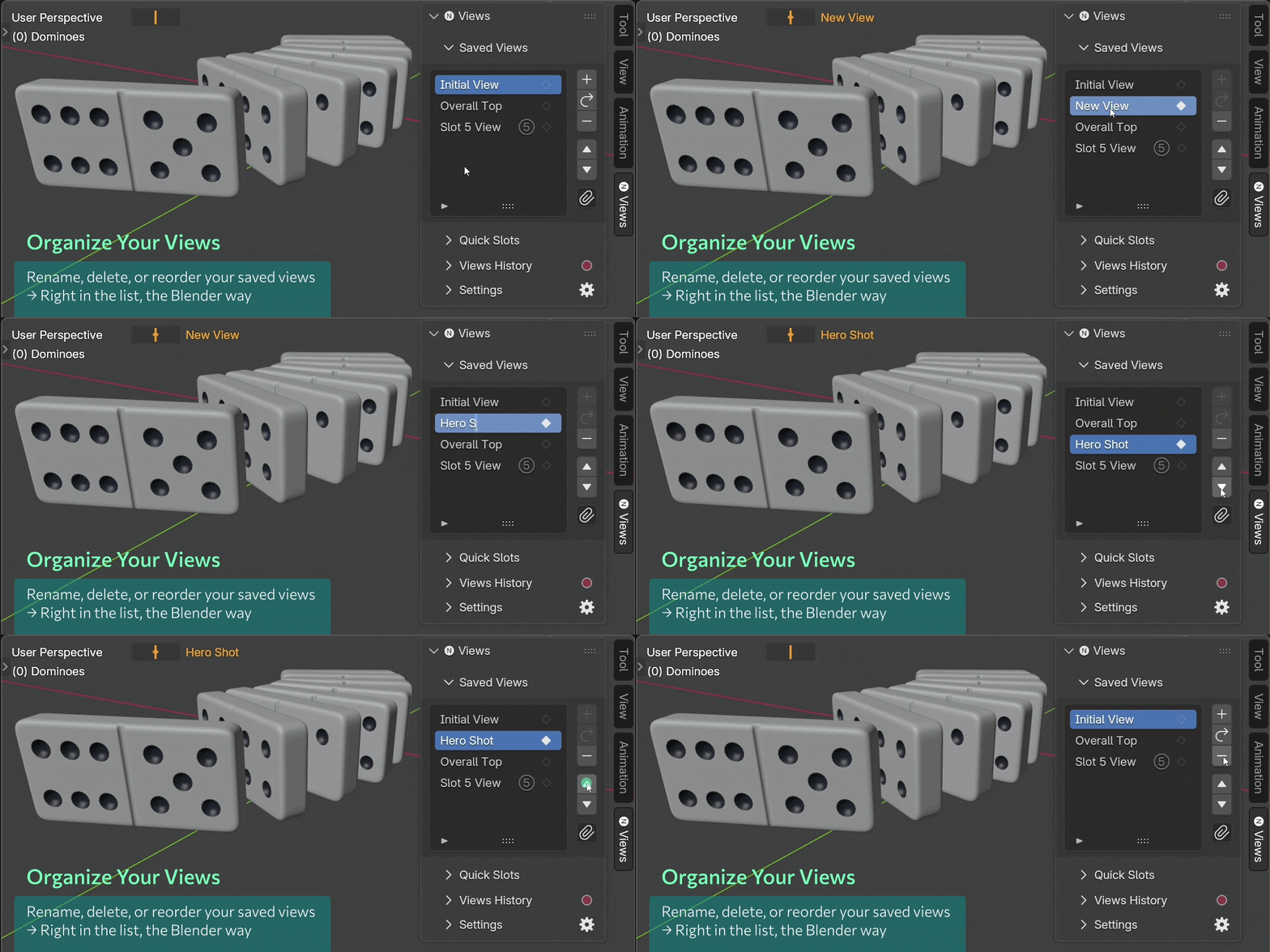
Nova Views is a Blender add-on for keeping viewport angles easy to revisit. It records recent views independently for each 3D viewport, stores named angles in a Saved Views list, and assigns frequently used views to ten numbered quick-access slots. It can help with client walkthroughs, predefined scene views, tutorials, and screen recordings.
Browse history in each viewport
By default, history tracking starts when a file opens. A view is added after it stays still for the configured interval. The viewport indicator and Views History panel show the current position in the sequence. Use the panel arrows or Alt + Left and Alt + Right to move through recent views. On a Mac, use Option in place of Alt.
Tracking can be paused for an individual viewport or turned off globally in Settings. You can also clear a viewport's history and set a maximum number of entries; older entries are removed as the limit is reached.
Save named angles and quick-access slots
Use Saved Views to keep angles you want to return to. You can save the current view, restore a saved angle, rename an entry by double-clicking it, reorder the list, update a saved view, or delete it. Nova Views keeps these views in its list, so you do not need to add camera objects to the scene just to hold an angle.
Ten numbered slots, 0 through 9, provide faster access to selected views. Press Alt + 0 through 9 to restore a slot. Press Alt + Shift + 0 through 9 to assign the current view to a slot. If that view is unsaved, Nova Views adds it to Saved Views first. An occupied slot is reassigned, and a slot already assigned to the current view is updated.
Read the viewport indicator
The indicator marks the current position in the history and identifies saved views with a diamond. It can also show the view name and its assigned slot. Preferences let you position it after Blender's view name or at the top or bottom center of the viewport. The view-name position appears only when viewport overlays, Text Info, and View Name are enabled.
Install and place the panel
- Download the Nova Views ZIP file.
- In Blender, open Edit > Preferences and go to Add-ons or Get Extensions.
- Open the top-right dropdown, choose Install from Disk, select the ZIP file, and confirm.
- In the 3D Viewport, press N to open the sidebar. Nova Views uses its own Views tab by default; its preferences can place the panel in Blender's built-in View tab instead.
See the Nova Views documentation for the panel controls and shortcuts. The product listing identifies Nova Views as compatible with Blender 4.2 through 5.2 and as a Blender Extension. Novacrat notes that some features depend on Blender API limits and invites users to contact the developer about issues.