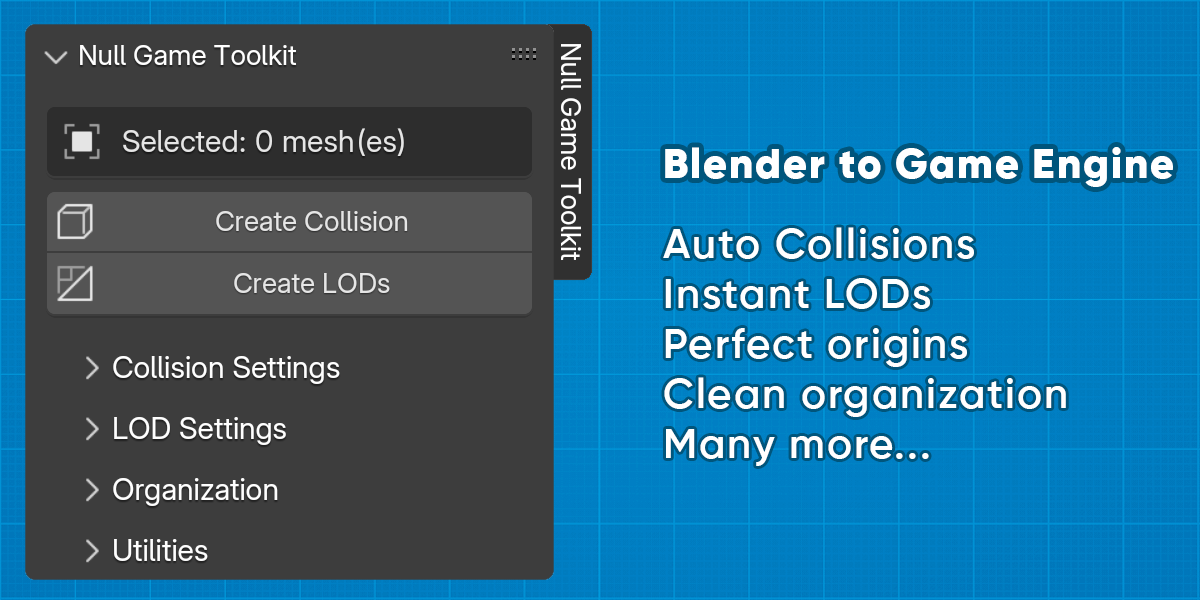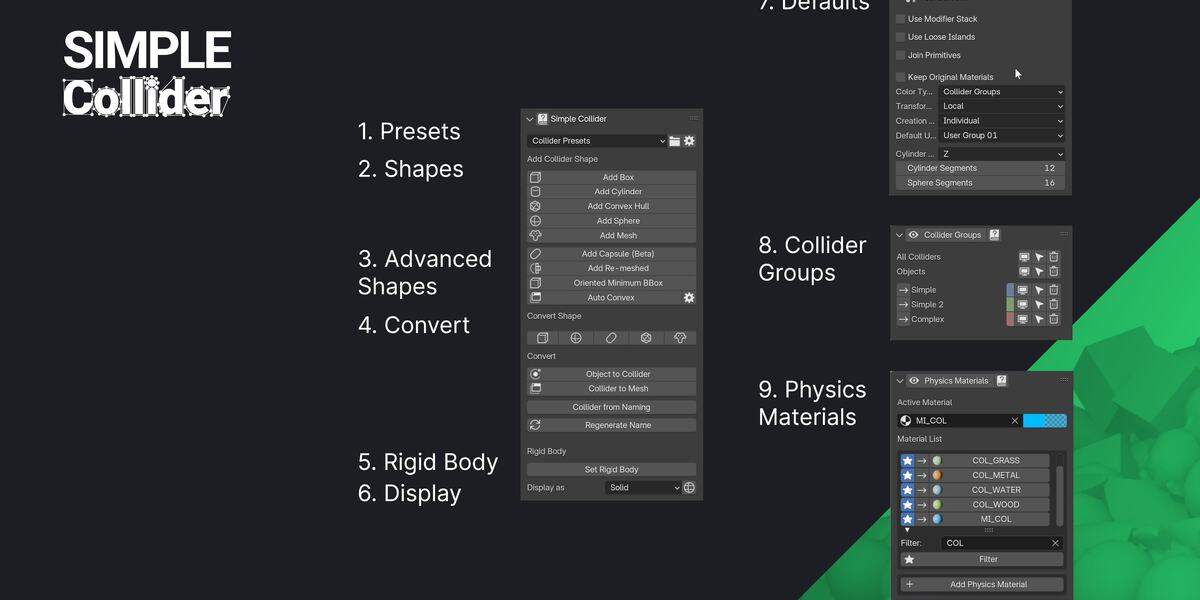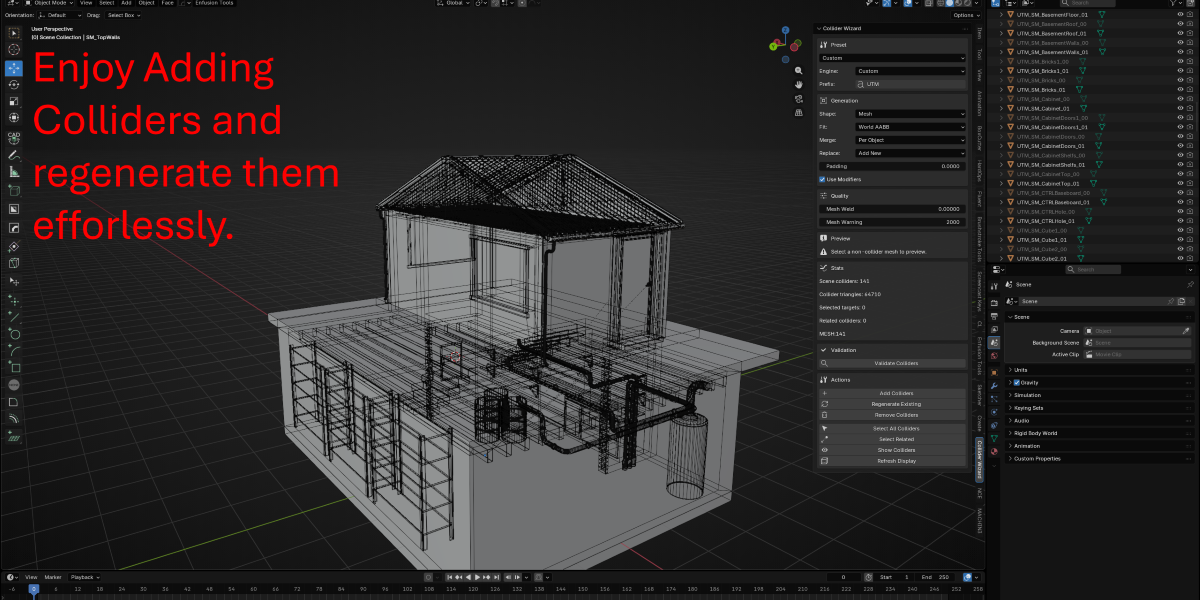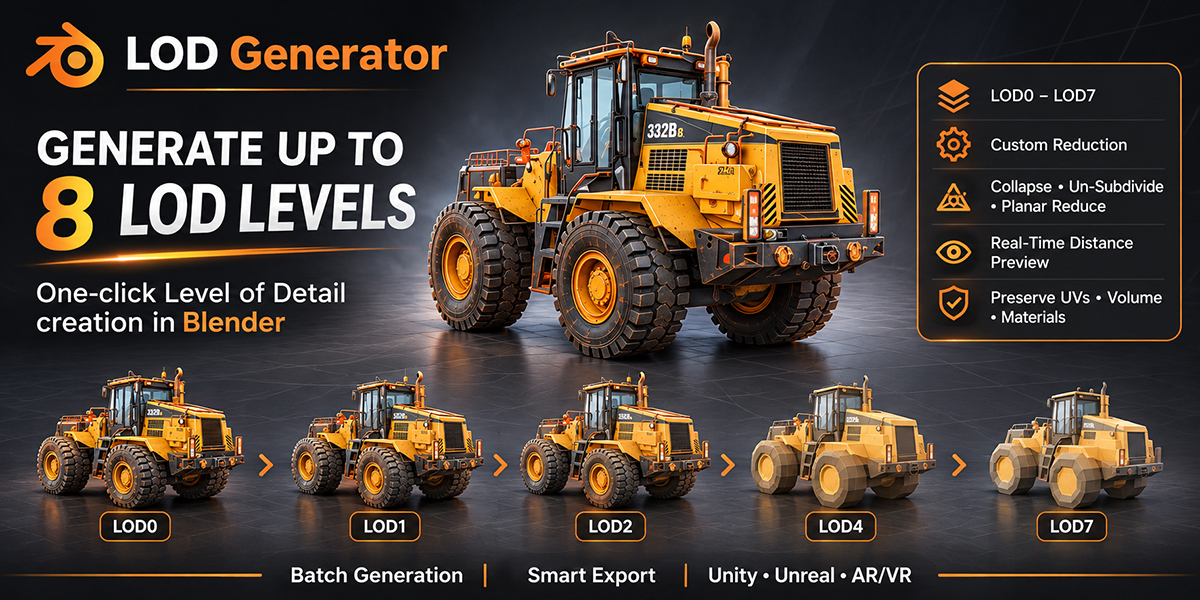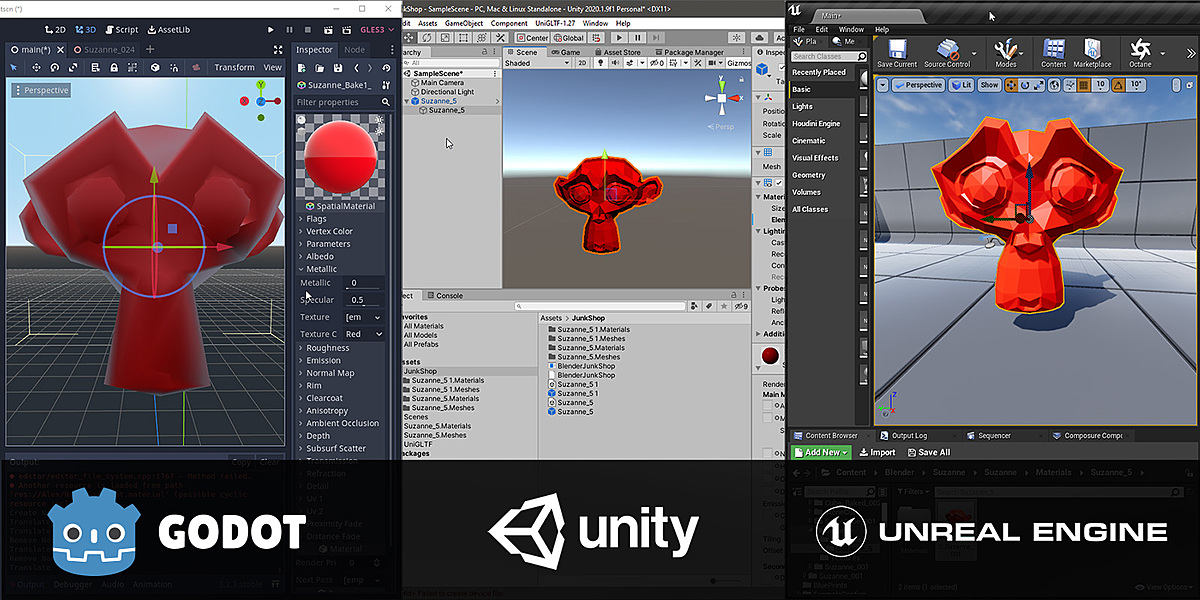
Null Game Toolkit is a Blender add-on for preparing 3D assets for game engines. It combines collision generation, LOD creation, engine-specific naming, collection organization, and bulk export. The Superhive product listing names Unreal Engine, Unity, and Godot among its target workflows.
Build collision meshes
The add-on offers six collision types: Box, Sphere, Capsule, Convex Hull, Mesh, and Accurate. Smart shape detection analyzes mesh geometry and suggests a type. The product documentation describes Box and Sphere for simple forms, Capsule for cylindrical or character-like objects, and Convex Hull or Mesh for more involved geometry. Accurate is listed for cases where precision matters. Isolate Collision and Compare Mode let you review collision geometry against the source mesh.
Create LODs and set naming conventions
LOD settings let you choose from one to five levels and set reduction ratios. An optional setting renames the source mesh to LOD0. Naming presets cover Unreal Engine, with UCX_[ObjectName] for collision and SM_[ObjectName] for the source; Unity, with [ObjectName]_Col; and Godot, with [ObjectName]-col. You can also define custom prefixes and suffixes and preview examples in the panel. The documentation recommends checking LODs at target viewing distances and preserving important silhouettes on nearer levels.
Organize and export collections
Auto-organization groups objects by type or keeps each model with its collision and LOD objects. Bulk Export can write each collection as a separate file in FBX, OBJ, or GLTF format. Options include applying transforms, exporting from world center, and embedding textures. Collection names become file names, so descriptive names help keep an export organized.
A practical asset workflow
- Select one or more mesh objects, choose an engine naming preset or custom names, and choose a collision type or use shape detection.
- Generate collision meshes, set the number of LOD levels and their reduction ratios, then generate the LODs.
- Organize the collections, then review the collision and LOD results.
- Export one collection in the required format and check its import in the target engine before exporting the remaining collections in a batch.
Installation and Blender compatibility
The installation documentation describes copying the add-on folder into Blender's add-ons directory or installing a ZIP through Blender preferences. The version details differ across the product page: its overview and documentation say Blender 4.0 through 5.0, while the Details panel lists 4.2 through 5.0. Check the listing for your exact Blender release before installing.