Place repeated details directly on mesh surfaces
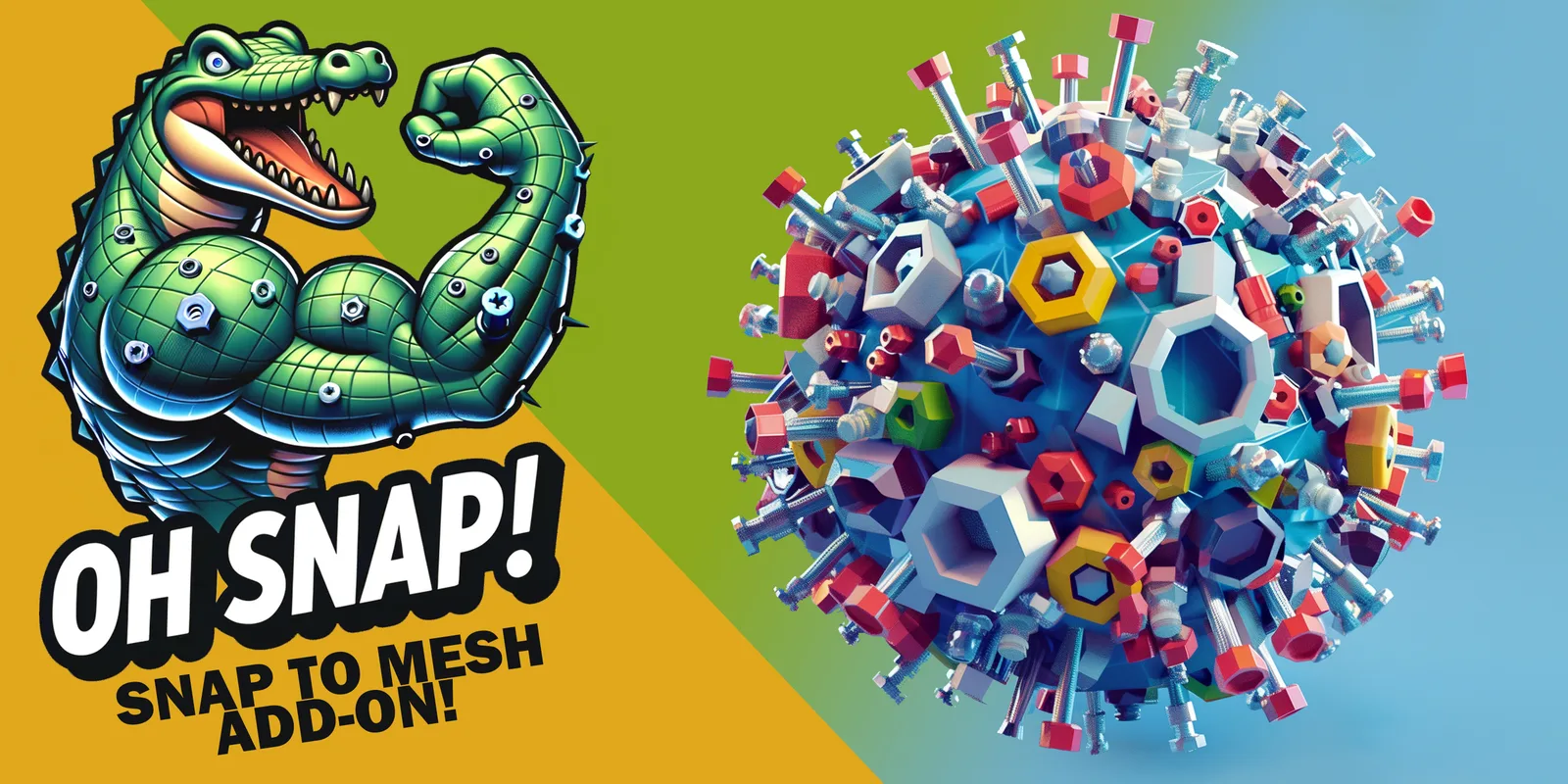
Oh Snap! Dynamic Snap To Mesh Tool is a Blender add-on for placing small mesh objects such as bolts, screws, rocks, foliage, and debris across another mesh. Load up to 10 source meshes, then choose one with a number key or let the tool select among them. You can snap to a face, vertex, or edge, limit placement to selected target meshes, and ignore objects you have already placed.
Space Robot says the tool began as a script for detailing robot models. Its placement controls also suit hard-surface work, architecture, and landscapes where repeated objects need to follow a surface. The product page and user guide describe the available modes and settings.
Choose a placement mode
- Single click: place one object at the chosen point.
- Draw Mode: drag across a mesh to stamp objects along a path.
- Linear and Radial Array: build a straight run or a ring. Conform to Surface projects array placements onto curved or uneven geometry.
- Curve Array: place objects along a curve. The tool can also create a curve from selected mesh edges, with a live preview before placement.
- Scatter: distribute many objects across a selected mesh using faces, edges, vertices, or random placement. Clumping controls help create clusters, and Top Surfaces Only keeps placements off downward-facing areas.
Scatter and Curve Array can be used as standalone tools, without starting the main snapping session.
Control contact, orientation, and variation
Auto Base Offset measures the source object’s geometry so its base meets the surface even when its origin is elsewhere. For a curved surface, Shrinkwrap Bottom to Surface can deform the object’s underside to fit; the result can remain live or be baked into the mesh.
Objects can follow the surface normal, stay upright with World Up, or use Limited Tilt or a Custom Axis. Random rotation, scale, depth, and surface jitter have separate controls. For curved targets, the guide recommends Conform to Surface for Linear and Radial Arrays; it projects placements onto the surface beneath each point without falling through to hidden geometry below.
Reuse setups and manage placed objects
Snap Presets save settings such as snap mode, randomization, and array options. You can choose whether a preset also stores the loaded meshes. Placed objects are grouped into a collection, with separate timestamped sub-collections for batches. Backspace removes the last individual placement, while the panel’s batch controls let you remove recent placed batches.
Before snapping, use mesh objects for both the source and target. The developer guide recommends applying rotation and scale to source meshes for more predictable placement. Face, vertex, and edge snapping uses evaluated geometry, so viewport modifiers can shift where those points appear; disable them when you need to target the base mesh precisely. The product listing specifies support for Blender versions 4.4 through 5.2. The add-on is offered as a Blender Extension ZIP or a legacy Python file. Install only one format, since both register the same tool.