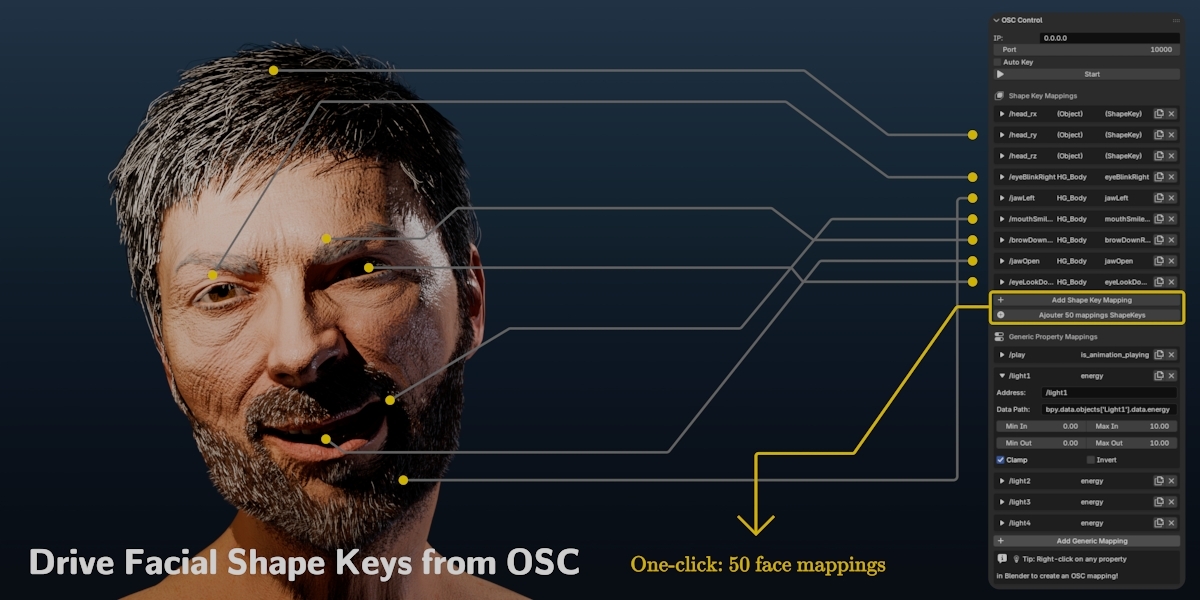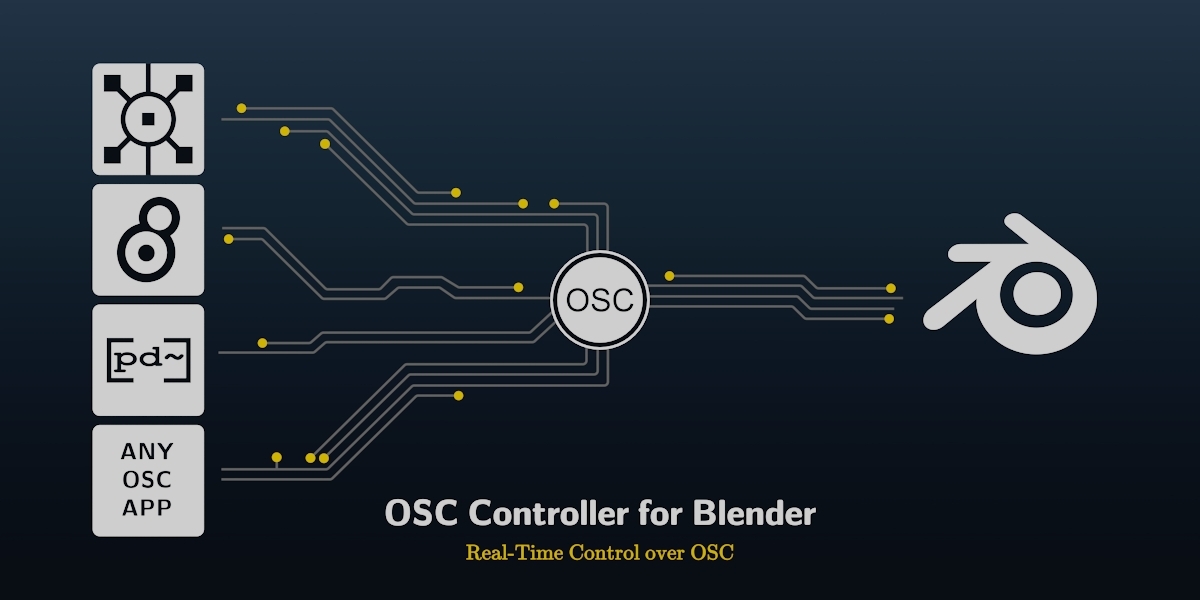
OSC Controller for Blender lets OSC-capable applications send values to Blender in real time. Guillaume Hervy’s add-on maps incoming UDP messages to shape keys, bone rotations, or other Blender properties. Turn on Auto Key to record changing values as keyframes for facial animation, live performance, or data-driven rigs.
Map OSC messages to Blender properties
For facial animation, use the Add ARKit 52 Shape Keys operator to create mappings for matching ARKit shape key names on a chosen mesh. You can also right-click an individual shape key value and choose Create OSC Mapping.
Bone Rotation Mappings control a selected armature and bone in Euler or Quaternion mode. Each mapping can set an axis, input and output ranges, clamping, and inversion. Euler rotation values use radians.
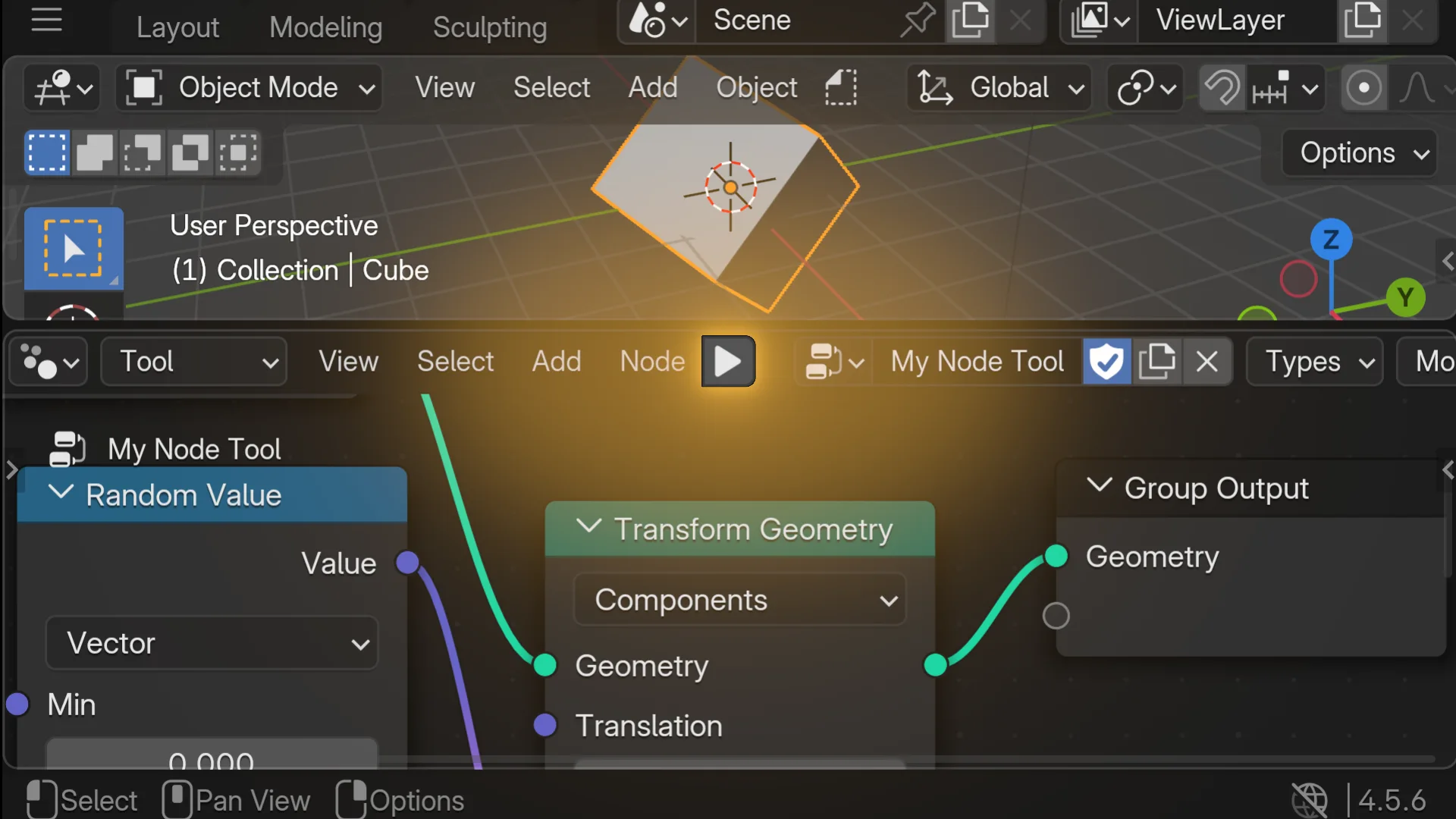
Generic Property Mappings connect OSC addresses to properties such as object transforms, camera focal length, light intensity, materials, shader inputs, modifier settings, and Geometry Nodes inputs. Right-click a property and choose Create OSC Mapping to generate a data path and a default 0–1 output range. Vectors and colors can use separate mappings for each component.
Start a live control session
- In Blender, go to Edit → Preferences → Add-ons (or Extensions) → Install from Disk and select the ZIP. You can also drag and drop the ZIP into Blender. Enable "OSC Controller for Blender" after installation.
- In the 3D View, press N and open the OSC tab. Set the listening IP to 0.0.0.0 to listen on all interfaces, or 127.0.0.1 for local-only use. Set the port (default 9000), then click Start.
- Configure the sender to send UDP OSC messages to Blender on the configured port. Use 127.0.0.1 when the sender runs on the same computer, or Blender’s network address from another device. Each message address must match a mapping address, including its leading slash.
- Test the mappings with Auto Key off. When you are ready to record, enable Auto Key, set the playhead, and send the values you want to capture.
For another device, allow incoming UDP on that port through any applicable firewall. See the OSC Controller documentation for setup details.
Record, reuse, and troubleshoot mappings
With Auto Key enabled, incoming changes create keyframes at the current frame for mapped shape keys, bones, node inputs, and other animatable properties. Mappings are saved with the Blender scene. Presets let you save all or selected mappings, then load them in another file by adding to its mappings or replacing them. Presets can also be exported and imported as JSON.
The add-on receives OSC messages; it does not send OSC back to other software. Its OSC server uses a background thread and message queue, while Blender applies updates in batches on the main thread. Unchanged values are not written again. Blender still has to evaluate the rig when values change, so heavy modifiers or hair systems can affect live performance.
If you need to check incoming traffic, enable Print messages to console. Blender must be started from a terminal, or you can open its system console on Windows. Turn message printing off during a performance, since printing at a high message rate can slow Blender. The product FAQ covers address matching, ranges, presets, and other troubleshooting.
Compatibility and license
The product documentation lists Blender 4.2 or newer and says it was tested on Blender 4.5 and 5.2. It supports Windows, macOS, and Linux versions supported by Blender. The add-on is licensed under GPL-3.0-or-later, and its Python source is included in the download.