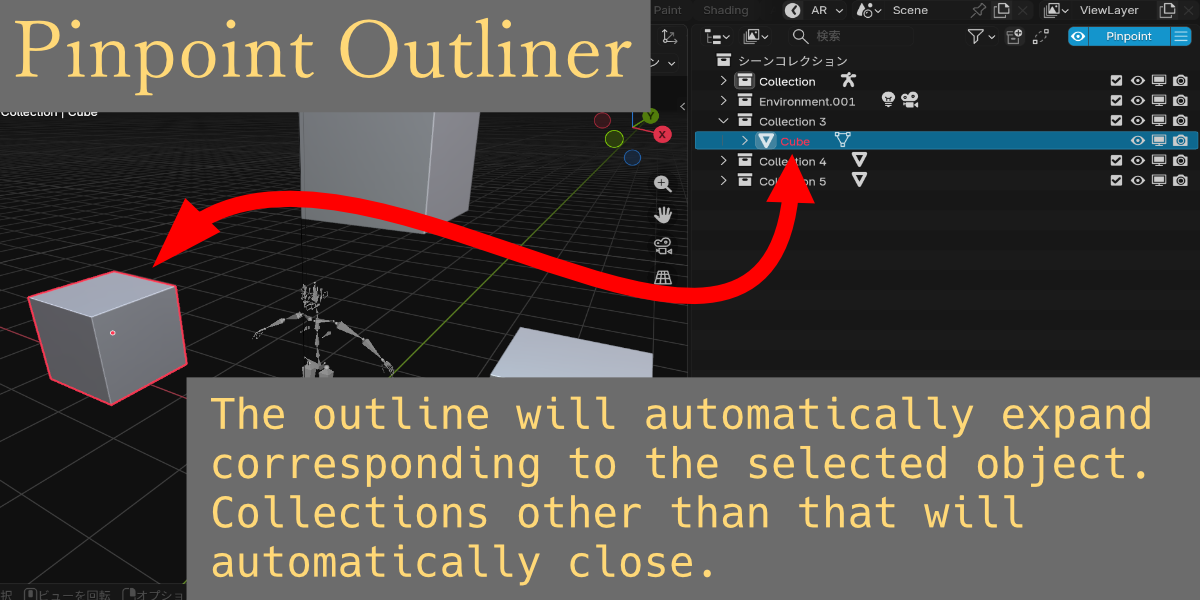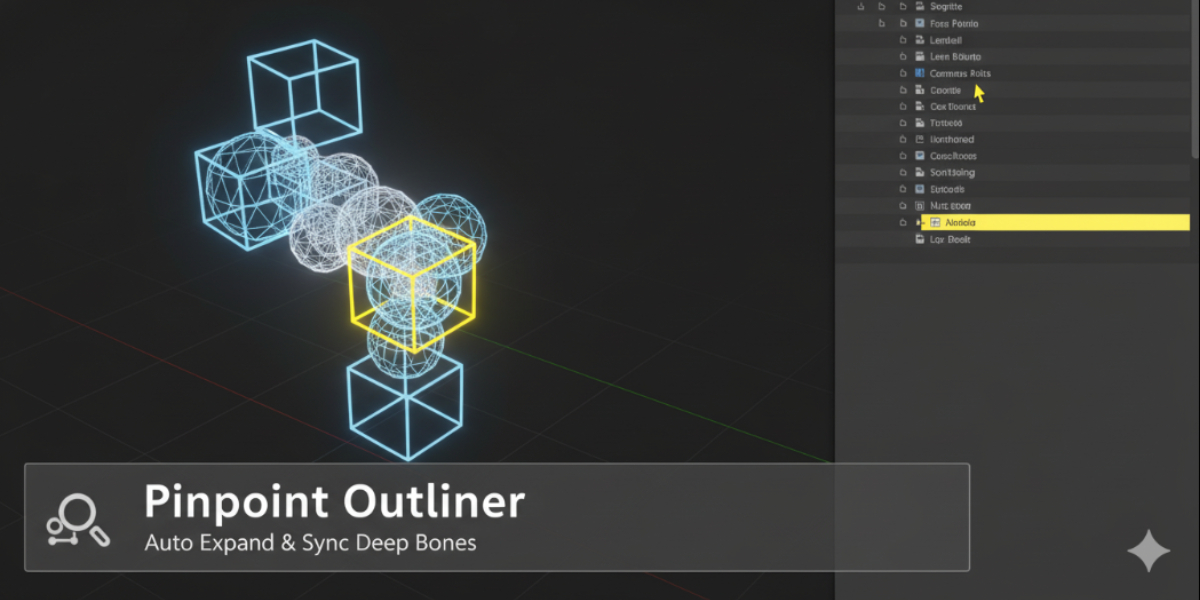
Pinpoint Outliner is a Blender add-on that makes a selected object or bone easier to find in the Outliner. Select an object in the 3D Viewport and its hierarchy expands. For a deeply nested armature bone, the add-on expands the full parent chain in Pose Mode or Edit Mode, so you can see where the bone sits without opening each parent manually.
Selection and Outliner controls
After enabling the add-on, use the Pinpoint toggle in the Outliner header to turn its selection syncing on or off. The Outliner highlights the active item and expands the hierarchy around it. You can also enable Collapse Others from the adjacent header control or the add-on preferences. That option closes unrelated hierarchies, including objects in other collections. Leave it off when you want those other branches to stay open.
Installation
- Keep the downloaded
pinpoint_outliner.zipcompressed. - In Blender, open Edit > Preferences, choose Add-ons, then click Install... select the ZIP file, then click Install Add-on.
- Search for Interface: Pinpoint Outliner and enable it.
- Open an Outliner and turn on the Pinpoint button in its header.
If selection does not affect the Outliner, first check that the Pinpoint button is on. The documentation suggests disabling the add-on, restarting Blender, and enabling it again if the issue continues.
Compatibility and timing
The product listing gives a Blender compatibility range of 3.3 through 5.0, and the documentation identifies the license as GNU GPL version 3. Its documentation describes a dependency-graph update handler with a 0.12-second timer delay for detecting selection changes. Very complex scenes or lower-end systems may show slight delays.
See the Pinpoint Outliner documentation for installation and settings, and the product listing for current compatibility details.