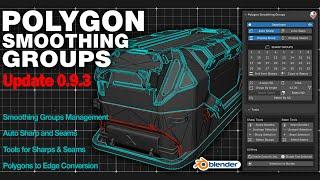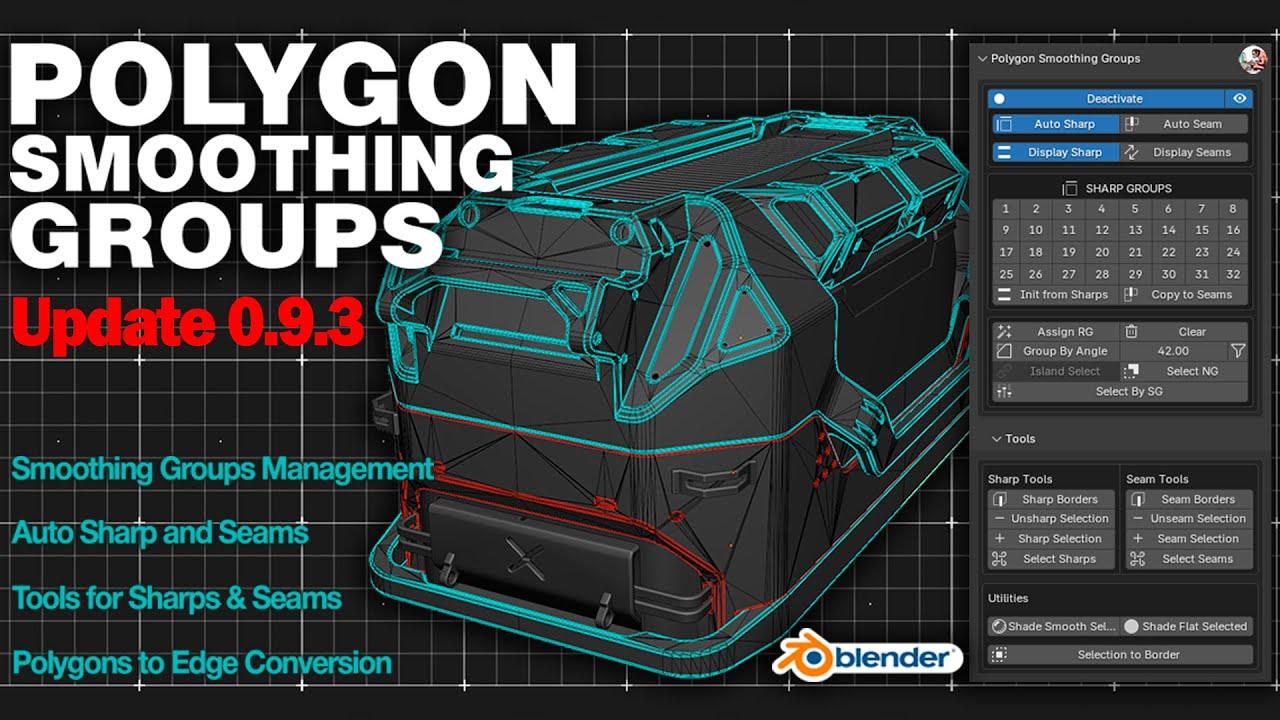
Polygon Smoothing Groups is a Blender add-on for assigning polygon groups and using their boundaries to control sharp edges or UV seams. It keeps these tasks in separate modes on the same mesh, so groups used for shading can differ from groups used to prepare a UV layout. See the Superhive product listing and its documentation for the feature details.
The listing identifies version 0.9.3, a GPL license, and Blender compatibility from 4.3 to 5.0. Check the listing for current compatibility before installing.
Keep sharp edges and UV seams in separate groups
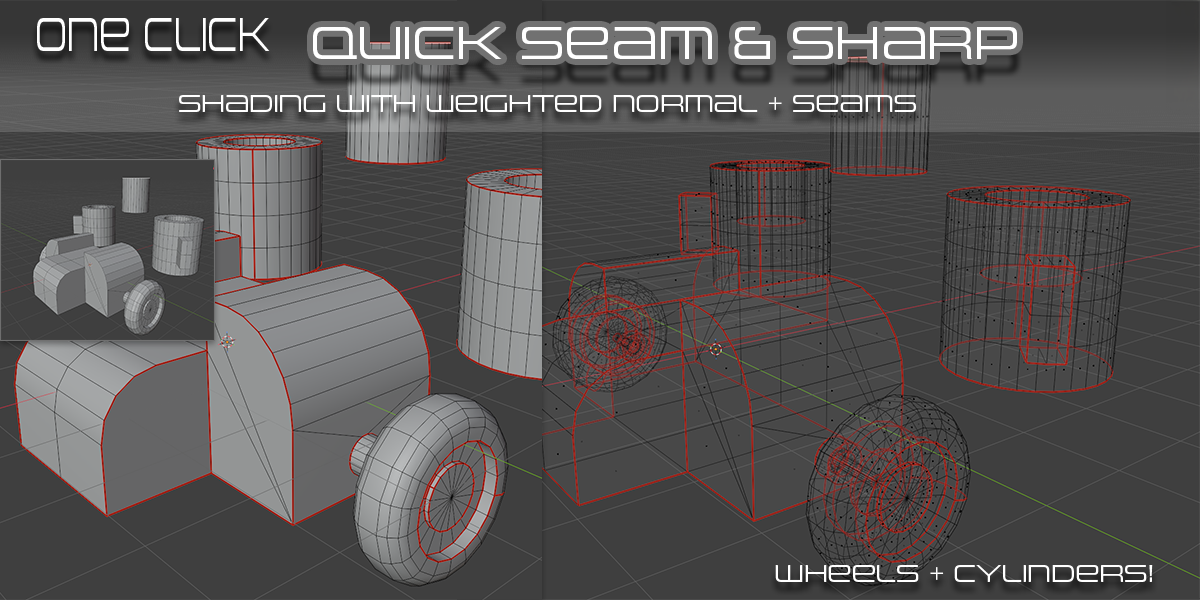
Auto Sharp and Auto Seam switch the active group system. In Auto Sharp mode, edges between different groups become sharp, while edges within the same group stay smooth. In Auto Seam mode, boundaries between groups receive UV seam marks. A 32-button grid operates on the active system.
Copy to Sharps and Copy to Seams transfer a group layout between the two systems and create the corresponding edge marks. To start from work already on a mesh, use Init from Sharps or Init from Seams to build groups from existing sharp edges or UV seams.
Create groups from angles or selections
Group By Angle assigns adjacent polygons to the same group when the angle between them falls below the chosen threshold. It works on selected polygons, or on the whole object when nothing is selected. Strict Mode skips single-polygon islands instead of assigning them a group.
Assign RG gives selected polygons a group number that is not used by adjacent polygons. Clear removes selected polygons from their groups; with no selection, it clears the groups on the object.
Inspect and edit groups in the viewport
Group Preview shows a polygon’s group number, or its ungrouped status, when you hover over it. The documented controls let you select an island with Alt-click, merge islands with Alt-drag, paint a new group with Ctrl+Alt-drag, and remove group assignments with Ctrl+Shift+Alt-drag. Preferences let you change highlight colors and reassign the modifier key.
A pie menu provides access to key functions under the cursor. Assign its hotkey in Blender preferences. The Tools panel also includes sharp and seam boundary and selection commands, smooth or flat shading for selected polygons, and Selection to Border, which converts a polygon selection to its boundary edges.
Installation
Download the add-on ZIP and leave it compressed. In Blender, open Edit > Preferences, choose the Add-ons tab, select Install, and choose the ZIP file. Enable the add-on after installation. The documentation lists the panel in the 3D Viewport sidebar under the 3D CADence tab.