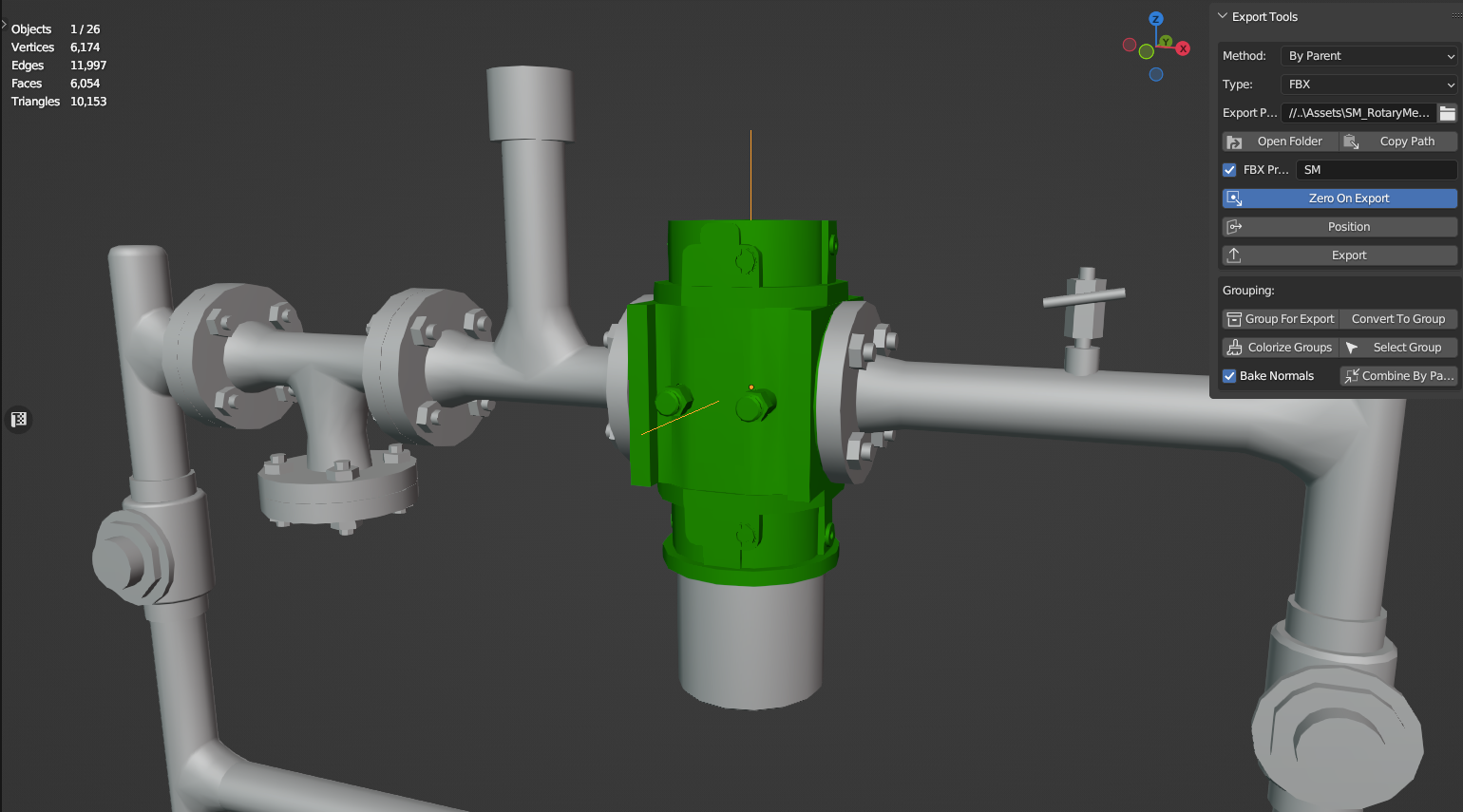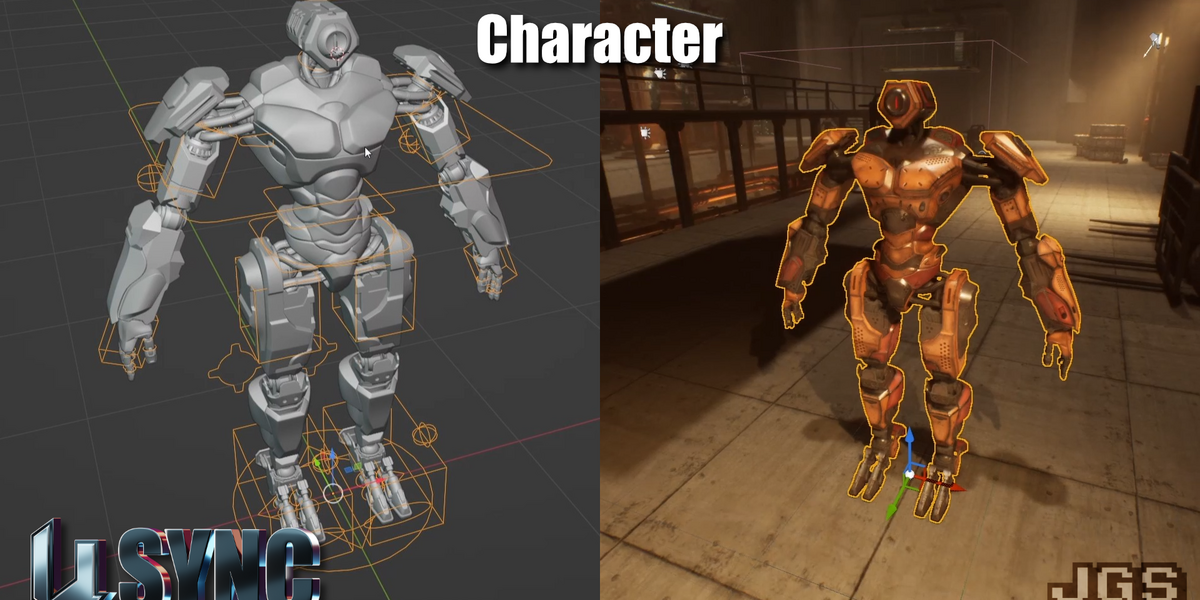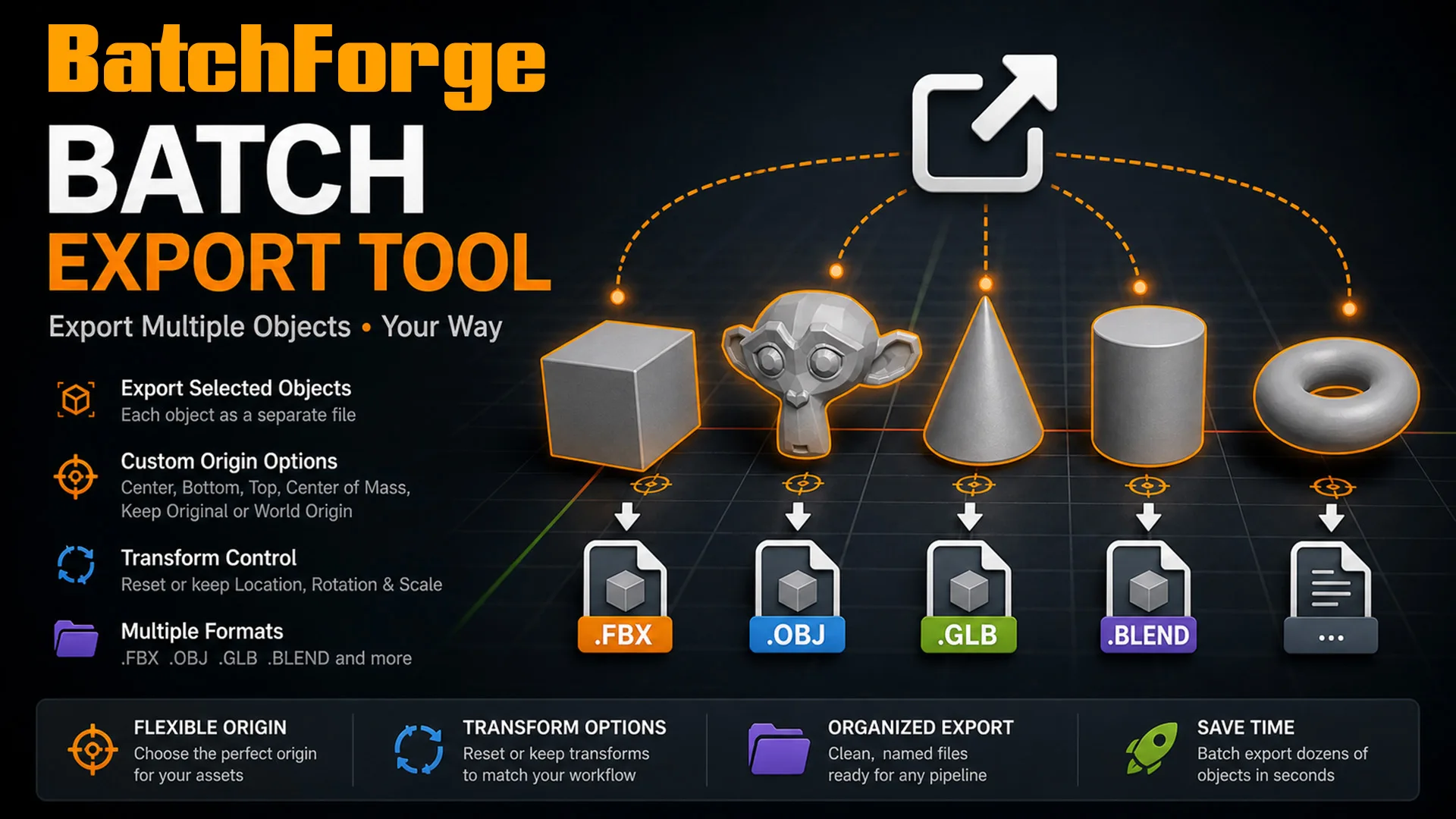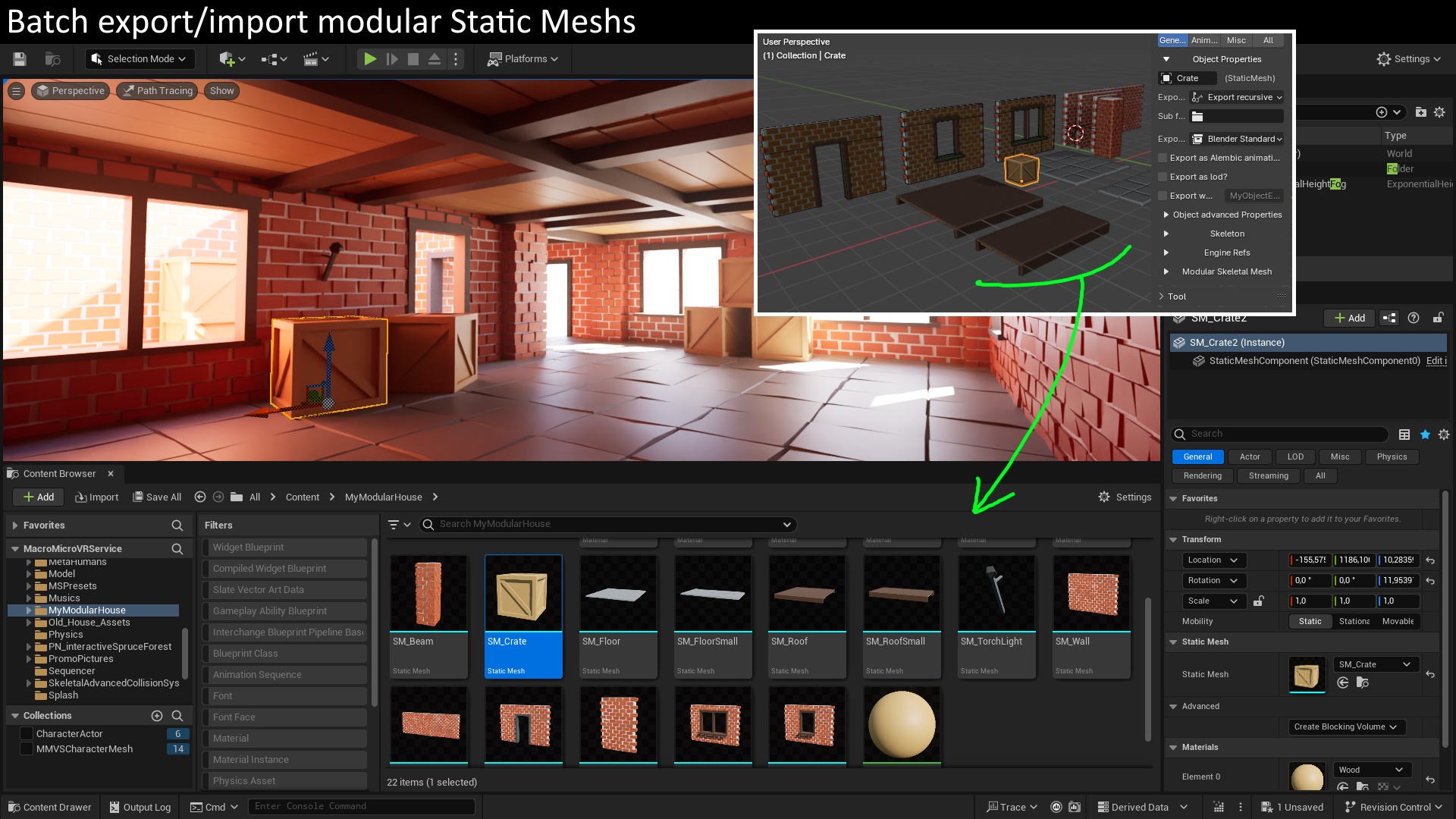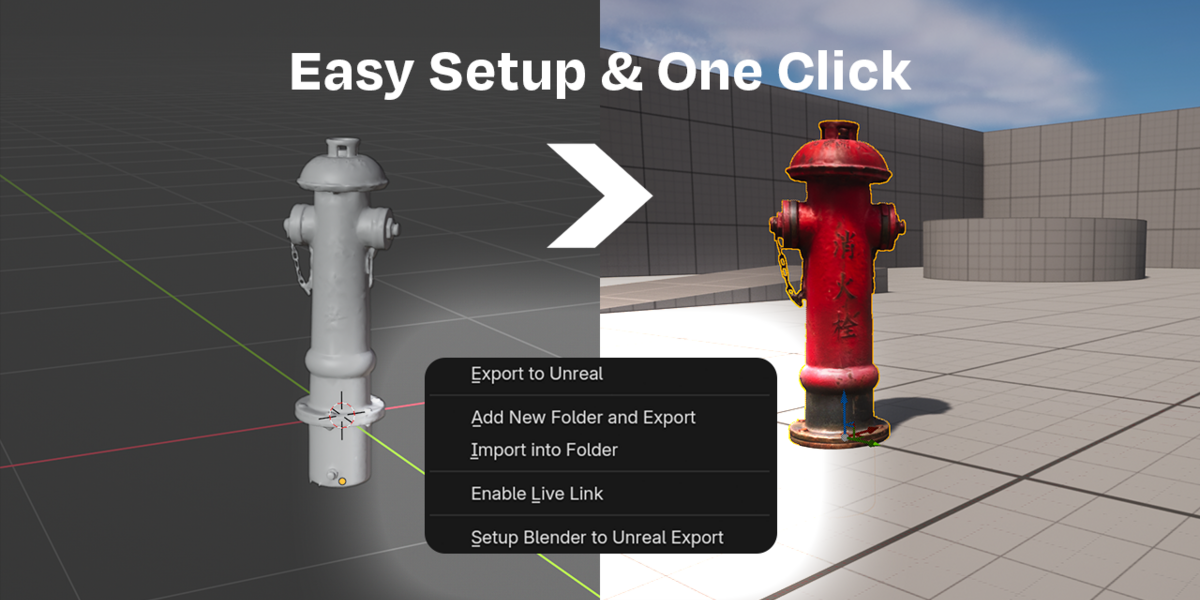
PolyLink is a Blender extension for sending selected assets to a running Unreal Engine editor. It handles the export and import, then can update the existing Unreal asset so actors already placed in a level keep their stored settings. The workflow runs from Blender to Unreal Engine; it does not bring Unreal levels back into Blender.
PolyLink is suited to artists iterating on individual meshes, materials or animations. Its setup documentation describes the connection, material transfer and troubleshooting steps.
What PolyLink transfers
Materials and textures
PolyLink reads Principled BSDF materials and rebuilds them in Unreal as Material Instances. Image textures are imported with their colour-space and normal-map settings. Blender procedural node graphs cannot transfer directly, so enable Bake Procedural to render supported channels to textures, including metallic and alpha. Baking requires a UV map, uses Cycles and restores the render settings afterward. Alpha maps can produce masked materials, while partial alpha can use a translucent material. Baked textures are snapshots, so bake again after changing the procedural material.
Meshes, collision and organization
Collision options include boxes, spheres, capsules, convex hulls and custom meshes. PolyLink checks that collision shapes arrive under the names Unreal expects, which helps catch a mismatch that could otherwise go unnoticed. You can set an object's pivot to its origin, bounds centre, base or top, and combine multiple selected objects into one asset.
Browse the Unreal project's content folders from Blender and move assets between folders. Renaming in Blender renames the corresponding Unreal asset in place. Reimport preserves stored settings such as LOD and lightmap configuration by default.
Animation and Live Sync
Each exported action becomes its own AnimSequence, named after the action, with the existing skeleton reused. Live Sync can push changes from linked objects as you work. It waits until editing pauses and stays inactive in Edit and Sculpt modes. Each push still performs an export and import, so the documentation recommends it for iterating on an asset rather than syncing whole scenes.
Set up the Blender to Unreal connection
- Install the downloaded ZIP in Blender and open the sidebar with N.
- In Unreal, enable the Python Editor Script Plugin and restart the editor. In Project Settings, enable Python Remote Execution.
- In PolyLink, choose Find Unreal. The project's content folders should appear. The documentation says to look for “[PolyLink] UE side ok” in Unreal's Output Log to confirm the connection.
- Select a mesh in Blender, choose a destination folder and press Push. Drag the imported asset into the level; later pushes can update it in place.
If Unreal was already running before Remote Execution was enabled, restart it. If the connection fails after a firewall prompt, allow Blender through the firewall or check the Command Port setting.
Limits and compatibility to check
- PolyLink sends assets from Blender to Unreal; it does not synchronize Unreal changes back to Blender.
- Unreal uses a Physics Asset for skeletal collision, so PolyLink skips UCX collision on skeletal meshes and reports it.
- Reimport keeps stored Unreal settings by default. Use Force Import Settings in Preferences only when you want the incoming settings applied.
The product overview specifies Blender 4.2 or newer and Unreal Engine 5; the setup documentation also specifies Blender 4.2 or newer. The listing's Details section separately gives Blender 4.0 to 5.2. Since the Blender ranges differ within the listing, check the product page and release information for the package you plan to install.