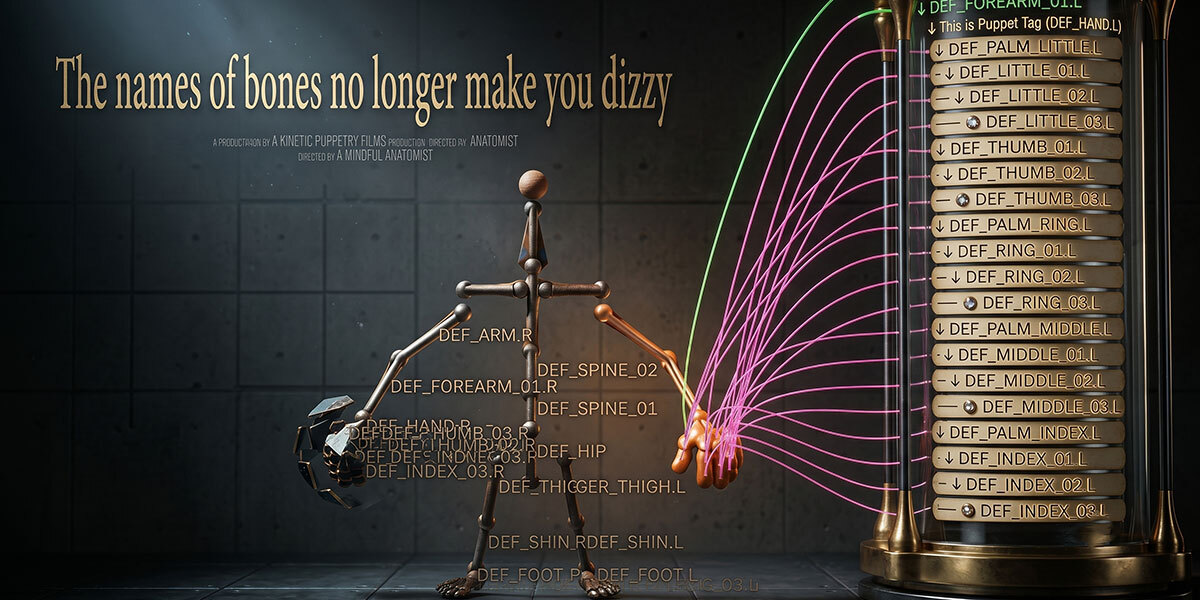
PuppetTag adds readable labels around selected bones in Blender's 3D View. The labels can make a complex rig easier to inspect, explain, or capture in a tutorial screenshot. PuppetTag uses display aliases, so the original bone names remain unchanged for constraints, drivers, scripts, and pipeline naming.
Arrange labels around a rig
Select bones to show their labels and leader lines, then move labels to reduce overlap without moving the rig controls. PuppetTag includes controls for label size, spacing, offsets, colors, line style, and line depth. You can sort labels by hierarchy, screen position, depth, name, distance, or selection order, and choose whether lines stay in front of scene geometry or pass behind it.
For hierarchy-focused work, the add-on can fetch parent or child bones. Its presets cover different tasks: Clean gives a simple layout, Hierarchy emphasizes parent-child relationships, Presentation uses larger labels for screenshots, and Rig Debug focuses on hierarchy and fetched bones. Spatial Heavy uses occluded leader lines; Performance offers lighter settings for dense rigs.
Set up and reuse a layout
Install the add-on ZIP from Blender Preferences > Add-ons > Install, enable PuppetTag, then open the 3D View sidebar with the N key and choose the PuppetTag tab. Select an armature and enter Pose Mode or Edit Mode. Turn on the HUD, select one or more bones, and adjust the layout or choose a preset. In Edit Mode, Partial Select can show labels when only a bone head or tail is selected.
When a layout is ready, Copy provides the current settings as JSON for pasting into another setup. Save stores a local preset inside the add-on folder, and Load restores it. The Path control copies the saved preset content for sharing. Keep Label Layout and Keep Pose help retain manually positioned tags after you release the mouse.
Choose between viewport labels and scene objects
The live PuppetTag HUD is for viewport work and does not appear in a final render. Use To 3D when labels need to render: it converts the visible labels and leader lines into Blender text and curve objects. The adjacent trash button removes those generated objects without changing the live HUD. Shot can save a selected viewport area as a PNG, which is useful for documentation.
For dense selections, Auto Performance can lighten expensive line settings. Occluded depth lines use more resources than front-facing HUD lines, so the Performance preset or Front line depth can help when you do not need lines to pass behind scene geometry. Object Mode Interaction keeps tags visible and draggable while another object is active, and annotation mode lets you edit display-only notes stored on bones without changing their names.
Compatibility and documentation
Superhive's product listing specifies Blender 4.0 to 5.1, while the documentation says Blender 4.0 or newer. Check the current documentation for the exact Blender release you use. The listing identifies PuppetTag as a Blender add-on and gives its license as GPL.
See the PuppetTag documentation for setup and controls, or visit the product listing.