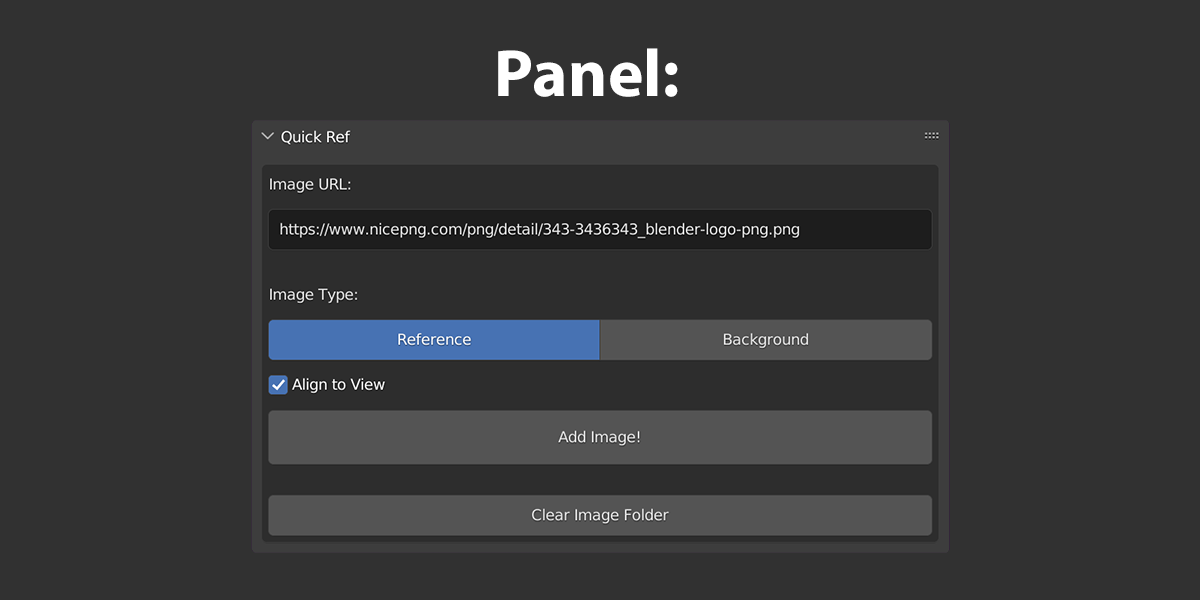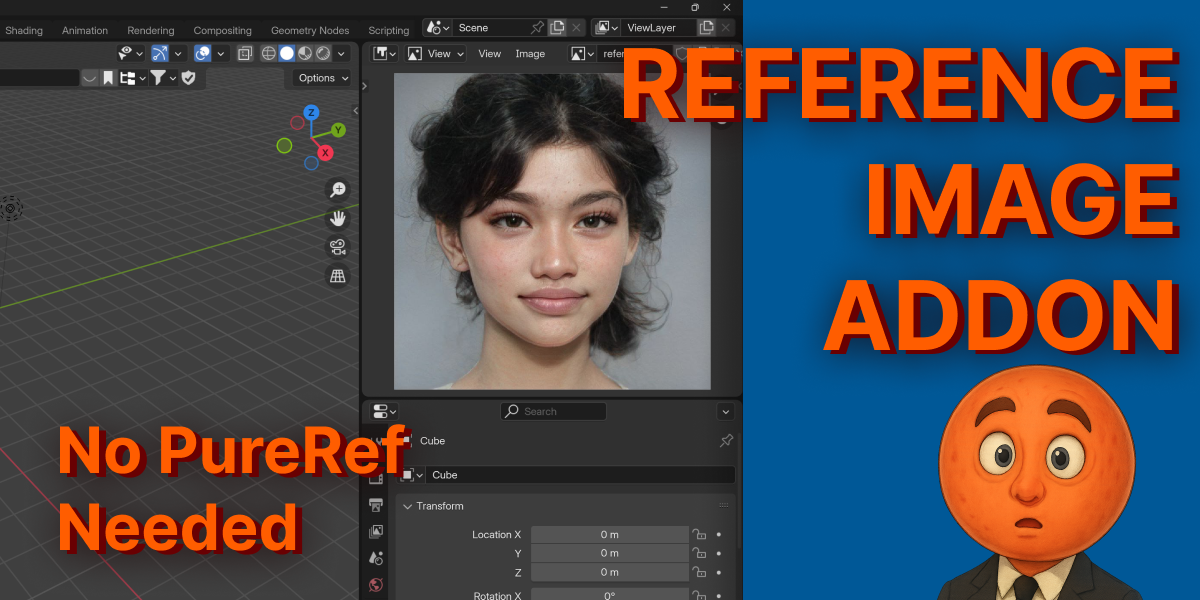
Quick Ref is a Blender add-on by Hamen for adding reference and background photos from image URLs. Its documented workflow lets you add an image without downloading it first, which can save a separate download step when gathering modeling references. See the Quick Ref documentation for the instructions.
Add a reference or background image
- Find an image online, right-click it, and choose “Copy image address.”
- After installing Quick Ref, open the N-Panel by pressing N if it is closed, then select the Quick Ref tab.
- Paste the address into the Image URL field and click “Add Image!”
This workflow adds reference or background photos from their image addresses. The product description says Quick Ref is intended to help keep your device organized while adding images.
Install Quick Ref
- Before installing, compare your Blender version with the list in the Image formats and Blender versions section below. If it is not listed, confirm compatibility with the developer. Then download the add-on as a ZIP file.
- In Blender, open Edit > Preferences > Add-ons > Install, then select the ZIP file.
- Open the N-Panel and choose the Quick Ref tab.
These installation steps come from the developer’s documentation.
Image formats and Blender versions
The product FAQ lists JFIF, JPG/JPEG, PNG, TIF/TIFF, and WebP image formats. The listing, published about four years ago, names Blender 2.9, 2.91, 2.92, 2.93, 3.0, 3.1, 3.2, and 3.3.
License
The product listing identifies Quick Ref as Creative Commons, but its linked license page does not identify which variant applies to Quick Ref. Ask the creator to confirm the specific terms if you need the exact permissions.