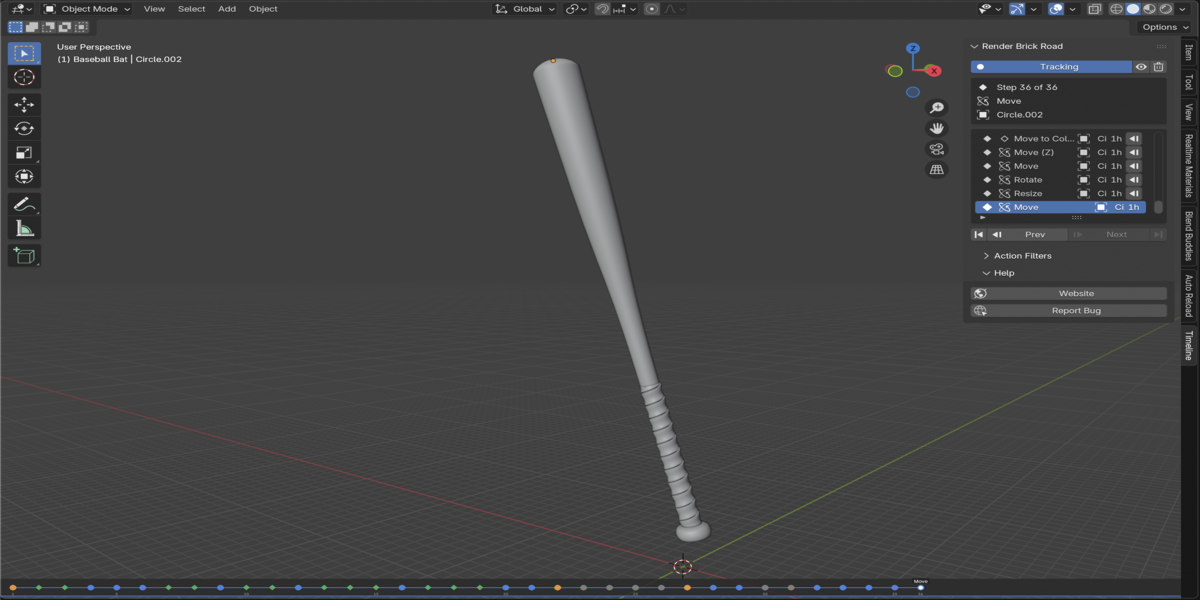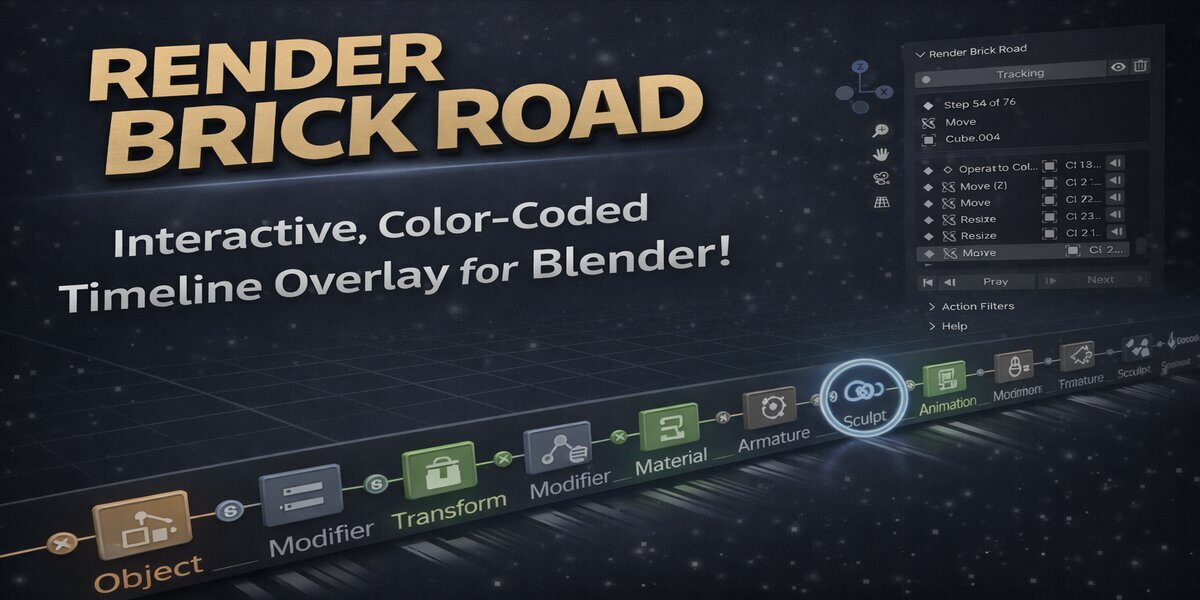
Render Brick Road is a Blender add-on for following the sequence of operations in a scene. It places a horizontal timeline at the bottom of the 3D viewport, where color-coded nodes represent tracked actions. Mesh operations appear as diamonds; transforms and modifiers appear as circles. The product listing identifies Blender 4.2–5.1 as its compatible range and says Blender 4.2 or newer is required.
Read the timeline in the viewport
The overlay shows past operations, your current position, and future steps available through redo. Hover over a node to see its operation name, affected object, and relevant context such as an axis constraint or modifier type. Scroll arrows appear when the history extends beyond the visible timeline. A progress bar indicates your position in that history. When several 3D viewports are open, each has its own overlay, scroll offset, and hover state, while the timeline data is shared.
For a fuller view, open the 3D Viewport sidebar with the N key and select the Timeline tab. Its scrollable list shows each step's status, category, operation name, affected object, and relative time. The panel also shows the current step and provides buttons to jump to the first, previous, next, or last step. Its controls can pause or resume tracking, hide the overlay, or clear all timeline entries.
Filter the operations it tracks
Action Filters let you choose which operation categories enter the timeline. The documented defaults are transforms, parenting, and snap or align operations on; selection, mode changes, and visibility changes off. You can change these toggles from the sidebar. A change applies to future tracking and does not remove entries already in the timeline.
This lets you keep frequent selection changes out of the history while recording transforms, for example. Depending on the filter settings, the timeline can include moving, rotating, scaling, switching modes, hiding or showing objects, and changing parent relationships. Use the filters to make the list easier to scan for the operations you need to revisit.
Move through undo and redo history
Click a node in the overlay or use a step's jump button in the sidebar to move to that point. Render Brick Road performs the necessary undo or redo operations. Blender's standard undo and redo shortcuts continue to work, and the timeline updates with your position.
The history follows Blender's usual branching behavior: if you undo several steps and then make a new operation, the undone future entries are removed and the new operation becomes the latest entry. The add-on presents the current undo and redo sequence, rather than a separate permanent record of every action.
Adjust tracking and overlay settings
In the add-on preferences, the polling interval can be set from 0.1 to 2.0 seconds; its documented default is 0.3 seconds; shorter intervals catch operations faster but use slightly more resources. The maximum timeline size ranges from 0 to 5,000 entries, with 500 as the default. Setting the limit to 0 allows unlimited entries; when a limit is reached, the oldest entries are removed.
You can also adjust the overlay height, node spacing, and opacity. The documented defaults are 52 pixels, 60 pixels, and 0.92 opacity. Step numbers and automatic scrolling are on by default. These controls are useful if the overlay takes up too much viewport space or the current point in a long history is hard to follow.
Install Render Brick Road
Download the ZIP file, open Blender's preferences, choose Install from Disk, and select the file. Enable Render Brick Road in the add-on list. The overlay appears at the bottom of the 3D viewport; open the N-panel's Timeline tab for the step list and filters. See the product documentation for installation and control details, and the product listing for its stated Blender compatibility and GPL license.
Who may find it useful
Render Brick Road may suit Blender users who want to inspect modeling operations visually and return to a particular step without repeatedly pressing undo or redo. Its viewport nodes provide a quick overview, while the sidebar helps locate an operation by name or affected object. Users who need a history that persists after branching to a new edit should account for the add-on's Blender-style history behavior.