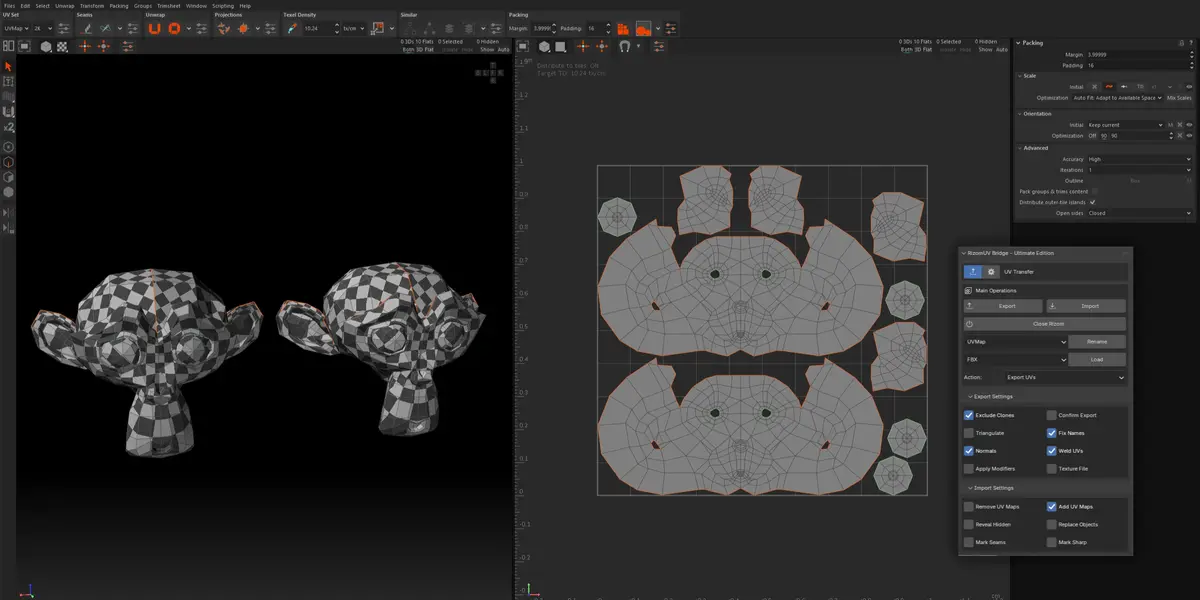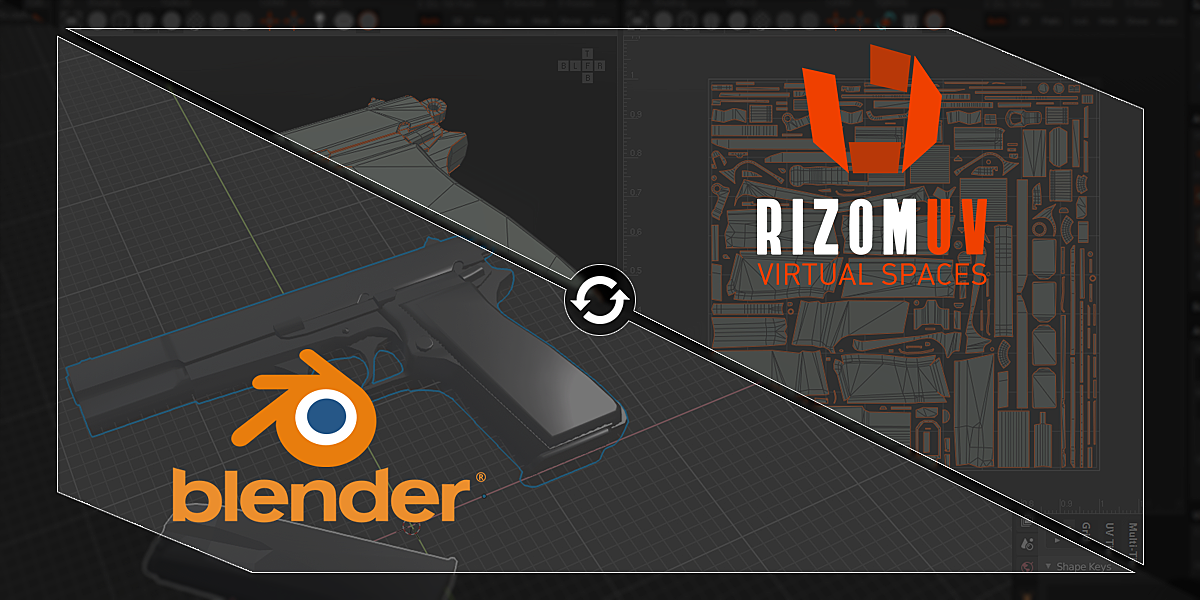
RizomUV Bridge is a Blender add-on by Matt Ashpole for sending selected meshes to RizomUV and bringing their UV maps back. The Superhive listing describes its button-based transfer workflow and GPL license. In Blender, the usual import brings back UV data while leaving the original objects intact.
How the Blender and RizomUV transfer works
Export sends selected objects to a temporary file and opens it in RizomUV. If RizomUV is already open, the file loads into that instance and replaces its current scene. After unwrapping, use Import to transfer UV maps from the meshes in RizomUV to their matching Blender objects. The add-on matches objects by name, so keep names unchanged between export and import.
By default, import transfers UV data and leaves the Blender objects otherwise untouched. There is also a Replace Objects option that deletes the originals and replaces them with imported meshes. The documentation warns that this is not recommended and should be used only as a last resort if UV transfer fails.
Keep UV sets ready for export
Meshes exported together need the same UV maps, with names that RizomUV can use. The RizomUV Bridge documentation notes that UV map names cannot contain a period or the substring ___dot___. The Sync action can replace invalid characters in the active object's UV map names, then make other selected objects match by creating missing maps and removing extra ones. You can turn off either step in the Sync dialog or use its batch rename option.
Optional actions include unwrapping in Blender from marked seams before export and marking UV island boundaries as seams or sharp edges on import. Skip Clones can leave out linked duplicates that share mesh data.
Check Blender and RizomUV versions by operating system
The product title refers to Blender 2.8+, but compatibility depends on the specific Bridge release and operating system. The documentation lists these combinations:
| Bridge release | Blender | RizomUV on Windows | RizomUV on macOS |
|---|---|---|---|
| 2027 | 4.2+ | 2023+ | 2027+ |
| 2024 | 4.2+ | 2022.1.35+ | 2022.1.35+ |
| 2022 | 2.8+ | 2022.2+ | Not supported |
| 2020 | 2.8+ | 2020 | Not supported |
| 2019 | 2.8+ | 2019 | Not supported |
Uninstall any previous RizomUV Bridge release before installing another, and keep only one version installed at a time. In Blender, use Preferences > Add-ons > Install from Disk and select the downloaded ZIP. For a bug report, include your operating system, Blender version, RizomUV version, add-on version, and any error logs.