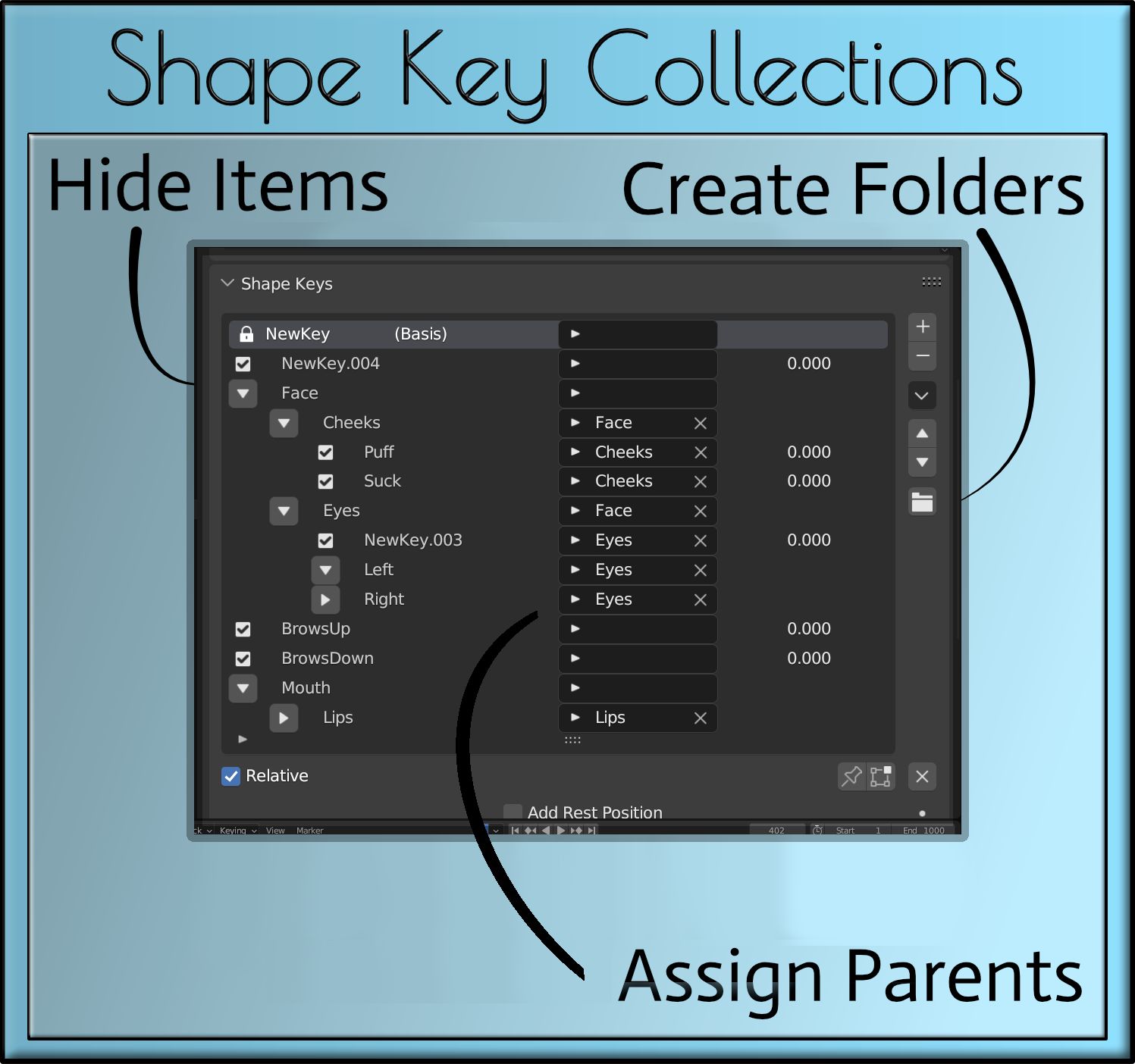
Shape Key Collections adds folders and subfolders to Blender’s shape key list. You can rename keys, assign them to folders and arrange related controls together. This can make a long list easier to navigate, such as a model with separate left and right eyebrow shape keys.
Inlet’s product listing describes the add-on’s main features, while its documentation explains how the folder controls work.
Organize shape keys in a folder hierarchy
A folder can contain shape keys or other folders, so you can build a nested structure. Closing a folder hides its contents in the list. Items stay within their assigned folder when you reorder them, and move with their parent folder when it is moved.
Select a folder and use Duplicate in the drop-down menu to copy the folder along with the shape keys and nested folders inside it. Removing a folder depends on its state: removing an open folder moves its children up one level, while removing a closed folder also removes its contents.
Group related controls with Split Keys
Version 3.4 adds Split Keys, which lets you put up to three shape keys together and display each value in one place. The listing’s example uses one key for the left eyebrow, another for the right eyebrow and a third for both together.
Work with modifier-generated shape keys
Shape Key Collections can add shape keys created by applying or saving modifiers as shape keys. First enable Track Applied Keys. The interface becomes greyed out while tracking is on. Apply or save the modifiers, then turn tracking off; the new keys will appear in the list.
Compatibility and performance
The product listing specifies Blender versions 2.83 through 5.0 and a GPL license. Its FAQ does not give a fixed maximum number of shape keys. It says the add-on slowed during testing at around 1,000 keys, mainly when moving keys or changing folders, and that this slowdown did not affect the rest of Blender.
The product FAQ also says joined objects can retain their Shape Key Collections folders and links to a short tutorial about the process.