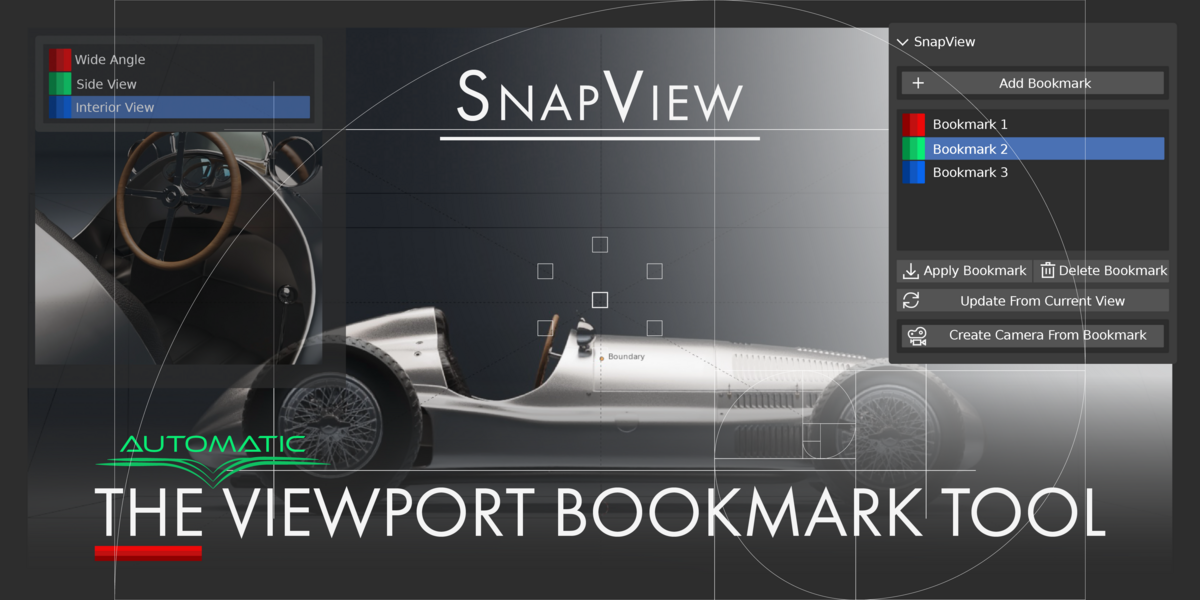
SnapView is a Blender add-on for saving and reusing 3D viewport angles. A bookmark captures the view's position, rotation, lens, shading and overlays, then restores that state when applied. If an angle is ready to use in a render, create a camera from the bookmark. The Superhive product listing and SnapView documentation describe uses such as look development, product views, character close-ups, environment checkpoints and A/B iteration.
Save a view and return to it
Open the SnapView tab in the 3D View's N-panel, frame the scene, then choose Add Bookmark and give the saved view a name. Select that bookmark and choose Apply to restore it later. This is useful when you move between a close-up and a wide view, or revisit an angle during modeling without framing it again. Applying a bookmark restores the viewport; it does not move an existing camera.
Organize viewport bookmarks
The bookmark list supports inline renaming and color tags. Use labels and colors to distinguish work in progress views from final angles, close-ups or wides. The documentation also describes duplicating and deleting bookmarks from the panel, so you can manage saved views alongside the scene.
Create a camera from a saved view
When a saved angle is ready to become a shot, choose Create Camera From Bookmark. SnapView creates a camera aligned with that view and makes it active. This gives you a direct path from viewport framing to a camera for rendering or shot planning, while ordinary Apply actions remain focused on restoring the viewport.
Scene data and viewport changes
Bookmarks are stored as scene data in the .blend file. That keeps them with the project; the product documentation suggests appending the scene or duplicating the file when reusing bookmarks elsewhere. SnapView restores viewport and shading state without changing models or materials. The product FAQ also says the add-on does not change render settings or the selected render engine.
Keyboard shortcuts
The product page lists Ctrl+Alt+B to add a bookmark, Alt+B to apply the active bookmark and Shift+Alt+B to create a camera from a bookmark. The documentation notes that defaults can vary by setup, so check the SnapView keymap if a shortcut behaves differently in your Blender installation.
Compatibility and installation
Superhive lists Blender versions 3.6 through 4.5, along with Cycles and Eevee, and identifies SnapView as a GPL add-on. Its installation instructions are to download the ZIP, open Edit > Preferences > Add-ons > Install, select the ZIP and enable the add-on. The SnapView tab then appears in the 3D View's N-panel. Check the product listing for current compatibility details before installing.
SnapView may suit Blender artists who revisit specific viewpoints during look development, product-angle work, character close-ups, environment reviews or previz. Its main task is to save viewport states and restore them on demand; create a camera when you want to keep a view as a camera angle.