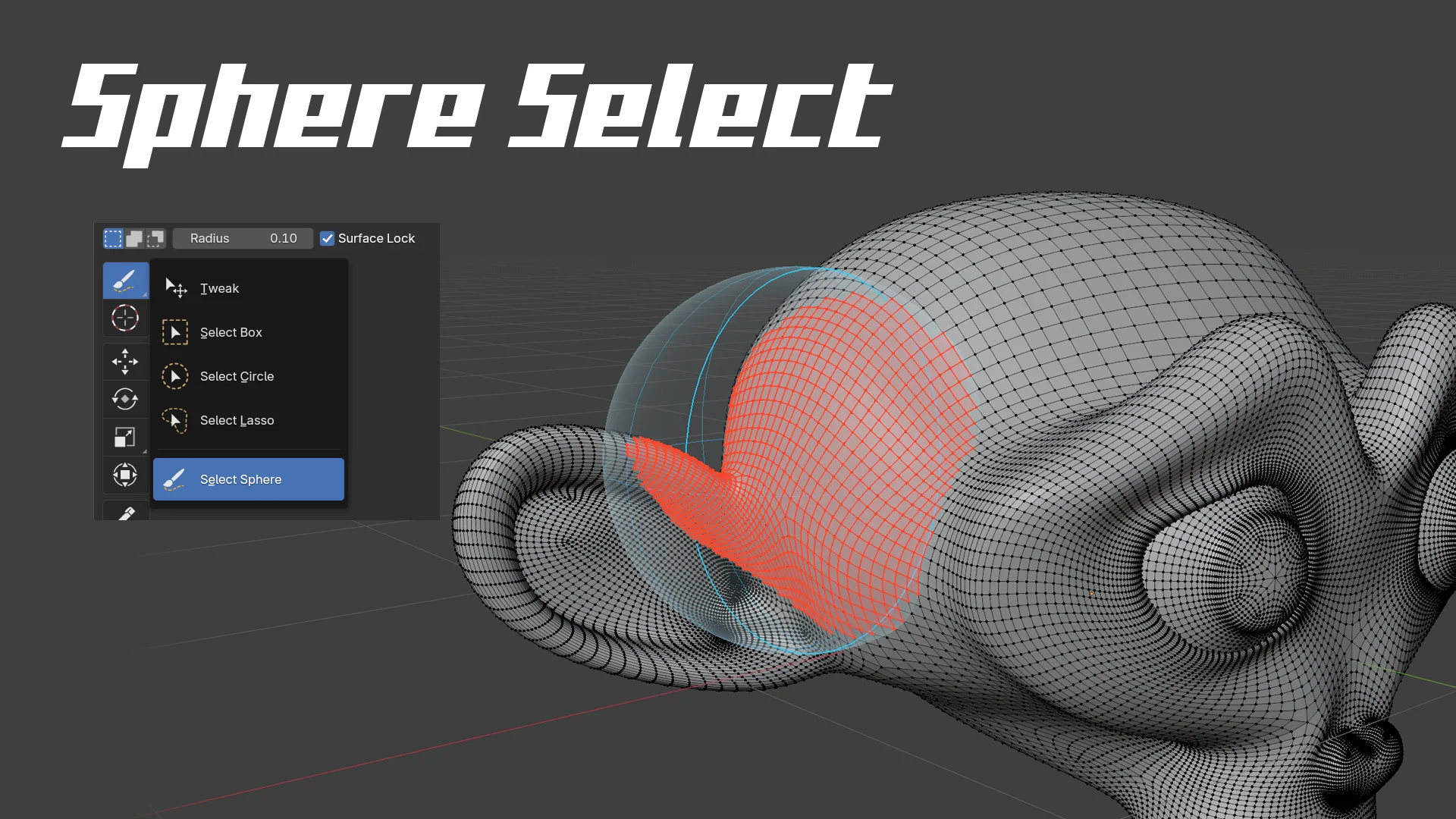
Sphere Select adds a surface-snapped 3D brush to Blender. It selects with a finite sphere positioned on visible geometry, while Circle Select uses a screen-space region. The sphere makes the selection volume easier to judge in 3D and can avoid selecting geometry outside that volume. On dense or high-poly meshes, Sphere Select can provide lighter, more responsive selection than Circle Select.
What it selects
In Object Mode, an object is selected when its geometry intersects the brush sphere. Objects without suitable geometry use a display proxy or their origin. In Mesh Edit Mode, the brush supports Vertex, Edge, and Face selection. For point clouds imported as vertex-only meshes, including in Blender 4.2 or 4.3, use Vertex Select. In Blender versions that provide Point Cloud Edit Mode, Sphere Select selects native points directly.
Using the brush
Choose Select Sphere from the 3D Viewport toolbar's selection flyout to keep the brush active for repeated strokes. You can also start a continuous session from Header > Select > Sphere Select; this leaves the current toolbar tool selected. In the toolbar tool settings, choose Set, Extend, or Subtract, then adjust Radius and Surface Lock. Drag across a surface to paint a selection. Releasing the mouse commits that stroke.
During a Select-menu session, left-drag extends the selection. Shift plus left-drag or middle-drag subtracts. Use the mouse wheel to change the radius, press L to toggle Surface Lock, and press Esc or the right mouse button to finish. Each mouse release commits a stroke. You can customize the session shortcuts in Preferences under Keymap > 3D View, or right-click Sphere Select in the Select menu to assign a launch shortcut.
Surface Lock and dense previews
Surface Lock limits sudden depth changes and breaks a stroke at gaps. When foreground geometry overlaps the brush, it can keep the brush following the original mesh surface or point-cloud depth. Points at other depths can still be selected when they fall inside the sphere.
On a high-poly mesh, the add-on may take a moment to prepare selection data the first time; it caches that data for later use. Point-cloud drag previews can show up to one million points, while dense mesh previews may simplify the overlay to keep the viewport responsive. The full selection is applied when you release the mouse. Sphere Select also supports hover and drag highlights for Gaussian splats in Blender 5.3.
Compatibility and release
Sphere Select is listed for Blender 4.2 and newer. Its radius is measured in world space, so the apparent brush size depends on scene scale. If the brush looks too small or is hard to see, increase the radius before starting a stroke. The add-on has no external dependencies and is licensed under GPL-3.0-or-later.
The Blender Extensions listing identifies version 1.0.3. Its release notes say this version fixes a 1.0.2 regression that made Select Sphere disappear from the toolbar flyout. See the Sphere Select listing and release notes for the current package details.