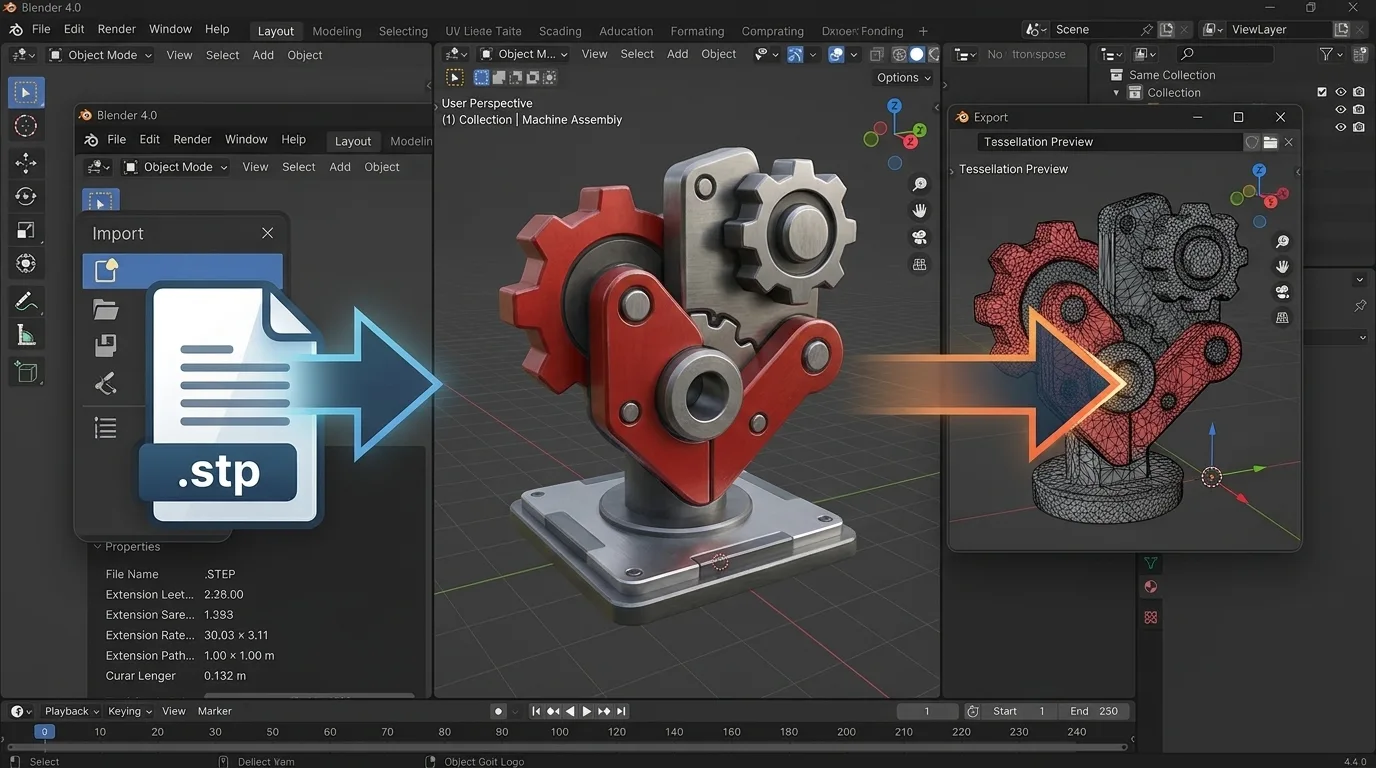
STEP Importer 3.0 brings STEP and STP CAD assemblies into Blender while retaining their part structure, names, placement, units, and supported material data. Its linked workflow lets you adjust mesh quality and rebuild selected parts after import, while leaving the original CAD file unchanged.
The STEP Importer 3.0 listing specifies Blender 4.5, 5.0, 5.1, and 5.2 on 64-bit Windows 10 and Windows 11. The extension includes its Python and Open CASCADE runtime, so a separate Python, pythonOCC, or Open CASCADE installation is not required. Windows also needs the Microsoft Visual C++ Redistributable 2015–2022, x64.
Keep CAD parts organized in Blender
An imported assembly can retain its hierarchy and part names, transforms, scale, units, repeated or mirrored components, STEP colors, and Blender material assignments. Supported multi-material parts can keep per-face materials. Repeated parts can share Blender mesh data, which helps keep instances linked rather than creating a separate mesh for every copy.
Choose a flat object layout, nested collections that follow CAD groups, or a parented hierarchy for selecting and transforming subassemblies. The default settings use CAD hierarchy and Y-up orientation; Z-up is also available.
Adjust mesh quality after import
STEP files contain CAD surfaces that Blender converts into polygon meshes. Simplified mode exposes one Mesh detail value: increase it for smoother curved surfaces and close-ups, or reduce it for a lighter scene. Detailed mode lets you set linear and angular deflection separately. Both modes use the same tessellator, and switching modes alone does not change the model.
Because imported objects retain a link to the source STEP file, you can select parts and rebuild them with different quality settings without importing the whole assembly again. You can also rebuild the complete linked model, restore its link after reopening the Blender file, or relink it if the source file has moved. Matching repeated parts are relinked to the updated mesh where applicable.
With Fast future rebuilds enabled, the add-on prepares a quality-independent CAD document and part map in the background. Once ready, that cache can speed up later selected-part rebuilds, including after reopening Blender. Cache preparation uses CPU and disk resources, and the first import still has to read and tessellate the CAD geometry.
Install and import a STEP file
- Download the STEP Importer 3.0 ZIP from your Superhive library.
- In Blender, open Edit > Preferences > Get Extensions. Open the menu in the upper-right corner and choose Install from Disk.
- Select the ZIP without extracting it, then enable STEP Importer if Blender has not enabled it automatically.
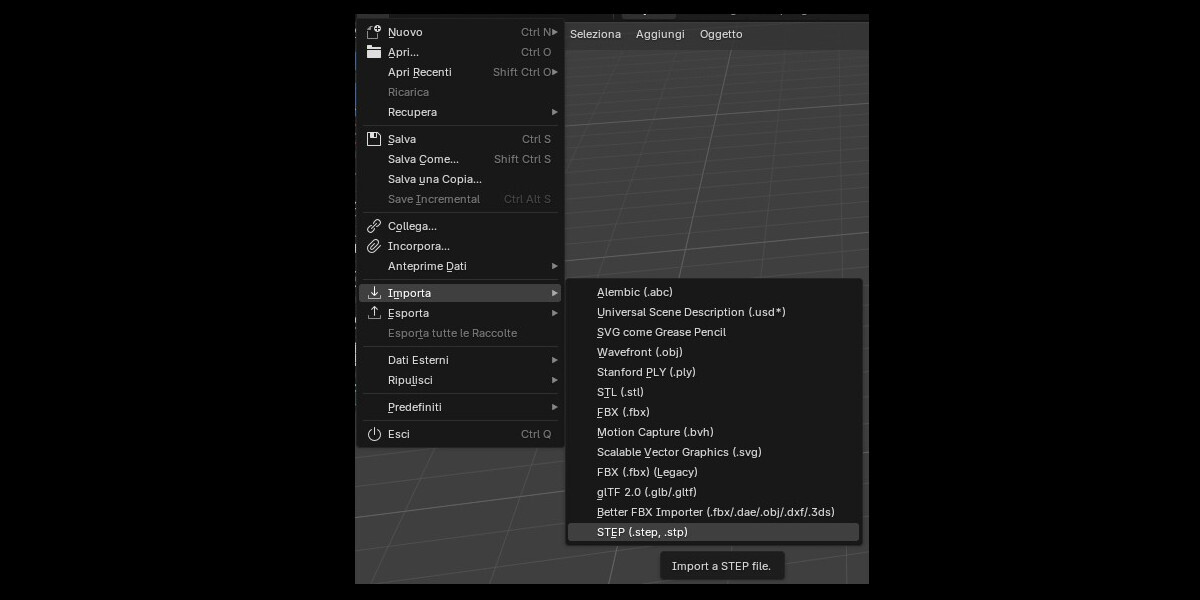
- Choose File > Import > STEP Importer 3.0 (.step, .stp), select the CAD file, set mesh quality and scene orientation, then click Import STEP.
The STEP Importer 3.0 installation and import documentation covers rebuilding parts, cache controls, relinking a moved file, and troubleshooting. The product documentation says the previous STEP Importer 2.0 packages remain available as a legacy version in your Superhive library; the steps above describe the 3.0 extension.
Import limits to consider
The initial conversion runs synchronously, so Blender can remain busy during a large or complex import. The cache helps with later rebuilds, not the first conversion. Unusual or corrupt STEP exports may need file-specific troubleshooting. Skip faulty solids is a recovery option when invalid geometry blocks an import, but omitted solids can leave the resulting model incomplete.
Clean planar triangles is optional and disabled by default. It changes the Blender mesh topology and can make an import or rebuild slower; it does not change the source STEP file. CAD surface normals are the default, preserving smooth curved surfaces and controlled hard edges. CAD seam correction and Blender angle normals are alternative shading options that affect normals, not the underlying CAD geometry.
For current compatibility and product details, see the STEP Importer 3.0 product listing and its product FAQ.