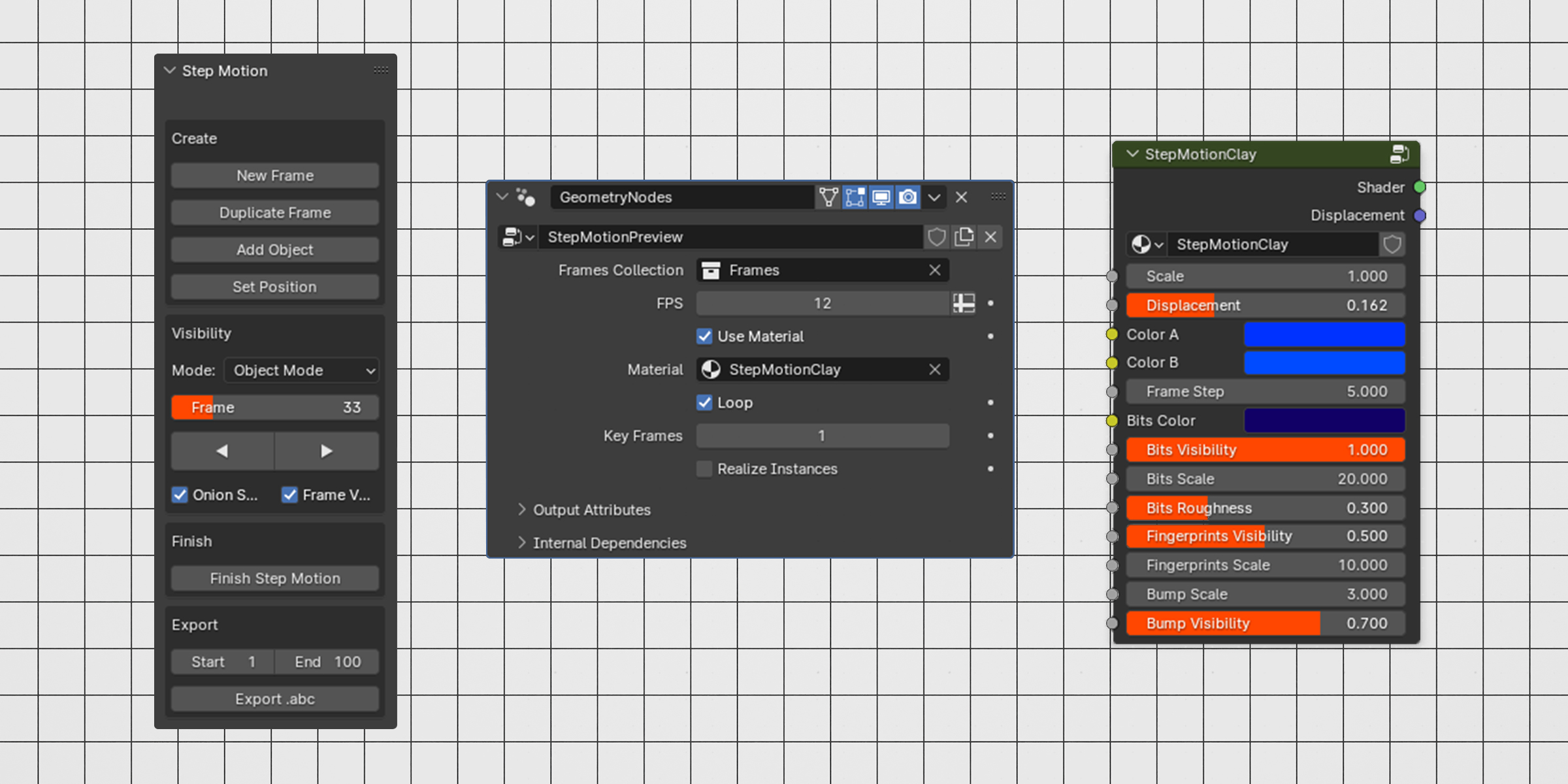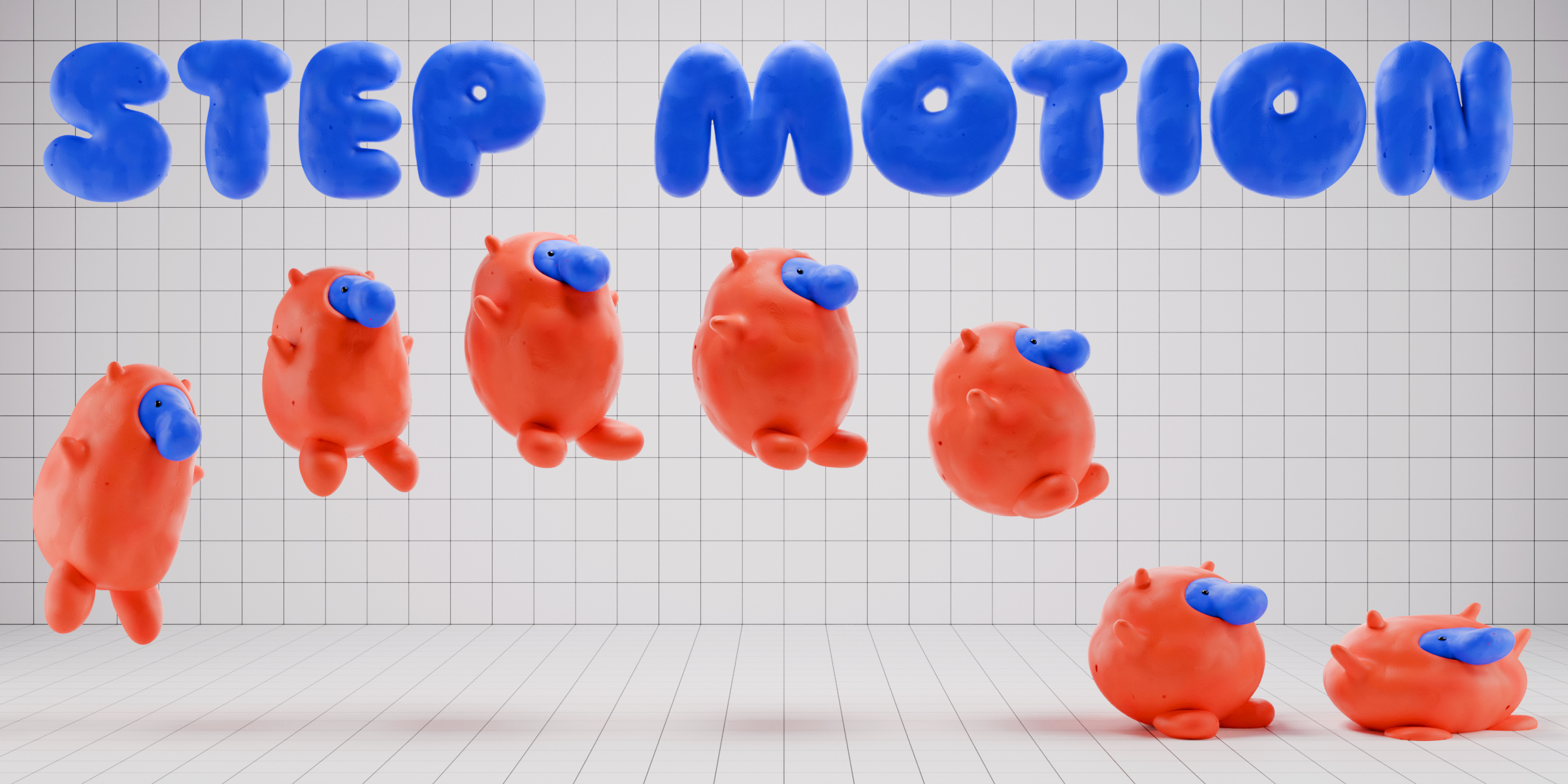
Step Motion is a Blender add-on for building stop-motion-style animation frame by frame while editing or sculpting. Its package includes the Step Motion Addon, a Geometry Nodes preview setup and a procedural clay shader. Version 1.1 adds in-between frames, prompts for frame positions and restores previously used materials after you finish the animation.
Create and arrange frames
After installing StepMotion.py, open StepMotion.blend or append the Step Motion Preview object to another Blender file. The first time you choose Create Step Motion, the add-on creates Step Motion and Frames collections and a first frame containing a smoothed sphere.
Create a frame with Ctrl + Shift + N or duplicate the selected frame with Ctrl + Shift + D. With an older frame selected, either action can create an in-between frame after you set its position. Add Object moves an object selected outside the Frames collection into it and renames it Frame; version 1.1 also prompts for its frame position and supports curves.
Check motion as you work
Onion skinning keeps the active frame visible while older frames fade to red and future frames to blue. It works while animation is paused, and does not apply to curves. The Step Motion Preview Geometry Nodes setup plays the sequence in real time. It instances frames, which lets you combine animations and offset their speeds to build a scene.
Materials and export
Step Motion temporarily changes materials for onion skinning. When you press Finish Step Motion, it restores previously used materials. In the Preview Geometry Nodes setup, turn off Use Material to use each frame’s own materials. The separate Step Motion Clay asset supplies an animated, procedural clay-like shader.
The preview setup can export an animation as Alembic (.abc). Select the object with the Step Motion Preview Geometry Nodes setup and enable Realize Instances before exporting. The creation workflow itself takes place in Blender. The documentation also notes that performance depends on frame count and mesh density; heavily subdivided meshes or hair modifiers can make a scene demanding. Read the Step Motion documentation for setup and export details, and check the official listing for the current compatibility information.