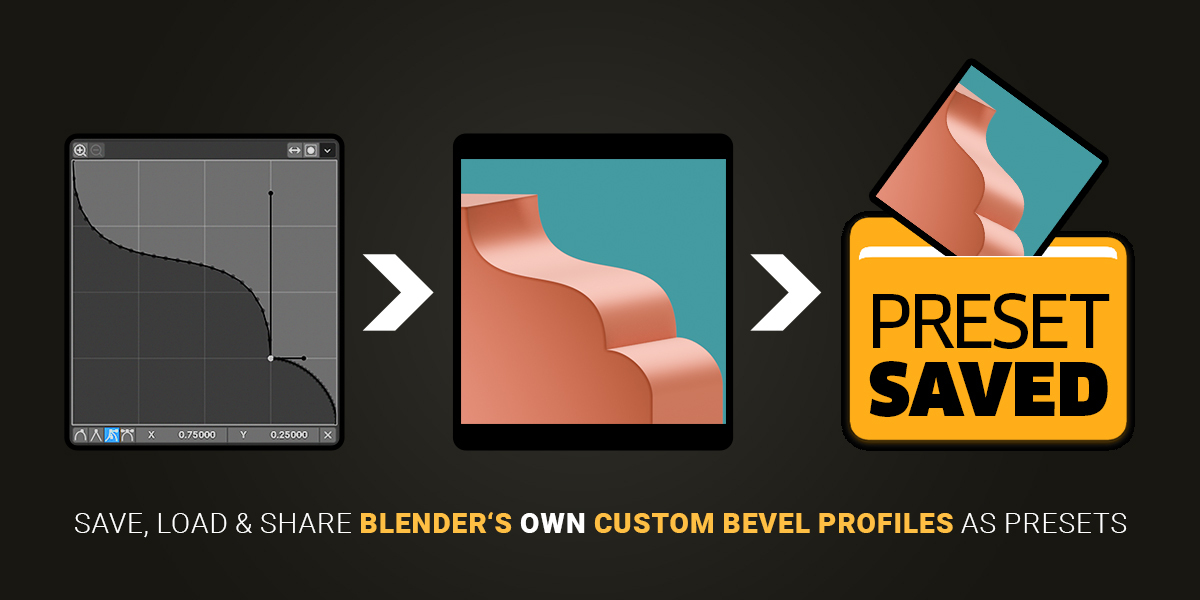
Bevel Profiler is a Blender add-on for saving, previewing, organizing, applying, and sharing custom bevel profiles. It works with Blender's Bevel Modifier in Object Mode and Bevel Tool in Edit Mode. A saved preset can include its profile points, handle types and positions, and relevant bevel settings. The product details list Blender 4.5 to 5.2, while the Bevel Profiler 1.0 section lists Blender 4.5.1 to 5.2.2; the listing also names macOS, Windows, and Linux support.
Save profiles from either bevel workflow
In Object Mode, create a custom profile on a Bevel modifier, open Bevel Profiler in the 3D View's N-panel, choose a folder, and select Save Profile. When saving a profile from an object with several Bevel modifiers, Bevel Profiler uses the active modifier or, if none is active, the first modifier in the stack. By default, applying a preset adds a Bevel modifier if the active object has none; this behavior can be disabled in Preset Behavior.
In Edit Mode, select edges or faces, activate Blender's Bevel Tool, set Profile Type to Custom, create the profile, and save it. Applying a preset loads its settings into the Bevel Tool, which activates automatically by default; you can disable automatic activation in Preset Behavior. You still use the tool on selected geometry to create the bevel.
Apply presets with the settings you need
In Object Mode, a preset updates the active object's Bevel modifier; if there are several, make the intended one active in the modifier stack. To change only the curve and retain the current bevel parameters, turn on Only paste Custom Bevel Profile without Parameters. By default, one click selects and applies a preset; with Double-Click to Apply enabled, one click selects the preset and a double-click applies it. With Double-Click to Apply enabled, the Preset Viewer also has an Apply Selected Preset button.
Organize and share a preset collection
Keep presets in folders, then browse them in a list or thumbnail view. The list sorts folders and presets alphabetically. You can set a custom directory for a collection stored elsewhere, or use Refresh after copying or changing preset files outside Blender.
Each preset has a JSON file and a matching PNG thumbnail. To share a collection, include its JSON files and the complete Thumbnails folder. Back up presets before deleting them because deletion cannot be undone through Bevel Profiler.
Choose how presets look
Thumbnail preferences let you choose a flat Plain View or shaded 3D View, along with profile and background colors. You can load the colors from a selected preset to reuse them. These choices affect the thumbnails, not the bevel on the model. Changing the thumbnail style does not refresh existing previews; select a preset and use Update Preset to render its thumbnail again.
Install and open Bevel Profiler
For version 1.0, the documentation instructs users to install Bevel_Profiler_Addon_v1_0.zip through Blender's Edit > Preferences > Add-ons > Install from Disk menu without unzipping the file. Enable the add-on if Blender does not enable it automatically. In the 3D View, press N and open the Bevel Profiler tab. When updating an older version, the documentation says to disable and uninstall it, restart Blender, and then install the new package.
See the Bevel Profiler documentation for the complete control reference and troubleshooting steps.