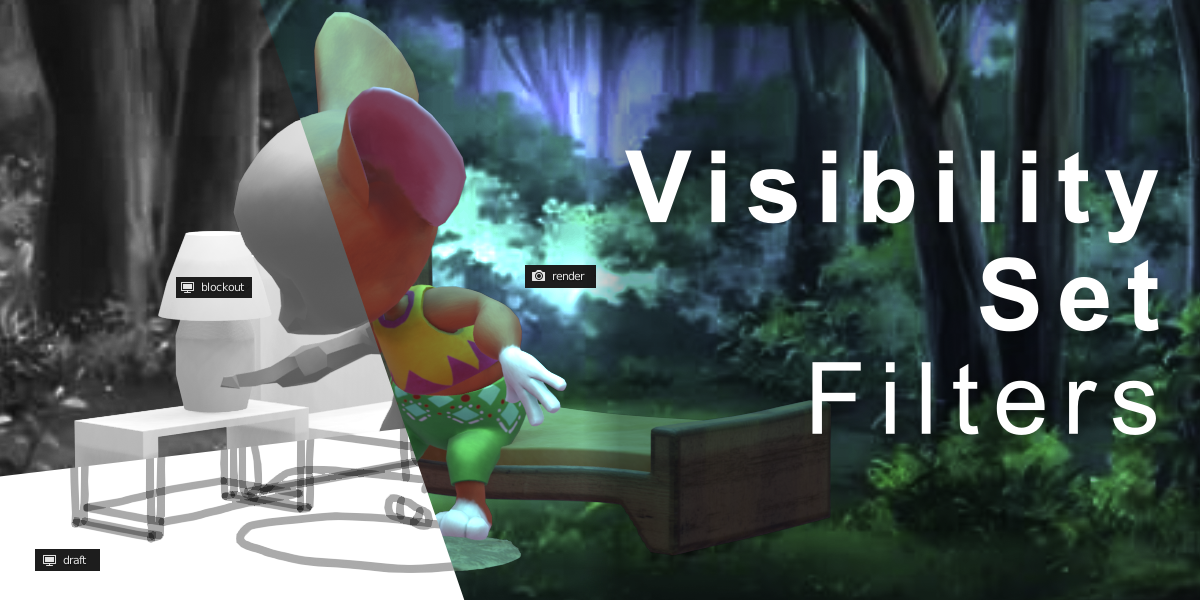
Visibility Set Filters is a Blender add-on for switching visibility between stages of a production workflow. You can make filters for objects such as geometry, cameras, and lights, or apply them to collections. That lets a team keep a lighter scene for storyboarding, for example, and use a blockout view for animation without high-poly characters or complex environments.
Build filters around production stages
The add-on leaves the filter names and purposes up to you. A storyboard artist might create a draft filter for a lightweight scene with few details. An animator might use blockout to work without heavier characters or environments. These are examples from the developer’s product description; set up filters to match the stages and views your own project needs.
Filters can apply to individual objects or to collections. Collections follow Blender’s usual inheritance rules, so a collection-level filter can cover the objects within it. This gives you a way to organize visibility at the level that suits a scene, rather than managing every object separately.
Keep viewport and render filters separate
Visibility Set Filters stores independent selections for the 3D viewport and for rendering. A viewport choice therefore does not have to match the render choice. This can be useful when a working view needs a different level of detail from the rendered output.
The add-on also works in the Video Sequence Editor (VSE). Its active filter there depends on the strip’s Scene Strip Display > Shading setting. Wireframe, Solid, and Material Preview use the viewport filter; Rendered uses the render filter.
Use filters with linked Blender files
Filters remain accessible when objects or collections are linked into another Blender file. To change them from that receiving file, the developer’s instructions call for a library override: right-click an object in the Outliner and choose ID Data > Make Library Override Hierarchy. The developer identifies Asset Browser compatibility as the add-on’s main purpose; matching filter names across Blender files let you switch between configurations after linking.
Check compatibility and documentation
The Superhive product listing lists Blender 2.93, 3.0 through 3.6, and 4.0 through 4.2, and marks the add-on as tested and approved for Blender 4. A newer Blender release is not included in that version list, so check with the developer before relying on it in a production file. The listing identifies version 1.0.1; its release note says “Fix Preferences.” It also lists the GPL license and links to the developer’s documentation.