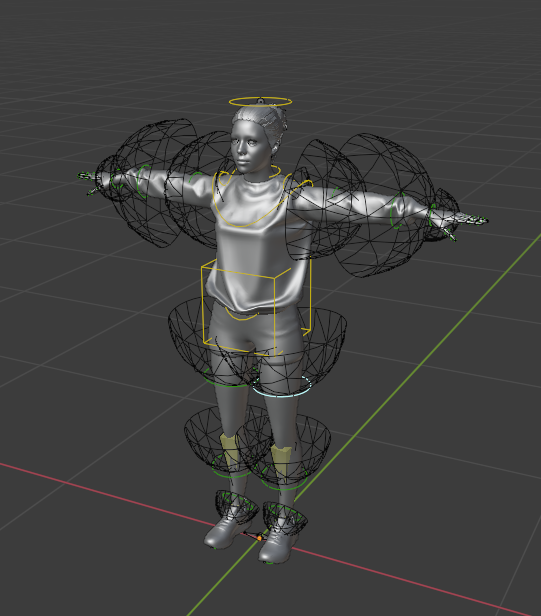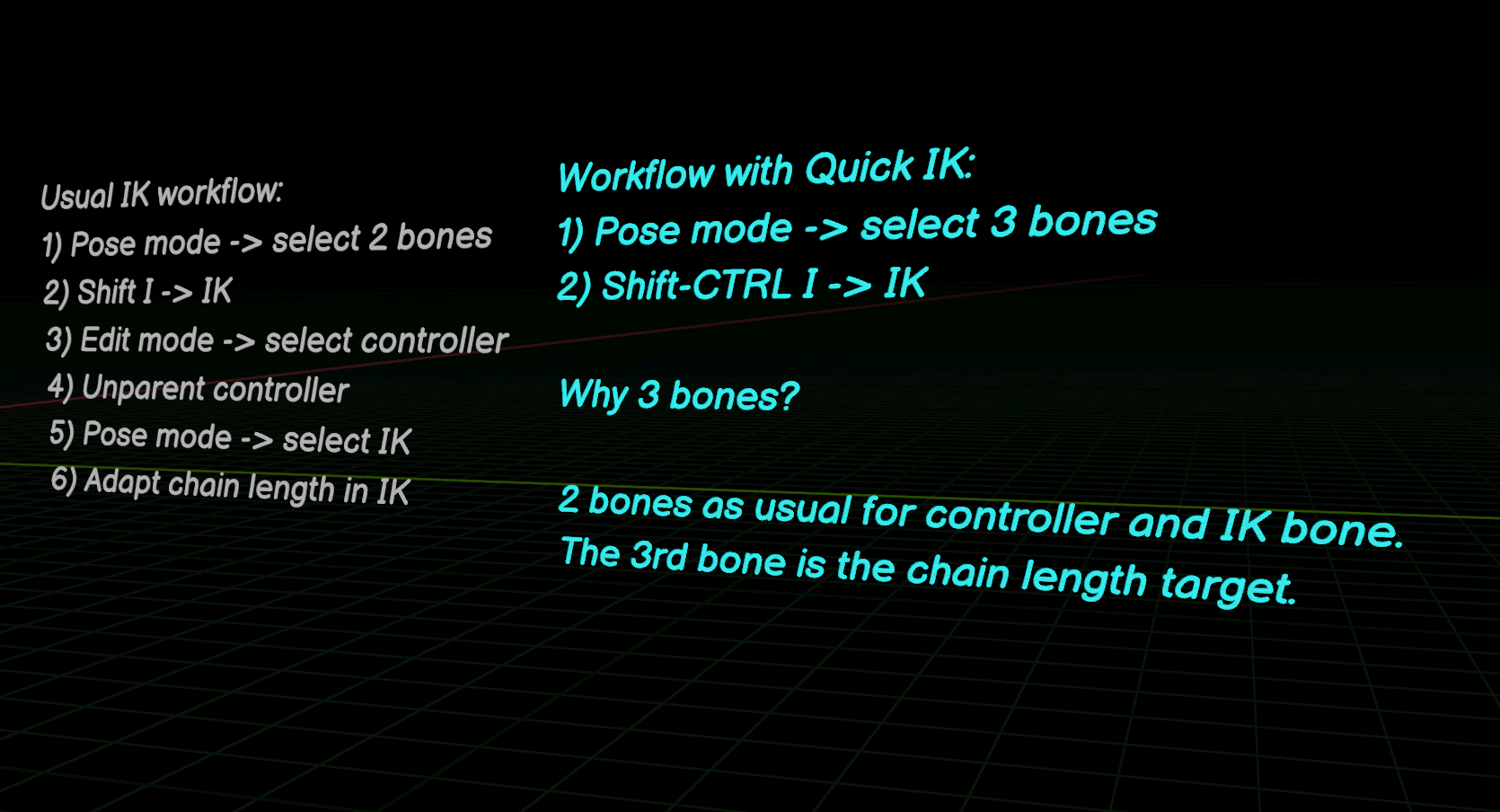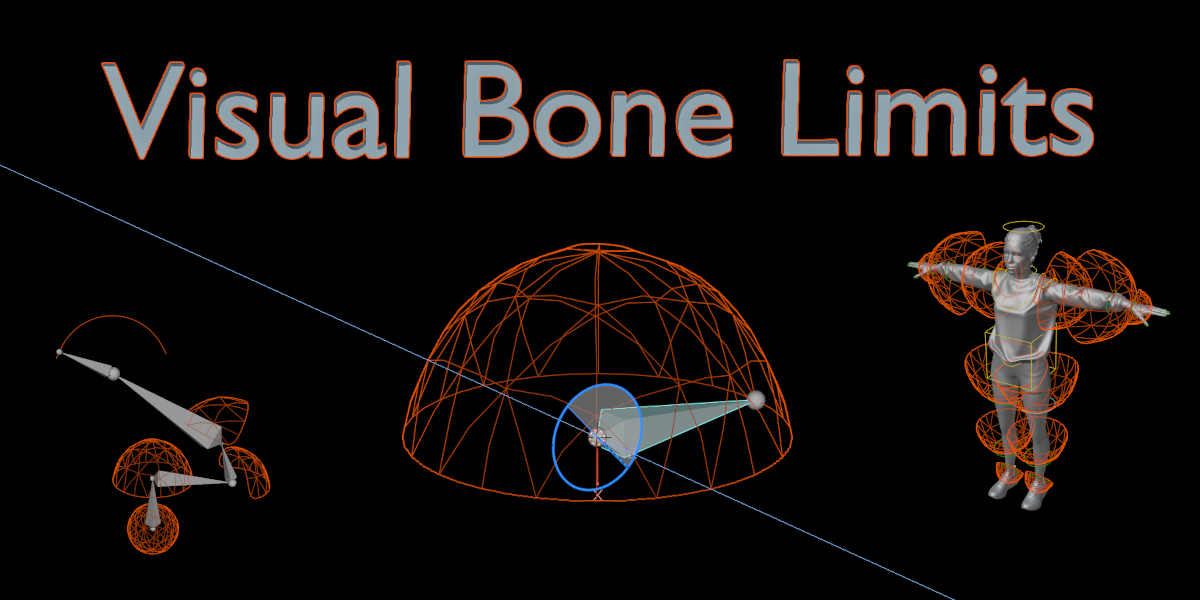
Visual Bone Limits is a Blender add-on that constrains bone rotation to mesh surfaces and displays the rotation limit space. Its product listing describes a one-click workflow for applying limits to selected bones.
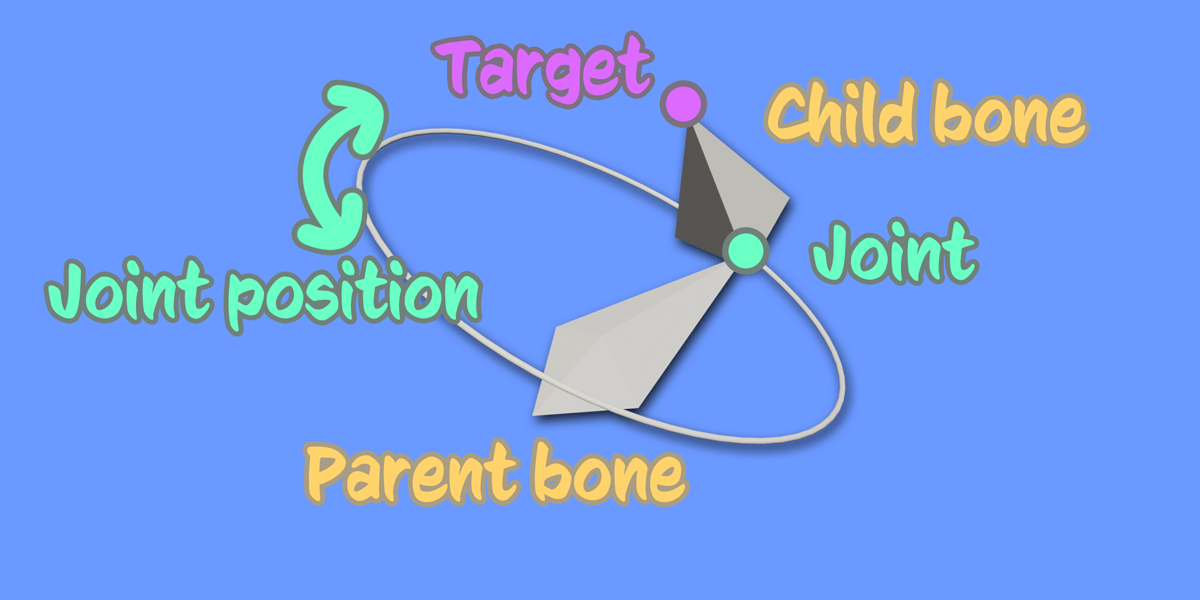
The listing says Blender's Limit Rotation constraint works well for one or two axes but can be difficult to set up across all three, and does not show the limit space visually. Visual Bone Limits provides a visible space to work with while posing. The listing does not claim that it replaces every use of Blender's constraint.
Apply a limit in Pose Mode
- Open the N-panel and select the Visual Bone Limits tab.
- Choose a limit type from the Limit Type drop-down list.
- In Pose Mode, select one or more bones; when working with Rigify, select an ORG- bone.
- Click “Add a limit(s) to selected bone(s).”
Turn off Display Constrained to see the controller bone's actual rotations.
Rigify and custom limit types
The listing names spines.super_head, limbs.super_limb, limbs.arm, limbs.leg, and basic.super_copy as supported Rigify types. It also says that the spine type is not currently supported, without clarifying how that exception relates to spines.super_head. Check the exact rig type before relying on compatibility.
You can add custom meshes as limit types by placing them in the Visual_Bone_Limits/Mesh_Templates collection. The product listing recommends a smooth sphere or part of a sphere and advises avoiding jagged edges.
Blender versions and installation
The listing names Blender 2.8, 2.81, 2.82, 2.83, 2.9, 2.91, 2.92, 2.93, and versions 3.0 through 3.4. It does not confirm support for later releases, so check the current product information if you use a newer Blender version. The listing identifies the license as GPL.
For the listed versions, the installation instructions are to open Edit > Preferences > Add-ons, click Install, select the downloaded visual-bone-limits.zip archive, and enable the add-on with its checkbox.
Limitation to consider
The listing says there is no feature to delete an added Visual Bone Limit. Blender's Undo works, and the listing advises saving rig backups. Test changes on a backup before applying limits to a rig you need to preserve.