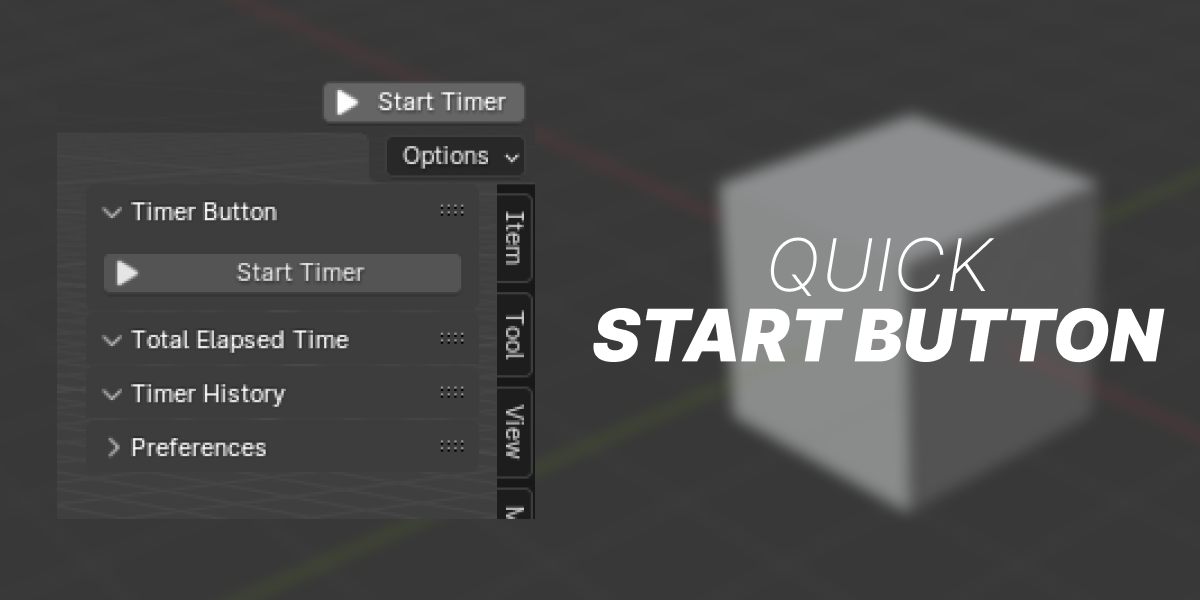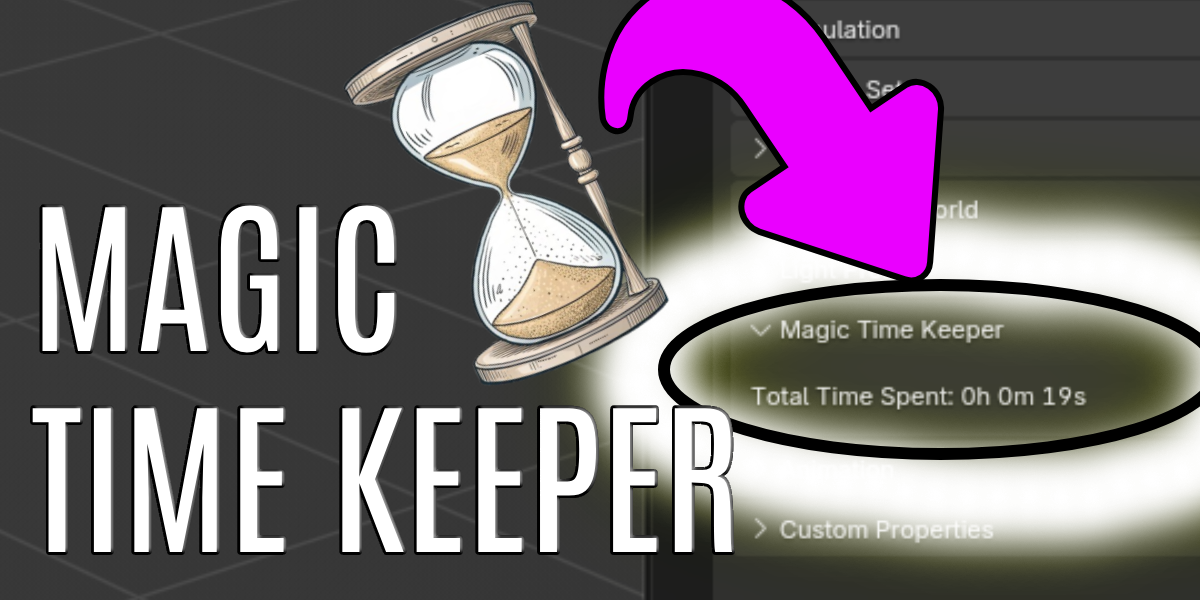
Work Time Tracker records time inside Blender and separates it into project stages such as Modeling or Texturing. It detects scene changes, starts counting when you work, and pauses after a configurable period without activity. The tracker appears in the 3D Viewport sidebar under the Time tab. See the product documentation for its controls and setup.
How activity tracking works
The add-on watches for scene updates, including moving objects, editing meshes, changing materials, and adding keyframes. Set the idle timeout from 5 to 600 seconds; the default is 30 seconds. When no activity is detected for the configured timeout, the tracker switches to idle. The interval between the last action and the idle cutoff is not counted, and tracking resumes when activity returns. Orbiting, panning, and zooming the viewport do not count, so the log measures scene editing rather than every minute Blender is open. You can also pause tracking manually, such as when you leave Blender open during a call or break.
Track work in separate stages
Create stages for the parts of a project you want to measure, then switch between them as work changes. Each stage keeps its own time total, displayed in hours, minutes, and seconds. You can create, rename, and switch stages from the panel. Deleting a stage permanently removes its recorded time, and the add-on keeps at least one stage in the list.
Time data stays with the project file
Work Time Tracker stores its data as custom properties in the active scene of the .blend file. No separate data file, account, cloud sync, or internet connection is needed. The time log remains available when you reopen a saved project, and it travels with the file if you share it with a colleague. Save the file regularly: if Blender crashes before a save, unsaved session time is lost while previously saved time remains.
Installation and compatibility
- Download
work_time_tracker.zipfrom the product listing. - In Blender, open Edit, then Preferences, then Add-ons.
- Choose Install, select the ZIP file, and enable System: Work Time Tracker.
- Open a 3D Viewport, press
N, and select the Time tab.
The documentation says Blender 3.0 or newer and lists no external dependencies; the product details currently specify Blender 3.0 through 5.1. Check the current product listing if you use a different Blender version. The listed release is version 2.1.0.
Who it may suit
Freelancers can use stage totals as a work log when reviewing billable time. Studio artists can record how long project tasks take, and solo creators can compare time across phases. The log is tied to Blender scene activity, so it does not track work in other applications or replace a separate timer for tasks that do not change the scene.